CUSTOMER SUPPORT
:
Email: support@captioncall.com
Phone: 1-877-557-2227
9
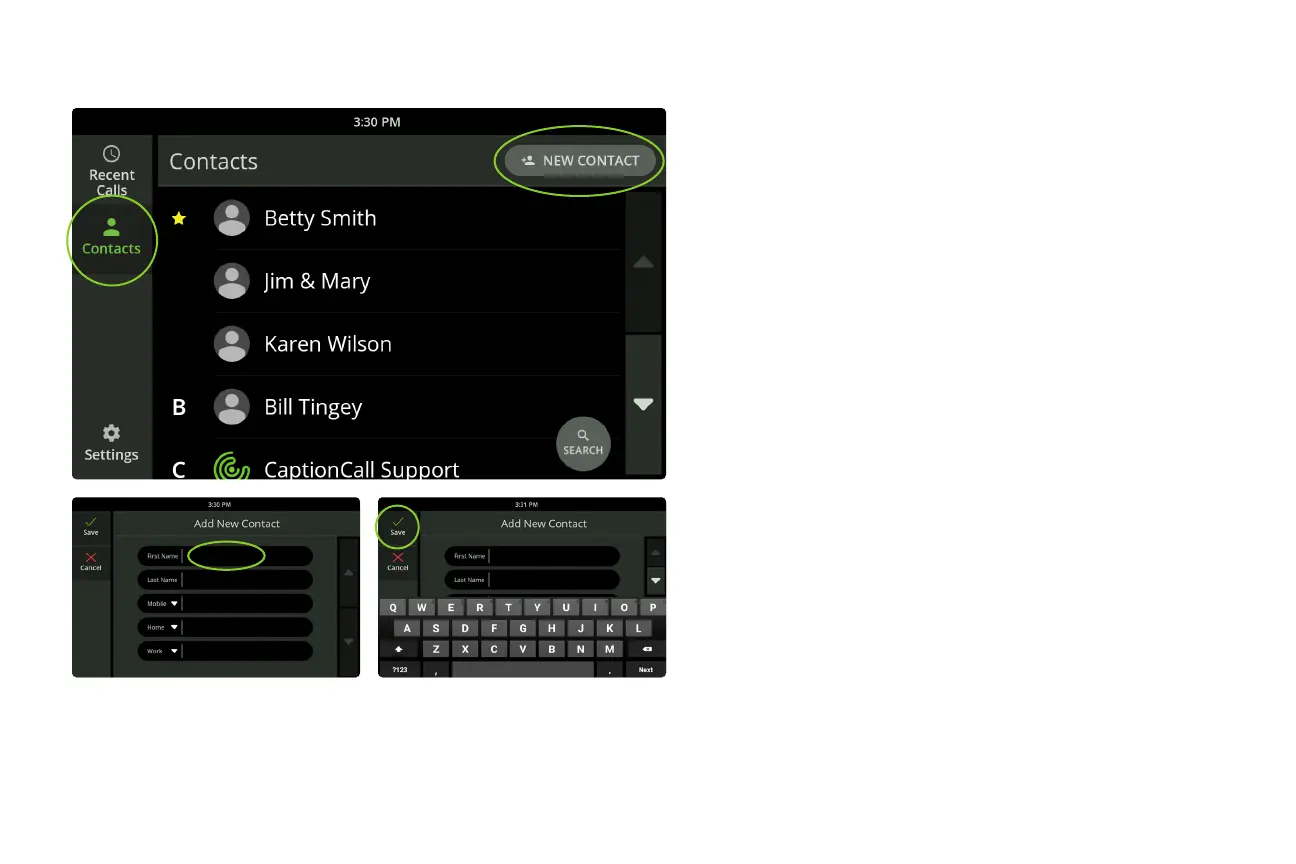
Touch the Contacts icon. To look for a name, use your
nger to swipe up or down the touchscreen. Your
contact list is alphabetical. Favorite contacts appear at
the top of the list.
Add or edit a contact
1. Touch the Contacts icon.
2. To add a new name, touch NEW CONTACT in the
top right.
To edit or delete a contact, touch the name on the
screen.
3. Touch each eld to enter your contact’s name and
phone number(s). For example, when you touch
First Name, use the keyboard that appears to type
in the person’s rst name. Touch another eld to
add the last name or phone number. You don’t
have to ll out every eld.
4. Touch the green Save checkmark in the top left
corner to save this information to your Contacts list.
Use Contacts



 To Next Page