Step 4: Test the VFD Spindle
To check to see that the VFD spindle is working properly with Carbide Motion:
1.
Flip the power switch on the side of VFD controller to the ON position.
2.
Press the Spindle Enable button on front of VFD controller to enable the spindle. The spindle is enabled
when the button is depressed and the button LED is on. The spindle is disabled when the LED is off.
3.
Tighten or remove the collet nut to make sure it won’t fly off.
4.
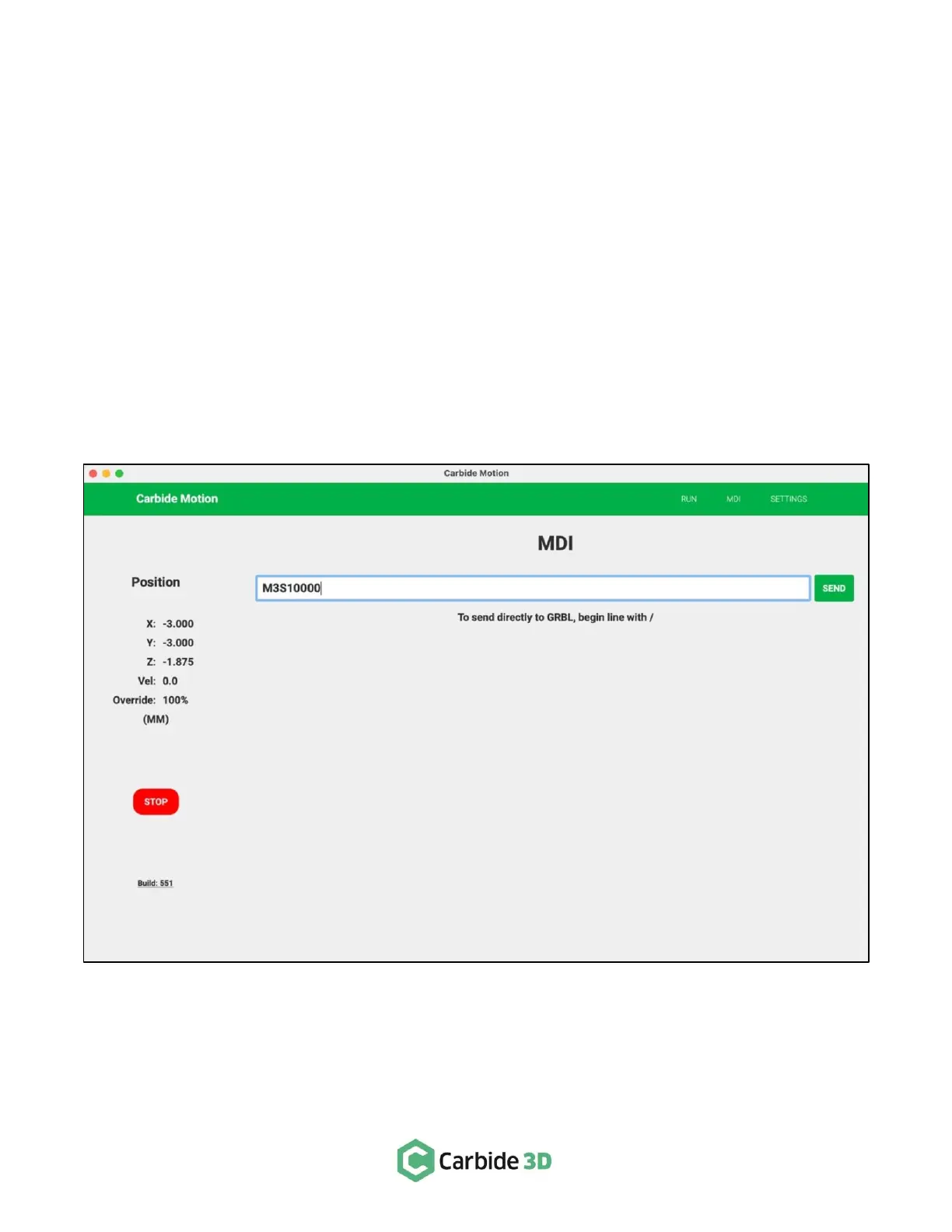
In Carbide Motion, click MDI in the menu bar to open the MDI screen.
5.
Type “M3S10000” in the command line and click the Send button. See Fig. 13.
The VFD should turn on after a few seconds. When viewed from above, you should see the spindle
spinning clockwise. You can check the RPM on the VFD controller display for the commanded RPM,
10000 (the RPM shown on the display may fluctuate by up to 5% due to the resolution of the control
signal and voltage variances).
6.
Type “M5” in the command line and click the Send button to turn off the spindle.
7.
Press the Spindle Enable button again to disable the spindle.



 To Next Page