SECTION 2 - CONTROLS, INSTRUMENTS AND OPERATION
2ï55
The layout of the Run2 screen immediately updates
to reflect the selection: a two column layout with four
rows for placing eight or less modules.
NOTE: The modules are dynamically sized on the Run
screen to fill the vertical area, whether 4, 5 or 6 rows are
selected.
Choosing modules
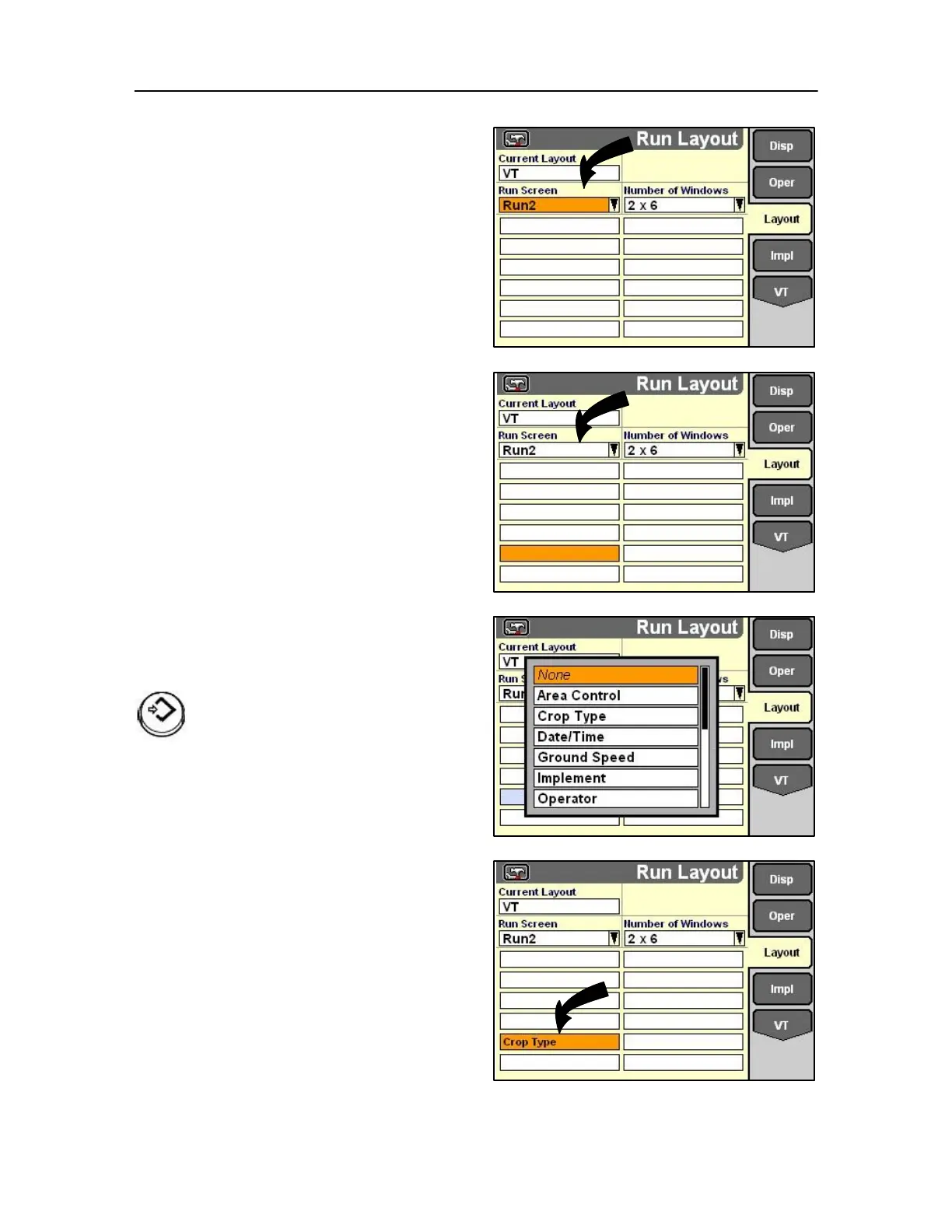
Highlight any window on the Run2 layout screen to
place a module from a software application - for
example, the planting or harvesting software.
NOTE: The software application must be present and
running so the Run Layout screen can access the modules.
NOTE: These examples are representative. They show the
operation of the Run Layout screen and do not represent
the available modules from a specific software program.
Press Select or touch to access the module pop-up
list.
Highlight the desired module.
Press Select or touch to confirm the selection.
The module label appears in the window.
To select more modules for placement, proceed in the
same fashion:
1. Highlight a window.
2. Press Select or touch to access the pop-up list.
3. Highlight the desired module for placement.
4. Press Select or touch to confirm the selection.



 To Next Page