Enabling Auto Pause
While Auto Pause is enabled, timing will pause
whenever you stop running.
1. Enter the Timekeeping Mode.
l
Navigating Between Modes
2. Press (B).
This displays the Training Mode screen.
3. Hold down (A) for at least two seconds.
This displays the Training Mode setting
screen.
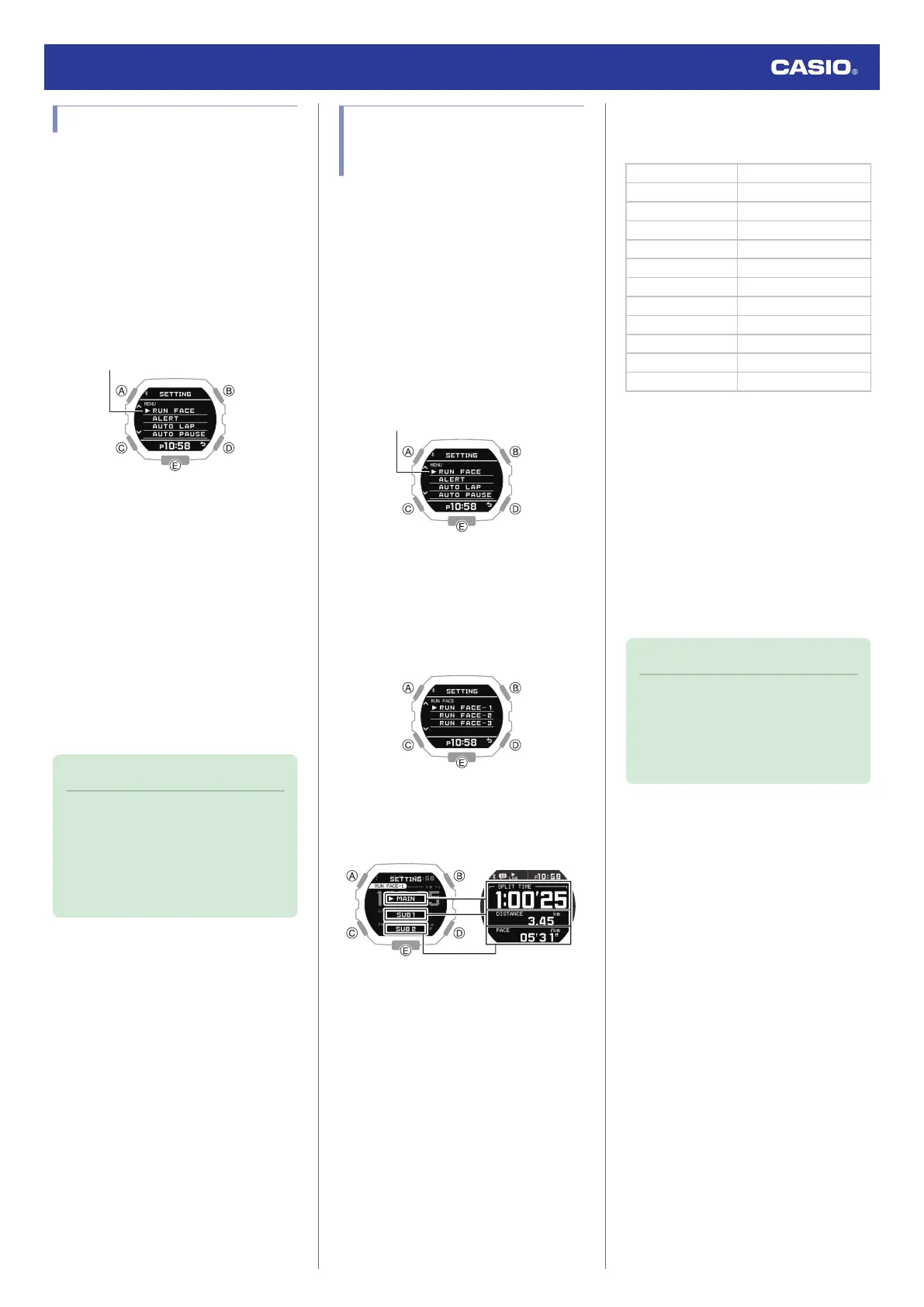
4. Use (A) and (C) to move the pointer to
[AUTO PAUSE].
5. Press (B).
6. Use (A) and (C) to move the pointer to
[ON] (enabled) or [OFF] (disabled).
7. Press (B) to complete the setting
operation.
After the setting operation is complete,
[SETTING COMPLETED] will appear for
a few seconds, and then the Training
Mode setting screen will re-appear.
8. Press (D) to exit the setting screen.
Note
●
The watch exits the setting operation
automatically after about two or three
minutes of non-operation.
●
You can also use the G-SHOCK
MOVE phone app to enable or disable
Auto Pause.
Specifying the Screen to be
Displayed During Running
(RUN FACE)
You can customize the items on the three
screens can be displayed during run timing
(Training Mode).
1. Enter the Timekeeping Mode.
l
Navigating Between Modes
2. Press (B).
This displays the Training Mode screen.
3. Hold down (A) for at least two seconds.
This displays the Training Mode setting
screen.
4. Use (A) and (C) to move the pointer to
[RUN FACE].
5. Press (B).
6. Use (A) and (C) to select the customize
screen (RUN FACE).
7. Press (B).
8. Use (A) and (C) to select the display area
whose contents you want to change.
9. Press (B).
10. Use (A) and (C) to select the item you want
to in the currently selected display area.
[SPLIT TIME] Split time
[DISTANCE] Running distance
[PACE] Pace
[LAP TIME] Lap time
[LAP DISTANCE] Lap distance
[LAP PACE] Lap pace
[AVG.PACE] Average pace
[SPEED] Speed
[AVG.SPEED] Average speed
[CALORIES] Calories burned
[TIME] Time
[DATE] Day
●
If you want to change the contents of
another display area, press (D) and
then select the display area you want.
Repeat steps 8, 9, and 10 above as
required.
11. Press (B) to complete the setting
operation.
After the setting operation is complete,
[SETTING COMPLETED] will appear for
a few seconds, and then the RUN FACE
setting screen will re-appear.
12. Press (D) twice to exit the setting screen.
Note
●
The watch exits the setting operation
automatically after about two or three
minutes of non-operation.
●
You can also use G-SHOCK MOVE to
customize display screen items.
Watch Operation Guide 3568
28



 To Next Page