EasyManua.ls Logo

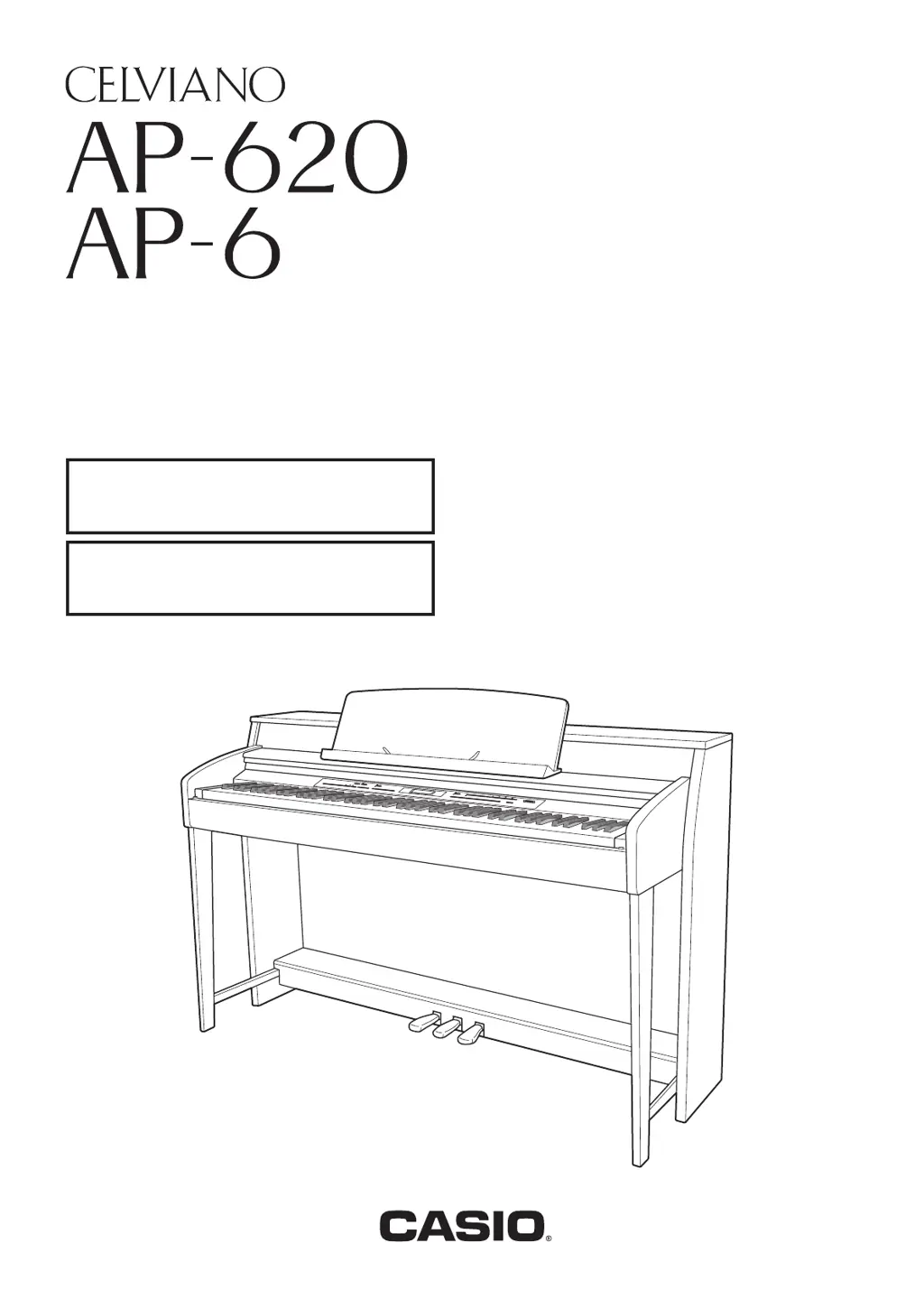
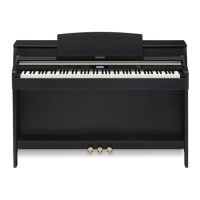
Casio Celviano 6ES1A - User Manual

Casio Celviano 6ES1A
79 pages
Print Icon
To Next Page IconTo Next Page
Loading...
AP620/6ES1A
ES
USER’S GUIDE
GUÍA DEL USUARIO
Please keep all information for future reference.
Guarde toda información para tener como referencia futura.
Safety Precautions
Before trying to use the piano, be sure to read
the separate “Safety Precautions”.
Precauciones de seguridad
Antes de intentar usar el piano, asegúrese de
leer las “Precauciones de seguridad” separadas.

Table of Contents

Questions and Answers

  • B
    butlerjulieJul 30, 2025
    How to fix a Casio Celviano 6ES1A Electronic Keyboard when no sound is produced?
    • R
      raymondtuckerJul 30, 2025
      If your Casio Electronic Keyboard produces no sound when you press a key, there could be a couple of reasons: 1. The VOLUME controller might be set to “MIN”. Try rotating the VOLUME controller towards “MAX”. 2. Headphones or an adapter plug might be plugged into one of the PHONES jacks. Disconnect anything connected to the PHONES jack.
  • L
    Lisa AdamsAug 5, 2025
    What to do if Casio Celviano 6ES1A playback stops during song data transfer?
    • J
      Jonathan FoxAug 5, 2025
      If playback stops while transferring song data to your Casio Electronic Keyboard from your computer, it may be due to digital noise from the USB cable or power cord interrupting data communication. To resolve this: * Stop song playback, disconnect, and then reconnect the USB cable. * Try playing the song again. If the problem persists, quit the MIDI software, disconnect, and then reconnect the USB cable. Restart the MIDI software and try again.
  • M
    mathew41Aug 11, 2025
    Why is the pitch off on my Casio Electronic Keyboard?
    • B
      bensonjeffreyAug 11, 2025
      If the pitch of your Casio Electronic Keyboard is off, here are a few potential causes and solutions: 1. The key setting might not be at “00”. Change the key setting to “00”, or turn the keyboard off and on again. 2. The tuning might be incorrect. Adjust the tuning or power cycle the keyboard. 3. A non-standard temperament setting may be in use. Change the temperament setting to “00:Equal”. 4. Octave shift might be enabled. Change the octave shift setting to 0.
  • A
    alexandertimothyAug 16, 2025
    What to do if I cannot transfer data to my Casio Electronic Keyboard?
    • H
      heather83Aug 16, 2025
      If you cannot transfer data after connecting your Casio Electronic Keyboard to a computer: 1. Ensure the USB cable is correctly connected to both the keyboard and the computer, and that the correct device is selected in your music software. 2. Turn off the keyboard, exit the music software, then turn the keyboard back on and restart the software.
  • A
    Alvin GlennAug 22, 2025
    Why do tones/effects sound strange on my Casio Celviano 6ES1A?
    • M
      moniquedillonAug 22, 2025
      If the tones or effects on your Casio Electronic Keyboard sound strange, and restarting doesn't help, it might be because the “Setting Backup” feature is turned on. Turn off “Setting Backup”, then power cycle the keyboard.

Summary

Safety Precautions

Important Safety Instructions

General Guide

Saving Settings and Using Panel Lock

Save current settings and lock buttons to prevent operation errors.

Returning the Digital Piano to Its Factory Default Settings

Procedure to restore the digital piano's stored data and settings.

Power Supply

Connections

Using Built-in Tones

Turning on the Digital Piano and Playing Something

Steps to turn on the digital piano and start playing.

Selecting a Tone

How to select one of the 250 built-in tones.

Using Auto Accompaniment

Playing an Auto Accompaniment

Select and play an accompaniment rhythm pattern.

Creating Your Own Original Rhythms

Edit built-in rhythms to create custom user rhythms.

Music Presets

Selecting a Music Preset

Choose preset settings optimized for musical genres.

Creating an Original User Preset

Create and save custom user presets.

Registering Tone and Rhythm Setups

Saving Registration Data

Save digital piano setups (tone, rhythm, tempo) for quick recall.

Recalling a Registration

Load previously saved registration data.

Recording Your Keyboard Play

Recording or Playing Back a Single Song

Record keyboard performances and play them back.

Deleting Recorder Data

Delete entire recorder songs or specific tracks.

Other Settings

Configuring Settings

Adjust tuning, touch, pedal, MIDI, and other parameters.

Using a Memory Card

Formatting a Memory Card

Prepare a memory card for use with the digital piano.

Saving Digital Piano Data to a Memory Card

Save user rhythms, presets, and recorder songs to a memory card.

Loading Data from a Memory Card

Load data from a memory card into digital piano memory.

Error Messages

Connecting to a Computer

Minimum Computer System Requirements

System requirements for connecting the digital piano to a computer.

Connecting the Digital Piano to Your Computer

Step-by-step guide to connect the piano to a computer via USB.

Assembling the Stand

Troubleshooting

Product Specifications

Operating Precautions

MIDI Implementation Chart

Casio Celviano 6ES1A Specifications

General IconGeneral
BrandCasio
ModelCelviano 6ES1A
CategoryElectronic Keyboard
LanguageEnglish

Related product manuals