EasyManua.ls Logo

Casio Exilim EX-S200 - User Manual

Casio Exilim EX-S200
187 pages
Print Icon
To Next Page IconTo Next Page
Loading...
1
E
To go to “Getting the Most Out of Dynamic Photo” click here!
Thank you for purchasing this CASIO product.
Before using it, be sure to read the precautions contained in this User’s Guide.
Keep the User’s Guide in a safe place for future reference.
For the most up-to-date information about this product, visit the official EXILIM
Website at http://www.exilim.com/
Digital Camera
User’s Guide

Table of Contents

Other manuals for Casio Exilim EX-S200

Questions and Answers

  • J
    Jacob TaylorAug 16, 2025
    How to fix a Casio Exilim EX-S200 that won't turn on?
    • C
      Courtney BraunAug 16, 2025
      If your Casio Digital Camera isn't powering on, try the following: * Charge the battery. If the battery drains quickly after being charged, it may need replacing. Consider purchasing a CASIO NP-120 rechargeable lithium ion battery. * Ensure the battery is correctly loaded. * Remove the battery and reload it.
  • S
    Sandra DavisAug 19, 2025
    What to do if my Casio Exilim EX-S200 Digital Camera suddenly powers down?
    • S
      Susan MirandaAug 19, 2025
      If your Casio Digital Camera is suddenly powering down, consider the following: * The Auto Power Off feature may have activated, so turn the power back on. * Charge the battery. * Turn off the camera and allow it to cool down before attempting to use it again.
  • T
    Trevor PetersonAug 22, 2025
    How to troubleshoot Auto Focus issues on a Casio Digital Camera?
    • M
      Mindy MartinAug 22, 2025
      If the Auto Focus on your Casio Digital Camera isn't working properly: * Clean the lens if it's dirty. * Ensure the subject is in the center of the focus frame when composing the image. * Use manual focus. * Try shooting with Anti Shake or use a tripod. * Half-press the shutter button and allow enough time for Auto Focus to focus.
  • J
    James LongAug 25, 2025
    Why is the monitor screen image out of focus on my Casio Digital Camera?
    • A
      Allison OwensAug 26, 2025
      If the monitor screen image is out of focus on your Casio Digital Camera: * If you're using Manual Focus, focus the image. * If you're using Macro for scenery or portraits, switch to Auto Focus. * Use Macro for close-ups.
  • N
    Nicole JonesAug 28, 2025
    Why does my Casio Digital Camera power down during the Self-timer countdown?
    • A
      Amanda MorrisAug 28, 2025
      If your Casio Digital Camera powers down during the Self-timer countdown, charge the battery.
  • J
    Jeremy MillsAug 31, 2025
    Why doesn't the flash fire on my Casio Exilim EX-S200?
    • H
      hickslisaAug 31, 2025
      If the flash on your Casio Digital Camera isn't working, consider the following: * If the flash mode is set to Flash Off (?), change it to another mode. * Charge the battery if it's dead. * If a BEST SHOT scene using Flash Off (?) is selected, switch to a different flash mode or BEST SHOT scene.
  • S
    Stephen BrooksSep 3, 2025
    Why isn't my Casio Exilim EX-S200 recording images when I press the shutter button?
    • C
      Courtney BarnesSep 3, 2025
      If your Casio Digital Camera isn't recording images when you press the shutter button: * If the camera is in PLAY mode, press the REC button to switch to REC mode. * If the flash is charging, wait for it to finish. * If a “Memory Full” message appears, transfer images to your computer, delete unnecessary images, or use a different memory card.
  • L
    Lisa BeardSep 6, 2025
    What to do if a recorded image was not saved on Casio Exilim EX-S200?
    • A
      Adam HarrisSep 6, 2025
      If a recorded image wasn't saved on your Casio Digital Camera: * If the battery indicator shows low battery, charge the battery as soon as possible. * Avoid removing the memory card before the saving process is complete.
  • N
    nguyenthomasSep 9, 2025
    How to fix Casio Exilim EX-S200 Digital Camera USB connection issues?
    • J
      jacobsmithSep 10, 2025
      If you're having trouble transferring images via USB with your Casio Digital Camera: * Ensure the USB cable is securely connected. * Select the correct USB communication protocol for your device. * Make sure the camera is turned on. * Connect the camera directly to the computer’s USB port, avoiding USB hubs.
  • B
    bauermarySep 12, 2025
    What to do if Auto Shutter doesn't trigger on Casio Exilim EX-S200?
    • D
      David MitchellSep 12, 2025
      If the Auto Shutter on your Casio Digital Camera doesn't trigger, especially in very bright or dark conditions, or with fast-moving subjects, try adjusting the Auto Shutter Trigger Sensitivity setting. Alternatively, fully press the shutter button to release it and capture the image.

Summary

Quick Start Basics

Shooting a Snapshot

Basic steps for taking a photograph using the camera.

First, charge the battery prior to use.

To charge the battery

Detailed procedure for charging the camera's battery.

Configuring Basic Settings the First Time You Turn On the Camera

Initial Setup Procedure

Guide for setting display language, date, and time upon first camera use.

Preparing a Memory Card

To format (initialize) a new memory card

Procedure for formatting a memory card before its first use.

Turning the Camera On and Off

To shoot a snapshot

Selecting an Auto Recording Mode

Guide to choosing between Auto and Premium Auto recording modes.

Deleting Snapshots and Movies

Snapshot Tutorial

Specifying Movie Image Quality

Using Flash (Flash)

Selecting a Focus Mode (Focus)

Specifying the Auto Focus Area (AF Area)

Using Face Detection (Face Detection)

Recording Movie Images and Audio

To Record a Movie

Instructions for setting movie quality and starting/stopping movie recording.

Using Prerecord Movie

Recording Audio Only (Voice Recording)

Using BEST SHOT

Advanced Settings

REC Mode Settings (REC)

How to activate the Anti Shake feature to minimize blur from movement.

Viewing Snapshots and Movies

Other Playback Functions (PLAY)

Dynamic Photo

To Create a Subject Image

Steps to extract a subject for Dynamic Photo creation.

Inserting a Subject into a Snapshot or Movie

Procedure for inserting extracted subjects into snapshots or movies.

Creating a Dynamic Photo Image

Steps to shoot and extract subjects to create Dynamic Photo images.

Converting a Dynamic Photo Still Image to a Movie

Procedure to convert Dynamic Photo images into a movie file.

Printing

Connecting Directly to a PictBridge Compatible Printer

Steps to configure the camera for direct printing via PictBridge.

Using the Camera with a Computer

Other Settings (Set Up)

Formatting Built-in Memory or a Memory Card (Format)

Formatting Procedure and Warnings

Steps for formatting storage media and important data loss warnings.

Resetting the Camera to Factory Defaults (Reset)

Factory Reset Procedure

How to restore the camera to its original factory default settings.

Appendix

Precautions during Use

General safety guidelines and warnings for operating the camera.

Smoke, abnormal odor, overheating, and other abnormalities

Procedures for handling abnormal camera behavior like smoke or overheating.

Data Error Precautions

Warnings about actions that can lead to data corruption in camera memory.

Power Supply

Charging the Battery

Information and troubleshooting for battery charging issues.

Using a Memory Card

When things don’t go right...

Troubleshooting Power Supply Issues

Solutions for problems related to camera power and battery.

Troubleshooting Image Recording Issues

Advice for problems with image capture, focus, and memory full errors.

Display Messages

Explanations and recommended actions for camera alert and error messages.

Casio Exilim EX-S200 Specifications

General IconGeneral
Megapixel14.1 MP
Camera typeCompact camera
Sensor typeCCD
Image stabilizerYes
Image sensor size1/2.3 \
Supported aspect ratios3:2, 16:9
Maximum image resolution4320 x 3240 pixels
Digital zoom6 x
Optical zoom4 x
Combined zoom63.8 x
Focal length range4.9 - 19.6 mm
Lens structure (elements/groups)6/5
InterfaceUSB 2.0
Digital SLRNo
Aperture range (F-F)3.2 - 8
Camera shutter speed1/2 - 1/2000 s
Compatible operating systems-
Focal length (35mm film equivalent)27 - 108 mm
Focus adjustmentAuto
Normal focusing range0.2 -? m
Auto focusing (AF) modesMulti Point Auto Focus, Single Auto Focus, Spot Auto Focus
Macro focusing range (tele)0.08 - 0.5 m
Light meteringCentre-weighted
ISO sensitivity100, 200, 400, 800, 1600, 3200, Auto
Flash modesAuto, Flash off, Manual, Red-eye reduction
Flash range (tele)0.4 - 2.4 m
Flash range (wide)0.2 - 4.4 m
Flash recharging time4 s
Internal memory34.9 MB
Compatible memory cardsSD, SDHC
Motion JPEG frame rate20 fps
Video formats supportedAVI, M-JPEG
Maximum video resolution1280 x 720 pixels
Display diagonal2.7 \
Display resolution (numeric)230400 pixels
USB version2.0
Scene modesself-portrait, Landscape (scenery)
Photo effectsBlack&White, Vivid
White balanceAuto, Daylight, Manual, Tungsten
Camera playbackSingle image
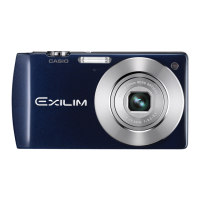
Product colorBlue
Battery typeNP-120
Battery life (CIPA standard)270 shots
Number of batteries supported1
Camera shutter typeelectronic, mechanical
Weight and Dimensions IconWeight and Dimensions
Depth17.8 mm
Width100.1 mm
Height55.3 mm
Weight132 g

Related product manuals