EasyManua.ls Logo

Casio Exilim EX-S10 - User Manual

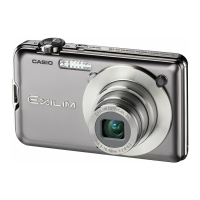
Casio Exilim EX-S10
167 pages
Print Icon
To Next Page IconTo Next Page
Loading...
1
E
Thank you for purchasing this CASIO product.
Before using it, be sure to read the precautions contained in this User’s Guide.
Keep the User’s Guide in a safe place for future reference.
For the most up-to-date information about this product, visit the official EXILIM
Website at http://www.exilim.com/
K1100PCM1DMX
Digital Camera
User’s Guide

Table of Contents

Questions and Answers

  • S
    stacymartinezAug 18, 2025
    Why does my Casio Exilim EX-S10 Digital Camera suddenly power down?
    • S
      Sandra HowardAug 19, 2025
      Your Casio Digital Camera might be powering down due to several reasons: * The Auto Power Off feature may be enabled, so turn the power back on. * The battery may be dead, so charge the battery. * The camera's protection function could be activated because the camera temperature is too high. In this case, turn off the camera and wait until it cools down before using it again.
  • J
    James SmithAug 21, 2025
    Why won't my Casio Exilim EX-S10 power on?
    • R
      Richard JonesAug 21, 2025
      Your Casio Digital Camera may not power on for the following reasons: * The battery may not be loaded correctly. * The battery may be dead. If the battery goes dead soon after being charged, it needs to be replaced. Purchase a separately available CASIO NP-60 rechargeable lithium ion battery.
  • J
    Jacob YuAug 23, 2025
    How to fix Casio Exilim EX-S10 Digital Camera auto focus?
    • C
      Christopher MillerAug 23, 2025
      If the auto focus on your Casio Digital Camera isn't working properly: * Clean the lens if it's dirty. * Ensure the subject is in the center of the focus frame when composing the image. * If the subject is not compatible with Auto Focus, use manual focus. * If you are moving the camera when shooting, try using Anti Shake or a tripod. * Half-press the shutter button and allow enough time for Auto Focus to focus.
  • V
    Vicki JonesAug 26, 2025
    Why is the subject out of focus in my Casio Exilim EX-S10 image?
    • J
      Jordan BerryAug 26, 2025
      If the subject is out of focus in your Casio Digital Camera image, make sure the subject is located inside the focus frame when composing the image.
  • A
    Anthony ReedAug 28, 2025
    What to do if my Casio Exilim EX-S10 Digital Camera image is not recorded when the shutter button is pressed?
    • D
      dnelsonAug 28, 2025
      If your Casio Digital Camera isn't recording images when you press the shutter button: * If the camera is in PLAY mode, press the REC button to enter REC mode. * If the flash is charging, wait until the charge operation finishes. * If a “Memory Full” message appears, transfer images to your computer, delete unwanted images, or use a different memory card.
  • C
    Cassandra MossAug 30, 2025
    How to fix digital noise in Casio Exilim EX-S10 Digital Camera images?
    • K
      Kristin MendezAug 30, 2025
      Digital noise in your Casio Digital Camera images can be caused by a few things: * If sensitivity has been increased automatically for a dark subject, try using a light to illuminate the subject. * If you're shooting in a dark location with the flash off, turn the flash on or use lights for illumination. * If flash assist or dynamic range is enabled, try using a light to illuminate the subject.
  • M
    Mark WolfSep 1, 2025
    What to do if my Casio Exilim EX-S10 won't turn off?
    • J
      Johnny HudsonSep 1, 2025
      If your Casio Digital Camera will not turn off, remove the battery from the camera and then reload it.
  • Y
    youngjoannSep 3, 2025
    Why does the flash not fire on my Casio Exilim EX-S10 Digital Camera?
    • D
      Dr. Richard MercerSep 4, 2025
      The flash on your Casio Digital Camera might not fire because: * If Flash Off is selected as the flash mode, change to another mode. * If the battery is dead, charge it. * If a BEST SHOT scene that uses Flash Off is selected, change to a different flash mode or select a different BEST SHOT scene.
  • T
    terryjessicaSep 6, 2025
    Why are faces dark in Casio Digital Camera images even with bright lighting?
    • A
      Anthony WilliamsSep 6, 2025
      If faces appear dark in your Casio Digital Camera images despite bright lighting, it could be because not enough light is reaching the subjects. Try changing the flash mode setting to Flash On for daylight synchro flash, or adjust EV shift to the + side.
  • A
    Amanda KingSep 8, 2025
    Why are subjects too dark in Casio Exilim EX-S10 Digital Camera images taken at the seashore or ski area?
    • A
      adamsnicoleSep 8, 2025
      If subjects are too dark when shooting images in a seashore or ski area with your Casio Digital Camera, it could be because sunlight reflected by water, sand, or snow can cause underexposure of images. Change the flash mode setting to Flash On for daylight synchro flash, or adjust EV shift to the + side.

Summary

Quick Start Basics

First, charge the battery prior to use.

Instructions on how to charge the camera's battery before initial use.

To charge the battery

Detailed steps for charging the camera's battery.

To load the battery

Instructions on how to properly insert the battery into the camera.

Configuring the Display Language the First Time You Turn On the Camera

Guide for initial camera setup including language and date/time.

To load a memory card

Step-by-step instructions for inserting a memory card.

To format (initialize) a new memory card

Guide on how to format a memory card before first use.

To shoot a snapshot

Basic procedure for taking a photograph with the camera.

Turning the Camera On and Off

Steps for powering the camera on and off.

To turn power on

Steps to power on the camera for operation.

To turn off the camera

Steps to properly power off the camera.

Recording Movie Images and Audio

To record a movie

Instructions for recording video footage with the camera, including audio.

Using BEST SHOT

To shoot an image with BEST SHOT

Step-by-step guide to using the BEST SHOT feature for optimal photos.

Advanced Settings

Using On-screen Menus

General guide on navigating the camera's menu system for settings.

REC Mode Settings (REC)

Settings related to the recording mode.

Using the Camera with a Computer

Configuring Monitor Screen Settings

Appendix

Precautions during Use

General safety guidelines and warnings for camera operation.

Avoid Use While In Motion

Warnings against using the camera while moving or operating vehicles.

Directly Viewing the Sun or Bright Light

Warning about looking at the sun through the viewfinder.

Flash

Precautions related to using the camera's flash unit.

Monitor Screen

Precautions for handling and caring for the camera's monitor screen.

Connections

Warnings about connecting unspecified external devices.

Transport

Precautions for operating the camera in restricted environments.

Smoke, abnormal odor, overheating, and other abnormalities

Actions to take if the camera exhibits unusual symptoms like smoke or heat.

Water and Foreign Matter

Precautions regarding exposure to liquids or foreign objects.

Dropping and Rough Treatment

Warnings against using the camera after it has been dropped or roughly handled.

Keep Away From Fire

Warning about exposing the camera to fire.

Disassembly and Modification

Warning against disassembling or modifying the camera.

Locations To Be Avoided

Guidance on environments to avoid when using the camera.

Backing Up Important Data

Recommendation to create backups of important data.

Memory Protection

Precautions when replacing the battery to protect memory data.

Rechargeable Battery

Safety precautions and guidelines for using the rechargeable battery.

Charger Unit Handling Precautions

Safety guidelines for using the battery charger unit.

Troubleshooting

Power Supply

Troubleshooting issues related to the camera not powering on or shutting down unexpectedly.

Image Recording

Troubleshooting problems encountered during image capture.

Playback

Troubleshooting issues encountered during image or movie playback.

Other

Troubleshooting for various issues like wrong date/time, language, or transfer errors.

Display Messages

ALERT

Explains the "ALERT" message, usually related to camera temperature.

Battery is low.

Information on the "Battery is low" message.

Cannot correct image!

Explains the "Cannot correct image" error, often related to keystone correction.

Cannot find the file.

Explains the "Cannot find the file" error, usually for slideshows.

Cannot register any more files.

Explains the "Cannot register any more files" error, related to BEST SHOT scenes.

Card ERROR

Explains the "Card ERROR" message and troubleshooting steps.

Check connections!

Explains the "Check connections" message, related to USB or printer connections.

Files could not be saved because battery is low.

Explains the error when files fail to save due to low battery.

Folder cannot be created.

Explains the error when trying to create new folders.

LENS ERROR

Explains the "LENS ERROR" message and recommended actions.

Load paper!

Explains the "Load paper" message during printing.

Memory Full

Explains the "Memory Full" message and how to free up space.

Printing Error

Explains various printing error messages.

Record Error

Explains "Record Error" related to image compression.

RETRY POWER ON

Explains the "RETRY POWER ON" message, often due to lens obstruction.

SYSTEM ERROR

Explains the "SYSTEM ERROR" message indicating camera corruption.

The card is locked.

Explains the message when the memory card is locked.

There are no files.

Explains the "There are no files" message.

There are no printing images.

Explains the message when no images are set for printing.

There is no image to register.

Explains the message when an image cannot be registered as a BEST SHOT scene.

This card is not formatted.

Explains the "This card is not formatted" message.

This file cannot be played.

Explains the "This file cannot be played" error.

This function cannot be used.

Explains the "This function cannot be used" error.

Casio Exilim EX-S10 Specifications

General IconGeneral
Megapixel10 MP
Camera typeCompact camera
Sensor typeCCD
Image sensor size1/2.3 \
Maximum image resolution3648 x 2736 pixels
Digital zoom4 x
Optical zoom3 x
Focal length range6.3 - 18.9 mm
Digital SLRNo
Built-in flashYes
Power consumption (typical)4.2 W
Focal length (35mm film equivalent)36 - 108 mm
Auto focusing (AF) modescontinuous auto focus, multi point auto focus, spot auto focus
Light meteringCentre-weighted, Spot
ISO sensitivity50, 100, 200, 400, 800, 1600
Light exposure modesAuto
Internal memory11.8 MB
Compatible memory cardsmmc, sd
Video formats supportedMOV
Maximum video resolution848 x 480 pixels
Display diagonal2.7 \
Display resolution (numeric)959 pixels
I/O portsA/V
USB version2.0
Image editingresizing, rotating, trimming
White balanceauto, daylight, Fluorescent, manual, Shade, Tungsten
Camera playbackmovie, single image, slide show
Self-timer delay10 s
Playback zoom (max)8 x
Product colorBlack
Number of batteries supported1
Flash modesauto, Flash off
Weight and Dimensions IconWeight and Dimensions
Depth14.9 mm
Width94 mm
Height54.5 mm
Weight112.5 g

Related product manuals