EasyManua.ls Logo

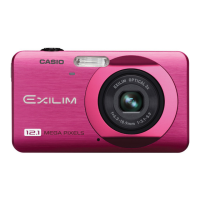
Casio Exilim EX-Z90 - User Manual

Casio Exilim EX-Z90
193 pages
Print Icon
To Next Page IconTo Next Page
Loading...
1
E
To go to “Getting the Most Out of Dynamic Photo” click here!
Thank you for purchasing this CASIO product.
Before using it, be sure to read the precautions contained in this User’s Guide.
Keep the User’s Guide in a safe place for future reference.
For the most up-to-date information about this product, visit the official EXILIM
Website at http://www.exilim.com/
Digital Camera
User’s Guide

Table of Contents

Questions and Answers

  • M
    Maria BarrettAug 14, 2025
    Why Casio Exilim EX-Z90 Digital Camera power does not turn on?
    • M
      mobrienAug 14, 2025
      If your Casio Digital Camera doesn't turn on, it could be due to several reasons. First, ensure the battery is correctly loaded. If that's not the issue, try charging the battery. If the battery drains quickly after being charged, it might be time to replace it with a new CASIO NP-60 rechargeable lithium ion battery. Also, try turning the power back on, or turn off the camera and wait until it cools down before trying to use it again.
  • B
    Barbara WalkerAug 17, 2025
    Why my Casio Exilim EX-Z90 auto focus does not focus properly?
    • A
      Alejandro JohnsonAug 17, 2025
      If the auto focus on your Casio Digital Camera isn't focusing properly, try these steps: First, ensure the lens is clean. If the subject isn't in the center of the focus frame, adjust your composition. If the subject is incompatible with Auto Focus, use manual focus. If you're moving the camera while shooting, try using Anti Shake or a tripod. Finally, half-press the shutter button and allow enough time for Auto Focus to focus before fully pressing it.
  • M
    Melissa AlvarezAug 20, 2025
    What to do if my Casio Exilim EX-Z90 Digital Camera suddenly powers down?
    • R
      Richard WeberAug 20, 2025
      If your Casio Digital Camera suddenly powers down, it could be due to Auto Power Off being activated. In this case, turn the power back on. Alternatively, the battery may need to be charged. If the issue persists, try turning off the camera and allowing it to cool down before attempting to use it again.
  • B
    Brian WillisAug 25, 2025
    Why the flash does not fire on my Casio Digital Camera?
    • J
      Jeremy MartinAug 25, 2025
      If the flash on your Casio Digital Camera isn't firing, first check if the flash mode is set to Flash Off. If it is, change to another mode. Also, ensure the battery is charged. Finally, if you're using a BEST SHOT scene that uses Flash Off, switch to a different flash mode or a different BEST SHOT scene.
  • K
    Katrina HarrisAug 27, 2025
    What to do if image is not recorded when the shutter button is pressed on Casio Exilim EX-Z90 Digital Camera?
    • S
      Sara MackAug 27, 2025
      If your Casio Digital Camera isn't recording images when you press the shutter button, make sure the camera is in REC mode by pressing the REC button. If the flash is charging, wait until it finishes. If a “Memory Full” message appears, transfer images to your computer, delete unnecessary images, or use a different memory card.
  • A
    amanda40Aug 30, 2025
    How to fix wrong date and time displayed on Casio Exilim EX-Z90 Digital Camera?
    • B
      Bryan HubbardAug 30, 2025
      If your Casio Digital Camera displays the wrong date and time, or stores incorrect date and time with your images, the date and time setting is likely off. Correct this by setting the correct date and time.
  • M
    Matthew RamirezSep 3, 2025
    How to fix images transfer issue over USB connection on Casio Exilim EX-Z90 Digital Camera?
    • U
      ucunninghamSep 3, 2025
      If you're having trouble transferring images over a USB connection with your Casio Digital Camera, first check that the USB cable is securely connected. Then, ensure the correct USB communication protocol is selected. Also, verify that the camera is turned on. Finally, connect the camera directly to your computer’s USB port instead of using a USB hub.
  • T
    Tabitha GonzalezSep 6, 2025
    How to change the display language on Casio Digital Camera?
    • J
      Jonathan FergusonSep 6, 2025
      If the messages on your Casio Digital Camera's display are in the wrong language, it means that the wrong display language is selected. To fix this, change the display language setting.
  • M
    Mrs. Joan ThomasSep 9, 2025
    Why Casio Digital Camera powers down during self-timer countdown?
    • J
      James FoxSep 9, 2025
      If your Casio Digital Camera powers down during the self-timer countdown, charge the battery.

Summary

Unpacking

Digital Camera Components

Lists all items included in the camera package for verification.

Read This First!

LCD Panel Characteristics

Critical safety warnings, copyright information, and usage notes for initial understanding.

Test Shots Recommendation

Minor procedural advice on taking test shots before final image capture.

Quick Start Basics

Charging the Battery

Step-by-step guide on how to charge the camera's battery before first use.

Basic Camera Settings

Instructions for configuring essential settings like language, date, and time.

Turning the Camera On and Off

Explains the procedure for powering the camera on and off.

Shooting a Snapshot

A guide to the basic steps for taking a photograph with the camera.

Viewing and Deleting Images

Instructions for reviewing still images and removing unwanted ones.

Snapshot Shooting Precautions

Important tips and restrictions to consider when taking snapshots.

Snapshot Tutorial

Using the Control Panel

Explains how to use the camera's control panel for quick setting adjustments.

Flash Settings

Details the various flash modes available for different shooting conditions.

Auto Focus Area Specification

Guides on selecting the area for the camera's autofocus system.

ISO Sensitivity Settings

Covers adjusting ISO sensitivity for optimal exposure in various lighting.

Face Detection Mode

Explains how the camera detects and focuses on human faces automatically.

Zoom Operation

Instructions on how to use the camera's optical and digital zoom features.

Recording Movie Images and Audio

How to Record a Movie

Step-by-step instructions for capturing video footage with the camera.

Using BEST SHOT

BEST SHOT Scene Modes

Introduces automatic scene optimization modes for various shooting scenarios.

Shooting with AUTO BEST SHOT

Explains how the camera automatically selects the best shooting scene.

Advanced Settings

Focus Mode Selection

Details the different auto and manual focus modes available for sharp images.

Image Quality Settings

Explains how to adjust snapshot and movie image quality settings for desired results.

White Balance Control

Guides on adjusting white balance for accurate color reproduction under various lighting.

Viewing Snapshots and Movies

Basic Snapshot Playback

Instructions for reviewing still images stored on the camera.

Viewing Movies on a TV

Explains how to connect the camera to a TV for movie playback.

Other Playback Functions (PLAY)

Laying Out Snapshots with Layout Print

Instructions for combining multiple photos into a single layout image.

Editing a Movie on the Camera

Details on how to trim or cut parts of recorded movie clips.

Keystone Correction

How to correct distorted shapes in images shot at an angle.

Dynamic Photo

To Create a Subject Image

Steps for extracting a subject from one image for use in another.

Inserting a Subject into a Background Image

Process for compositing an extracted subject onto a background image.

Printing

Connecting to a PictBridge Compatible Printer

Guide for direct camera-to-printer connection for printing.

DPOF Printing Settings

How to configure print order format for specifying images and copies.

Using the Camera with a Computer

Viewing and Storing Images on a Computer

Guide for transferring and managing photos and videos on a PC.

Built-in Memory and Card Handling Precautions

Important safety and data management advice for memory storage.

Other Settings (Set Up)

Setting the Camera’s Clock

Procedure for setting the correct date and time for accurate image data.

Formatting Memory

How to format built-in memory or memory cards, including reset options.

Configuring Monitor Screen Settings

Using On-screen Histogram for Exposure

Explains how to use the histogram to check and improve image exposure.

Appendix

Precautions during Use

General safety warnings and guidelines for operating the camera.

Troubleshooting

Common problems and their solutions for camera operation issues.

Specifications

Technical details and features of the camera model.

Casio Exilim EX-Z90 Specifications

General IconGeneral
Image Sensor1/2.3-inch CCD
Effective Pixels12.1 megapixels
Optical Zoom3x
Digital Zoom4x
Screen Size2.7 inches
Storage MediaSD/SDHC memory card
ISO SensitivityISO 64 / ISO 100 / ISO 200 / ISO 400 / ISO 800 / ISO 1600 equivalent
Battery Typerechargeable lithium-ion battery
Shutter Speed1/2000 sec

Related product manuals