EasyManua.ls Logo

Casio EXILIM EX-Z77 - User Manual

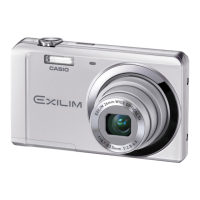
Casio EXILIM EX-Z77
265 pages
Print Icon
To Next Page IconTo Next Page
Loading...
1
E
Digital Camera
User’s Guide
Thank you for purchasing this CASIO product.
Before using it, be sure to read the precautions
contained in this User’s Guide.
Keep the User’s Guide in a safe place for future
reference.
For the most up-to-date information about this
product, visit the official EXILIM
Website at http://www.exilim.com/
EX-Z77
K828PCM2DMX

Table of Contents

Questions and Answers

  • A
    Amber GarciaSep 9, 2025
    Why the faces of people in Casio EXILIM EX-Z77 image are dark even with bright lighting?
    • J
      John KruegerSep 9, 2025
      If the faces of people in your Casio Digital Camera image are dark even with bright lighting, not enough light is reaching the subjects. Change the flash mode setting to Flash On for daylight synchro flash, or use adjust EV shift to the + side.
  • G
    Gregory NelsonAug 23, 2025
    Why my Casio Digital Camera power does not turn on?
    • T
      Thomas HarrisAug 23, 2025
      If your Casio Digital Camera power does not turn on, the battery may not be oriented correctly. Charge the battery. If the battery goes dead soon after being charged, it means the battery has reached the end of its life and needs to be replaced. Purchase a separately available CASIO NP-20 rechargeable lithium ion battery.
  • K
    Kenneth SloanAug 25, 2025
    Why is the subject out of focus in my Casio Digital Camera recorded image?
    • J
      James GarciaAug 25, 2025
      If the subject is out of focus in your Casio Digital Camera recorded image, the image may not be focused properly. When composing the image, make sure the subject is located inside the focus frame.
  • J
    Joel MorganAug 27, 2025
    How to fix out of focus monitor screen image on Casio EXILIM EX-Z77 Digital Camera?
    • E
      Elizabeth OwenAug 27, 2025
      If the monitor screen image is out of focus on your Casio Digital Camera, you may be using Manual Focus and have not focused the image, so focus the image. You may be using the macro mode for scenery or portraits, so use Auto Focus for scenery and portrait shots. You may be trying to use Auto Focus or the Infinity mode when shooting a close-up shot, so use the Macro mode for close ups.
  • L
    Leslie ThompsonAug 27, 2025
    How to fix the image being out of focus during movie recording on Casio EXILIM EX-Z77?
    • C
      Cheryl BishopAug 27, 2025
      If the image is out of focus during movie recording on your Casio Digital Camera, focusing is not possible because the subject is outside the focus range, so shoot within the allowable range. The lens may be dirty, so clean the lens.
  • W
    watsonshelbyAug 29, 2025
    What to do if my Casio EXILIM EX-Z77 Digital Camera image is not recorded when the shutter button is pressed?
    • H
      Howard WaltersAug 29, 2025
      If your Casio Digital Camera isn't recording images when you press the shutter button, it could be due to a few reasons. If the camera is in PLAY mode, press the REC button to enter REC mode. If the flash is charging, wait until the charge operation finishes. If the message “Memory Full” appears, transfer images to your computer, delete images you no longer need, or use a different memory card.
  • T
    Thomas HinesSep 17, 2025
    Why Recognition of a family member’s face is not recognized correctly on Casio Digital Camera?
    • J
      Justin SanchezSep 18, 2025
      If recognition of a family member’s face is not recognized correctly on your Casio Digital Camera, even though the face has been recorded, though face characteristics were recorded for your family member, the data may have been faulty, or the angle to the face or its expression may be making recognition difficult. Re-record the face of the family member who is not being recognized.
  • L
    Laurie ColemanSep 18, 2025
    How to fix issue when I can’t transfer images over a USB connection from Casio Digital Camera?
    • K
      Kayla LaneSep 22, 2025
      If you can’t transfer images over a USB connection from your Casio Digital Camera, the USB cable may not be connected securely, so check all connections. If your computer is running Windows 98SE or 98, the USB driver may not be installed, so install the USB driver, which you can download from the official EXILIM Website at http://www.exilim.com/. If your computer is running Windows 98SE or 98, the USB driver may be installed incorrectly, so reinstall the USB driver correctly. The wrong USB communication protocol may be selected, so select the correct USB communication protocol in accordance with the type of device you are connecting. If the camera is not turned on, turn it on.
  • K
    Karen FloydSep 7, 2025
    What to do if Casio EXILIM EX-Z77 image I shot was not saved?
    • S
      Samantha WilsonSep 8, 2025
      If a Casio Digital Camera image you shot was not saved, camera power may have been turned off before the save operation was complete. When the battery indicator shows a low battery, charge the battery as soon as possible. You may have removed the memory card from the camera before the save operation was complete, so do not remove the memory card before the save operation is complete.
  • W
    walkerjonathanSep 4, 2025
    What to do if the Casio EXILIM EX-Z77 display language setting screen appears when the camera is turned on?
    • T
      Thomas AndersonSep 4, 2025
      If the display language setting screen appears when your Casio Digital Camera is turned on, you did not configure initial settings after purchasing the camera or the battery may have been left with a dead battery, so check the camera setup. There may be a problem with the camera’s built-in memory management area. If this is the case, perform the reset operation to initialize the camera’s setup. After that, configure each setting. If the language selection screen does not re-appear when you turn the camera on, it means that the camera’s built-in memory management area has been restored. If the same message appears after you turn power back on, contact your retailer or a CASIO service center.

Summary

QUICK START BASICS

First, charge the battery

Step-by-step guide to charging the camera's rechargeable battery for initial use.

Configuring Display Language, Date, and Time Settings

Initial camera setup for language, date, and time preferences.

Shooting a Movie

Guide to recording video clips with the camera, including basic settings.

GETTING READY

Charging the Battery

Detailed, step-by-step instructions for charging the camera's rechargeable battery.

Using a Memory Card

Information on supported memory cards, insertion, and formatting procedures.

SHOOTING A SNAPSHOT

Shooting a Snapshot

Step-by-step guide to capturing still images, including focus and shutter operation.

SHOOTING A MOVIE

Shooting a Movie

Basic procedure for recording video clips, including starting and stopping.

ADVANCED SETTINGS

Changing the Focus Mode

Explanation of different focus options like Auto, Macro, Pan Focus, Infinity, and Manual.

Resetting the Camera to Its Initial Factory Defaults

Procedure to restore all camera settings to their original factory default state.

VIEWING SNAPSHOTS AND MOVIES

EDITING IMAGES

USING AUDIO

Recording Audio Only (Voice Recording)

Function for recording audio messages or sounds without capturing any images.

MANAGING YOUR FILES

DELETING FILES

Deleting a Specific File

Step-by-step guide to removing individual files from the camera's memory.

USING THE CAMERA WITH A COMPUTER

Using the Camera with a Windows Computer

Software and procedures for connecting and using the camera with Windows PCs.

Connecting the Camera to Your Computer the First Time

Initial setup steps for establishing a connection between the camera and a computer.

Disconnect the camera from the computer

Safely detaching the camera from the computer to prevent data corruption.

Transfer of Images from the Camera and Management of Images on Your Macintosh

Software and procedures for connecting and managing the camera on Mac computers.

APPENDIX

Menu Reference

Comprehensive list of camera menu items, options, and their default settings.

Troubleshooting Guide

Solutions for common problems and issues encountered while using the camera.

Display Messages

Explanations of error, warning, and status messages displayed by the camera.

Specifications

Technical details, features, and performance specifications of the camera.

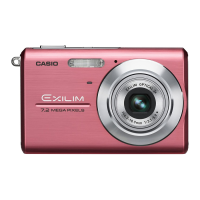
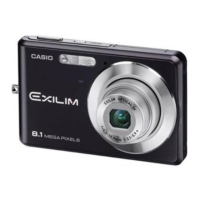
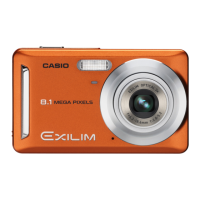
Casio EXILIM EX-Z77 Specifications

General IconGeneral
Digital SLRNo
Video capabilityYes
Dimensions (WxDxH)95 x 19.8 x 59 mm
Focal length (35mm film equivalent)38 - 114 mm
Product colorPink
USB version2.0
Display diagonal2.6 \
Display resolution (numeric)479 pixels
Compatible memory cardsmmc, sd
Megapixel7.2 MP
Sensor typeCCD
Image sensor size1/2.5 \
Digital zoom4 x
Optical zoom3 x
Combined zoom12 x
Focal length range6.3 - 18.9 mm
White balanceauto, manual
Flash modesauto, Flash off, manual, Red-eye reduction
Camera shutter typeelectronic, mechanical
Weight and Dimensions IconWeight and Dimensions
Depth19.8 mm
Width95 mm
Height59 mm
Weight118 g

Related product manuals