EasyManua.ls Logo

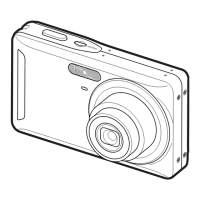
Casio EXILIM EX-Z33 - User Manual

Casio EXILIM EX-Z33
142 pages
Print Icon
To Next Page IconTo Next Page
Loading...
1
E
Thank you for purchasing this CASIO product.
Before using it, be sure to read the precautions contained in this User’s Guide.
Keep the User’s Guide in a safe place for future reference.
For the most up-to-date information about this product, visit the official EXILIM
Website at http://www.exilim.com/
Digital Camera
User’s Guide

Table of Contents

Questions and Answers

  • S
    Steven OwensAug 16, 2025
    How to fix Casio Digital Camera if power does not turn on?
    • S
      Steven GarrettAug 16, 2025
      If your Casio Digital Camera is not turning on, the battery may not be loaded correctly. Charge the battery. If the battery goes dead soon after being charged, it has reached the end of its life and needs to be replaced. Purchase an optionally available CASIO NP-80 rechargeable lithium ion battery.
  • J
    Jason TuckerAug 19, 2025
    Why does my Casio EXILIM EX-Z33 suddenly power down?
    • D
      Dana PowellSep 12, 2025
      If your Casio Digital Camera suddenly powers down, it could be due to several reasons. Auto Power Off may have activated, so turn the power back on. The battery might be dead, so charge it. Alternatively, the camera’s protection function may have activated because the camera temperature is too high; in this case, turn off the camera and wait until it cools down before trying to use it again.
  • I
    Isaiah StewartAug 22, 2025
    How to improve auto focus on Casio Digital Camera?
    • C
      Craig SimpsonAug 22, 2025
      If the auto focus on your Casio Digital Camera is not focusing properly, start by cleaning the lens. Ensure the subject is in the center of the focus frame. If the subject is incompatible with Auto Focus, use manual focus. If you are moving the camera when shooting, try using Anti Shake or a tripod.
  • K
    Kathryn JohnsonAug 25, 2025
    How to fix out of focus monitor screen image on Casio Digital Camera?
    • J
      Joseph MasonAug 25, 2025
      If the monitor screen image on your Casio Digital Camera is out of focus, and you are using Manual Focus, focus the image. If you are using ´ (Macro) for scenery or portraits, use Auto Focus for scenery and portrait shots. If you are trying to use Auto Focus or ) (Infinity) when shooting a close-up shot, use the ´ (Macro) for close ups.
  • K
    Kelly MitchellAug 27, 2025
    What to do if the image is not recorded when pressing the shutter button on Casio EXILIM EX-Z33?
    • T
      thomasdennisAug 27, 2025
      If images are not being recorded when you press the shutter button on your Casio Digital Camera, ensure the camera is in REC mode by pressing the [r] button. Also, if the flash is charging, wait for it to finish. If the message “Memory Full” appears, transfer images to your computer, delete unnecessary images, or use a different memory card.
  • M
    martinezfrancesAug 30, 2025
    What to do if the flash does not fire on Casio EXILIM EX-Z33?
    • A
      Amber WeaverAug 30, 2025
      If the flash on your Casio Digital Camera does not fire, and ? (Flash Off) is selected, change to another mode. If the battery is dead, charge it. If a BEST SHOT scene that uses ? (Flash Off) is selected, change to a different flash mode or select a different BEST SHOT scene.
  • M
    Mariah SanchezSep 2, 2025
    Why Casio Digital Camera powers down during Self-timer countdown?
    • R
      Ronald MurphySep 2, 2025
      If your Casio Digital Camera powers down during Self-timer countdown, the battery may be dead. Charge the battery.
  • S
    Sherry OwensSep 4, 2025
    How to reduce digital noise in images taken with Casio EXILIM EX-Z33 Digital Camera?
    • W
      williamdavisSep 5, 2025
      If there is digital noise in images taken with your Casio Digital Camera, it could be due to a few reasons. Sensitivity may have been increased automatically for a dark subject, which increases the chance of digital noise, so use a light or some other means to illuminate the subject. If you are attempting to shoot in a dark location with ? (Flash Off) selected, which can increase digital noise and make images appear coarse, turn on flash or use lights for illumination.
  • J
    John CookSep 7, 2025
    Why images cannot be transferred over USB from Casio EXILIM EX-Z33 Digital Camera?
    • C
      charlesriveraSep 8, 2025
      If images cannot be transferred over a USB connection with your Casio Digital Camera, check all connections to ensure the USB cable is securely connected. Also, ensure the correct USB communication protocol is selected. If the camera is not turned on, turn it on. If you are connecting via a USB hub, always connect directly to the computer’s USB port.
  • Z
    Zachary VelezSep 10, 2025
    Why language selection screen appears when Casio Digital Camera is turned on?
    • E
      Ethan RaySep 12, 2025
      If the language selection screen appears when you turn on your Casio Digital Camera, you may not have configured initial settings after purchasing the camera, or the battery may have been left with a dead battery. Check the camera setup. There may be a problem with the camera’s memory data. If this is the case, perform the reset operation to initialize the camera’s setup, and then configure each setting.

Summary

Read this first!

Quick Start Basics

First, charge the battery prior to use.

Instructions on charging the camera battery.

Preparing a Memory Card

Steps for inserting and formatting a memory card.

What you can do with your CASIO camera

BEST SHOT

Feature for selecting scene modes for automatic camera setup.

To format (initialize) a new memory card

Using the Control Panel

To record a movie

Shooting with BEST SHOT

Using scene modes for optimal movie recording.

Using BEST SHOT

Using On-screen Menus

REC Mode Settings (REC)

Selecting a Focus Mode (Focus)

How to choose different focus modes for shooting.

Connecting Directly to a PictBridge Compatible Printer

Using the Camera with a Windows Computer

Viewing and Storing Images on a Computer

To connect the camera to your computer and save files

Steps for transferring images to a PC.

Uploading Movie Files to YouTube

To upload a movie file to YouTube

Steps for uploading movies.

Using the Camera with a Macintosh

Formatting Built-in Memory or a Memory Card (Format)

Resetting the Camera to Factory Defaults (Reset)

Precautions during Use

Power Supply

Charging

Detailed instructions on charging the battery.

To replace the battery

Steps for replacing the camera battery.

Using a Memory Card

To replace the memory card

Steps to swap memory cards.

Reset Initial Default Settings

Troubleshooting

Power Supply

Solutions for power-related issues.

Image Recording

Solutions for problems with image capture.

Display Messages

Specifications

Casio EXILIM EX-Z33 Specifications

General IconGeneral
Megapixel10.1 MP
Camera typeCompact camera
Sensor typeCCD
Image stabilizerYes
Maximum image resolution3648 x 2736 pixels
Digital zoom4 x
Optical zoom3 x
Combined zoom12 x
Focal length range6.3 - 18.9 mm
InterfaceUSB, AV
Digital SLRNo
Camera shutter speed1/2 - 1/200 s
Focal length (35mm film equivalent)28 - 112 mm
Auto focusing (AF) modesmonitoring auto focus, multi point auto focus, spot auto focus
Macro focusing range (wide)0.1 - 0.5 m
Auto Mode focusing range (wide)0.1 - ∞ m
Light meteringCentre-weighted, Spot
ISO sensitivity64, 100, 200, 400, 800, 1600, 3200
Light exposure modesAuto
Flash modesauto, fill-in, Flash off, Red-eye reduction
Flash range (tele)0.4 - 1.6 m
Flash range (wide)0.1 - 2.9 m
Flash recharging time4 s
Internal memory35.7 MB
Compatible memory cardseye-fi, sd, sdhc
Motion JPEG frame rate24 fps
Video formats supportedAvi, M-JPEG
Maximum video resolution848 x 480 pixels
Audio systemMono
Display diagonal2.5 \
Display resolution (numeric)230400 pixels
USB version2.0
Image editingresizing, rotating, trimming
White balanceauto, Cloudy, daylight, manual, Shade, Tungsten
Camera playbackmovie, single image
Self-timer delay2, 2+10, 10 s
Playback zoom (max)8 x
Product colorBlue
Battery typeNP-80
Number of batteries supported1
Cables includedAV, USB
Camera shutter typeelectronic, mechanical
Weight and Dimensions IconWeight and Dimensions
Depth56.1 mm
Width94.1 mm
Height18.1 mm
Weight102 g

Related product manuals