EasyManua.ls Logo

Casio Privia PX-850 - User Manual

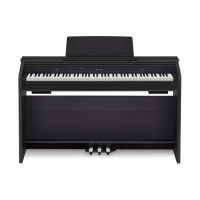
Casio Privia PX-850
56 pages
Print Icon
To Next Page IconTo Next Page
Loading...
PX850-ES-1B
ES
USER’S GUIDE
GUÍA DEL USUARIO
Please keep all information for future reference.
Guarde toda información para tener como referencia futura.
Safety Precautions
Before trying to use the Digital Piano, be sure to
read the separate “Safety Precautions”.
Precauciones de seguridad
Antes de intentar usar el piano, asegúrese de
leer las “Precauciones de seguridad” separadas.
EnglishEspañol
PX
-
850

Table of Contents

Questions and Answers

  • R
    Richard BlackJul 26, 2025
    What to do if the pitch of my Casio Privia PX-850 is off?
    • J
      Jacob MathisJul 26, 2025
      If the pitch of your Casio Musical Instrument is off, consider the following: 1. The key setting may be something other than “440.0Hz”. Change the key setting to “440.0Hz”, or turn the instrument off and then back on again. 2. The tuning may be incorrect. Adjust the tuning, or turn the instrument off and then back on again. 3. Octave shift may be enabled. Change the octave shift setting to 0. 4. A non-standard temperament setting may be in use. Change the temperament setting to “00: Equal”, which is the standard modern tuning.
  • K
    Kara LawsonJul 31, 2025
    Why is there no sound when I press a key on my Casio Musical Instrument?
    • S
      Shane AndrewsJul 31, 2025
      There are several reasons why your Casio Musical Instrument might not be producing sound: * The VOLUME controller may be set to “MIN”. Try rotating the VOLUME controller more towards “MAX”. * Headphones or an adaptor plug may be plugged into one of the PHONES jacks. Disconnect anything connected to the PHONES jacks. * MIDI Local control may be turned off. Turn the Local control setting on.
  • T
    Tiffany SanchezAug 5, 2025
    What to do if tones and/or effects sound strange on my Casio Musical Instrument?
    • L
      Lauren WilliamsAug 5, 2025
      If the tones and/or effects on your Casio Musical Instrument sound strange, and turning the power off and on doesn't help, the “Back up” feature might be turned on. Turn off “Back up”, then turn the power off and back on again.
  • R
    Ryan OlsenAug 10, 2025
    Why does it take so long to use my Casio Musical Instrument after turning it on?
    • P
      Paul HeathAug 10, 2025
      If it takes a long time before you can use your Casio Musical Instrument after turning it on, it may be due to corrupted memory data from a data transfer operation with a computer that was in progress when the instrument was last turned off. It takes about 20 seconds after you turn on the power to perform the memory format operation. Wait until the format operation is complete. Avoid turning off the instrument while a data transfer operation is in progress.
  • A
    anthonydiazAug 15, 2025
    What to do if nothing happens when I press a pedal on my Casio Musical Instrument?
    • J
      joshuarileyAug 16, 2025
      If nothing happens when you press a pedal on your Casio Musical Instrument, the pedal unit cable may not be connected. Make sure to connect the cable correctly.
  • D
    Dawn GardnerAug 20, 2025
    How to transfer data after connecting my Casio Musical Instrument to a computer?
    • N
      Nathaniel ArroyoAug 20, 2025
      1. Check to make sure that the USB cable is connected to the Digital Piano and computer, and that the correct device is selected with your computer’s music software. 2. Turn off the Digital Piano and then exit the music software on your computer. Next, turn the Digital Piano back on and then restart the music software on your computer.

Summary

Important Safety Instructions

Notice and Warnings

Declaration of Conformity

Manufacturer details and compliance statement for EU directives.

General Guide

Control Panel Overview

Diagram and labels for piano controls and ports.

FUNCTION Button Basics

Explains the function of the FUNCTION button for configuration.

Saving Settings and Operation Lock

Describes saving current settings and locking buttons for error prevention.

Power Outlet

Turning Power On or Off

Instructions for powering the Digital Piano on and off.

Auto Power Off Feature

Explains the auto power-off feature and how to disable it.

Playing with Different Tones

Selecting and Playing a Tone

How to choose and play one of the 18 built-in tones.

Bass Tones (BASS 1, BASS 2)

Explains how to use BASS tones to split the keyboard.

Adjusting Piano Sound Characteristics

Adjusts Hammer Response, String Resonance, and Lid Simulator settings.

Layering Two Tones

Combines two different tones to sound simultaneously for richer sound.

Adjusting Layered Tone Volume Balance

Controls the volume balance between two layered tones.

Using Effects (Reverb & Chorus)

Explains how to use Reverb and Chorus effects to enhance sound.

Using the Digital Pianos Pedals

Details the functions of the damper, soft, and sostenuto pedals.

Using the Metronome

How to set the metronome beat and tempo for practice.

Playing a Piano Duet

Enables playing the keyboard as two separate keyboards for duet practice.

Adjusting Duet Keyboard Octaves

Modifies the octave range of the left and right keyboards in Duet Mode.

Playing Back a Song

Playing Back All Built-in Songs

Plays demo playback of all 60 built-in songs in sequence.

Playing Specific Music Library Songs

Selects and plays back specific songs from the Music Library (01-70).

Practicing Music Library Songs

Allows turning off left or right hand parts for practice.

Playing Back Audio Data from USB

Plays back WAV audio files stored on a USB flash drive.

Recording and Playback

Recording to Built-in Song Memory

Records keyboard performances into the Digital Piano's internal memory.

Using the SONG RECORDER Button

Explains the states and functions of the SONG RECORDER button.

Recording to a Specific Song Track

Records to either Track 1 or Track 2, allowing multi-track recording.

Recording with Other Track Playback

Records to one track while listening to another track's playback.

Playing Back Recorded Songs

Plays back songs stored in the Digital Piano's internal memory.

Deleting Recorded Data

Deletes specific tracks of recorded songs from memory.

Recording to USB Flash Drive (Audio)

Records performances as audio files (WAV) to a USB flash drive.

Recording Digital Piano Playback to USB

Records Digital Piano performance directly to USB as audio data.

Deleting Audio Files from USB

Deletes audio files from a USB flash drive.

Configuring Settings with the Keyboard

How to Configure Settings

Step-by-step guide to changing settings using the FUNCTION button and keys.

Keyboard Setting Operation Types

Explains the four types of operations (A, B, C, D) used for settings.

Keyboard Keys for Configuration

Identifies specific keyboard keys used for various setting adjustments.

Parameter List

Tone and Metronome Parameters

Lists parameters for tones, tempo, song select, song volume, and metronome.

Keyboard and MIDI Parameters

Details transpose, tuning, octave shift, temperament, and MIDI settings.

Operation Tone, Backup, and Lock Settings

Explains settings for operation tone, backup, and operation lock.

USB Flash Drive

Supported USB Flash Drive Operations

Overview of formatting, data storage, loading, and deleting operations.

Storing Standard Audio Data (WAV)

How to store WAV files to the USB flash drive for playback.

USB Flash Drive Handling Precautions

Important precautions for using USB flash drives and ports safely.

Connecting and Detaching USB Drives

Step-by-step guide for inserting and removing USB flash drives.

Formatting a USB Flash Drive

Instructions for formatting a USB flash drive for use with the Digital Piano.

Saving Songs to USB Flash Drive

Saves recorded songs from the Digital Piano to a USB flash drive as MIDI files.

Loading Songs from USB to Memory

Loads user song data from a USB flash drive into the Digital Piano's Music Library.

Deleting Data from USB Flash Drive

Deletes song data from the "MUSICLIB" folder on a USB flash drive.

Simple Playback of USB Songs

Plays user songs directly from a USB flash drive without loading.

USB Flash Drive Error Indicators

Explains error types indicated by lamps during data transfer.

Connecting to a Computer

Minimum Computer System Requirements

Lists the minimum OS, and hardware requirements for computer connection.

Connecting the Digital Piano to Your Computer

Step-by-step guide for physically connecting the Digital Piano to a computer via USB.

Understanding MIDI

Explains what MIDI is and its role in digital musical instruments.

Transferring Song Data with Computer

How to transfer recorded songs and load library songs to/from a computer.

Managing Computer Data Transfer

Details folder structures and file management for data transfer.

Transferring Recorder Data to Computer

Moves recorded song data from the Digital Piano to a computer for storage.

Getting Ready

Assembling the Stand

Instructions and parts list for assembling the piano stand.

Connecting Cables

How to connect the pedal unit cable and the AC adapter.

Installing the Music Stand

Steps for attaching the music stand to the piano.

Opening and Closing the Piano Lid

Instructions for safely opening and closing the piano lid.

Power Outlet and AC Adaptor

Information on using the AC adaptor and power outlet precautions.

Connecting Headphones

How to connect headphones for private practice.

Connecting Audio Equipment

How to connect external audio equipment or amplifiers.

Bundled and Optional Accessories

Information on included and optional accessories.

Reference

Troubleshooting

Solutions for common problems encountered with the Digital Piano.

Product Specifications

Detailed technical specifications of the PX-850 Digital Piano.

Operating Precautions

Guidelines for safe and proper operation and maintenance.

AC Adaptor Handling Precautions

Specific safety and handling instructions for the AC adaptor.

Appendix

Tone List

A list of all available tones and their program change numbers.

Song List

A list of all 60 built-in songs with their titles and numbers.

MIDI Implementation Chart

Details MIDI messages transmitted and recognized by the piano.

Casio Privia PX-850 Specifications

General IconGeneral
TypeDigital Piano
Number of Keys88
Key ActionTri-sensor Scaled Hammer Action Keyboard II
Touch Response3 sensitivity levels, off
Polyphony (Maximum)256
Tones18
Lesson FunctionYes
MetronomeYes
Key TransposeYes
Amplifier Output20W + 20W
ModesLayer, Split
RecordingYes
TransposeYes
TuningYes
Sound SourceMulti-dimensional Morphing AiR Sound Source
Digital EffectsReverb (4 types), Chorus (4 types), Brilliance, DSP
Acoustic SimulatorDamper Resonance
Recorder2 tracks, 1 song
Data CapacityApproximately 5, 000 notes (MIDI Recorder)
Pedals3 (Sustain, Soft, Sostenuto)
Tuning ControlA4 = 415.5 Hz ~ 440.0 Hz ~ 465.9 Hz
Speakers12 cm x 2 + 5 cm x 2
TerminalsUSB
Songs60
Power SupplyAC Adaptor
Included AccessoriesAC adaptor

Related product manuals