EasyManua.ls Logo

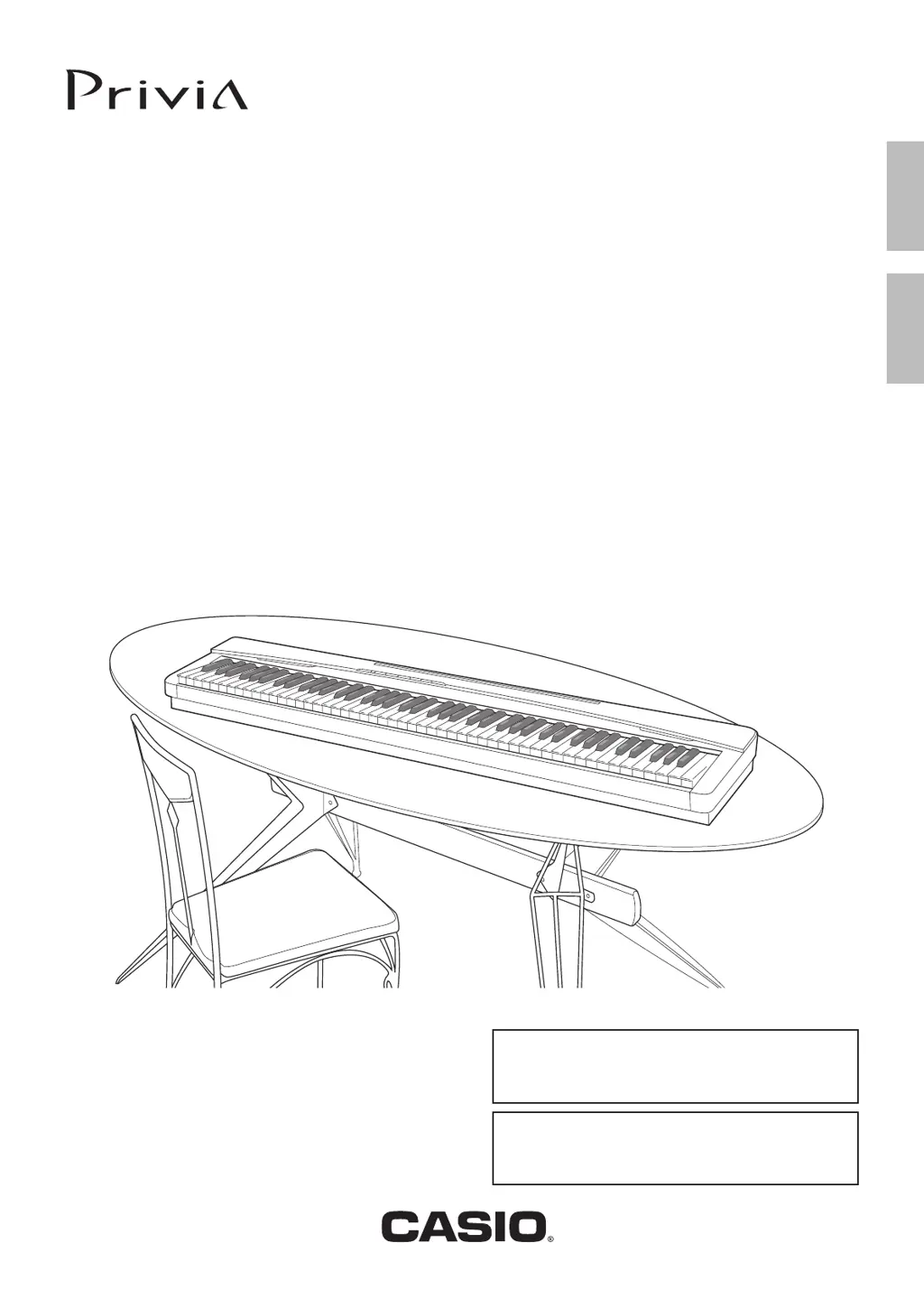
Casio Privia PX-150 - User Manual

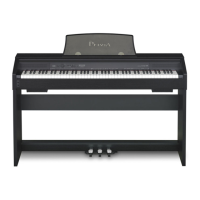
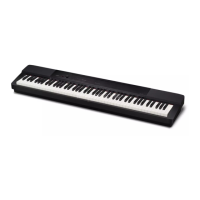
Casio Privia PX-150
38 pages
Print Icon
To Next Page IconTo Next Page
Loading...
PX150-ES-1A
ES
USER’S GUIDE
GUÍA DEL USUARIO
Please keep all information for future reference.
Guarde toda información para tener como referencia futura.
Safety Precautions
Before trying to use the piano, be sure to read
the separate “Safety Precautions”.
Precauciones de seguridad
Antes de intentar usar el piano, asegúrese de
leer las “Precauciones de seguridad” separadas.
EnglishEspañol
PX
-
15 0

Table of Contents

Questions and Answers

  • R
    Regina RodriguezJul 26, 2025
    Why is the pitch off on my Casio Privia PX-150 Musical Instrument?
    • W
      wwilliamsJul 26, 2025
      If the pitch of your Casio digital piano is off, check the key setting and change it to “0”. You can also try turning the digital piano off and then back on. Ensure the octave shift setting is set to 0. Also, make sure that the temperament setting is set to “00:Equal”, which is the standard modern tuning.
  • S
    stephensdarrellAug 1, 2025
    What to do if tones sound strange on my Casio Musical Instrument?
    • S
      shurleyAug 1, 2025
      If tones and/or effects on your Casio Musical Instrument sound strange, and restarting doesn't help, ensure that the “Back up” feature is turned off. After turning it off, power cycle the instrument.
  • S
    solisjosephAug 6, 2025
    How to troubleshoot no sound when pressing keys on my Casio Musical Instrument?
    • G
      Glen LeonardAug 7, 2025
      If no sound comes out when you press a key on your Casio Musical Instrument, first ensure that the VOLUME controller isn't set to “MIN”; if it is, rotate it towards “MAX”. Also, check if headphones or an adapter plug are connected to the PHONES jacks, and if so, disconnect them. Finally, verify that MIDI Local control is turned on.
  • R
    Ryan DixonAug 13, 2025
    Why does my Casio Privia PX-150 Musical Instrument take so long to turn on?
    • C
      courtneymillerAug 13, 2025
      If your Casio Digital Piano takes a long time to start, it might be due to corrupted memory data from a previous data transfer with a computer. The device will take about 20 seconds to format the memory. Wait for this process to complete before using the piano. To prevent this, avoid turning off the Digital Piano during data transfers with a computer.
  • S
    Stephanie BryantAug 19, 2025
    What to do if I cannot transfer data on my Casio Musical Instrument?
    • V
      Victor BrownSep 12, 2025
      If you cannot transfer data after connecting your Casio digital piano to a computer, ensure the USB cable is properly connected to both the piano and the computer, and that the correct device is selected in your music software. If the issue persists, turn off the digital piano, exit the music software, then turn the piano back on and restart the software.

Summary

Safety and Warnings

Important Safety Instructions

Key guidelines to reduce risk of fire or shock.

FCC Compliance Notice

Information regarding digital device interference limits.

Getting Started and Basic Operations

Control Panel Overview

Diagram of buttons, controls, and ports.

FUNCTION Button Operations

How to use the FUNCTION button for settings.

Saving and Locking Settings

Save current settings and prevent accidental changes.

Power Management

Using the AC adaptor and power on/off procedures.

Connections and Accessories

Connecting Headphones and Audio Equipment

Link headphones or external audio devices.

Connecting Pedals and Accessories

Use pedal units and understand accessory use.

Musical Features and Performance

Selecting and Playing Tones

Choose from 18 built-in sounds.

Layering Tones and Using Effects

Combine sounds and add reverb/chorus.

Using the Metronome

Practice tool for rhythm and timing.

Playing a Piano Duet

Split keyboard for two players.

Song Library and Recording

Playing Built-in Songs

Play all or specific songs from the library.

Practicing Library Songs

Isolate parts for focused practice.

Recording and Playback Functions

Capture and replay performances.

Deleting Recorded Data

Remove unwanted recordings.

Advanced Configuration

Keyboard Settings Configuration

Adjust tones, effects, metronome, MIDI.

Keyboard Keys for Settings

Visual guide to key assignments for settings.

Computer Connectivity and MIDI

Minimum Computer System Requirements

Ensure compatibility for connection.

Connecting Piano to Computer

Establish USB connection.

Transferring Song Data

Move songs between piano and computer.

Understanding MIDI

Basics of Musical Instrument Digital Interface.

Reference: Troubleshooting and Specifications

Troubleshooting Common Issues

Solutions for sound, pitch, and connection problems.

Product Specifications

Technical details of the digital piano.

Operating Precautions

Guidelines for safe and proper use.

AC Adaptor Handling Precautions

Safety rules for the power adapter.

Appendix and MIDI Data

Tone List

Comprehensive list of available instrument sounds.

Song List

Catalog of built-in musical pieces.

MIDI Implementation Chart

Technical MIDI communication details.

Casio Privia PX-150 Specifications

General IconGeneral
Touch Response3 sensitivity levels, Off
Sound SourceMulti-dimensional Morphing AiR
Polyphony128 notes
Tones18 built-in tones
Built-in Songs60 (Music Library)
Lesson FunctionPart on/off (Lesson part: right hand, left hand)
Recorder2 tracks, 1 song
Amplifier Output8W + 8W
Power SupplyAC adaptor (AD-A12150LW)
Power Consumption18W
Dimensions1, 322 x 286 x 135 mm (without music stand)
Weight11.1 kg (without music stand)
Keyboard88-key Tri-sensor Scaled Hammer Action Keyboard II
Digital EffectsReverb (4 types), Chorus (4 types), Brilliance
Data CapacityApproximately 5, 000 notes
MetronomeBeats: 0, 2, 3, 4, 5, 6 beats; Tempo range: 20 to 255
PedalsSP-3 sustain pedal (included)
Speakers12 cm x 2
TerminalsHeadphones (standard stereo jack)
Included AccessoriesAC adaptor (AD-A12150LW), Music stand, Pedal (SP-3)

Related product manuals