EasyManua.ls Logo

Casio Privia PX-560M - User Manual

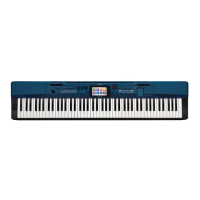
Casio Privia PX-560M
105 pages
Print Icon
To Next Page IconTo Next Page
Loading...
PX560-ES-1A
EN/ES
Safety Precautions
Before trying to use the Digital Piano, be sure to
read the separate “Safety Precautions”.
Precauciones de seguridad
Antes de intentar usar el piano digital, asegúrese
de leer las “Precauciones de seguridad” separadas.
USER’S GUIDE
GUÍA DEL USUARIO
Please keep all information for future reference.
Guarde toda información para tener como referencia futura.
EnglishEspañol
PX
-
560M
This recycle mark indicates that the packaging conforms to
the environmental protection legislation in Germany.
Esta marca de reciclaje indica que el empaquetado se
ajusta a la legislación de protección ambiental en Alemania.
MA1506-A Printed in China
C
PX560-ES-1A.indd 1 2015/06/18 14:53:40

Table of Contents

Questions and Answers

  • A
    Allison CookAug 1, 2025
    How to fix no sound when pressing keys on Casio Privia PX-560M?
    • E
      Elizabeth HunterAug 1, 2025
      If no sound comes out when you press a key on your Casio Musical Instrument, here's what to check: 1. Make sure the VOLUME controller isn't set to “MIN”. Try rotating it towards “MAX”. 2. See if headphones or an adapter plug are plugged into the PHONES jack. If so, disconnect them. 3. Ensure the Upper 1 icon is on. Touch the icon to turn it on. 4. Verify that the “Speaker” SYSTEM SETTING is enabled.
  • R
    reyesdarylAug 7, 2025
    What to do if Casio Privia PX-560M Musical Instrument tones sound strange?
    • M
      Megan LeeAug 7, 2025
      If your Casio Musical Instrument's tones or effects sound strange, and restarting it doesn't help (for example, the note intensity doesn't change with key pressure), the “Auto Resume” feature might be the culprit. To resolve this, turn off the “Auto Resume” feature. Then, turn the power off and back on again.
  • E
    erinvegaAug 13, 2025
    Why is the pitch off on my Casio Musical Instrument?
    • Z
      Zachary AndersonAug 13, 2025
      If the pitch of your Casio Musical Instrument is off, it could be due to several reasons: 1. The instrument's tuning might be incorrect. Try adjusting the tuning or simply turning the instrument off and then back on. 2. The key setting might be set to something other than “440.0 Hz”. Change it to “440.0 Hz”, or try turning the power off and back on. 3. A non-standard temperament setting could be in use. Change the temperament setting to “Equal”, the standard modern tuning. 4. Octave shift might be enabled. Change the octave shift setting to 0.
  • E
    Edward RobinsonAug 25, 2025
    What to do if I cannot transfer data to my Casio Privia PX-560M Musical Instrument?
    • E
      Elizabeth CarpenterAug 26, 2025
      To solve the problem of not being able to transfer data after connecting your Casio Musical Instrument to a computer: 1. Check that the USB cable is correctly connected to both the instrument and the computer, and that the correct device is selected in your computer’s music software. 2. Turn off the instrument, then exit the music software. Turn the instrument back on, and then restart the music software.
  • R
    Rebecca BaileySep 10, 2025
    What to do if playback stops during data transfer to Casio Privia PX-560M Musical Instrument?
    • A
      Autumn AverySep 12, 2025
      If playback stops while transferring song data from your computer to your Casio Musical Instrument, digital noise from the USB cable or power cord may be interrupting the data communication. Here are some solutions: * Stop song playback, disconnect, and then reconnect the USB cable from the instrument. Try playing the song again. * If the problem persists, quit the MIDI software, disconnect, and then reconnect the USB cable. Restart the MIDI software and try playing the song again.

Summary

Important Safety Instructions

Safety Precautions

Essential safety guidelines to follow before operating the Digital Piano.

General Guide

Installing the Music Stand

Instructions for attaching the music stand to the piano.

Saving Settings and Panel Lock

How to save settings and lock controls to prevent accidental changes.

Factory Default Settings

Procedure to reset all settings to their original factory defaults.

LCD Panel

Description of the LCD screen and its pixel characteristics.

Power Outlet

Using an AC Adaptor

Instructions on how to use the AC adapter and precautions.

Turning Power On or Off

Steps to turn the digital piano on and off.

Auto Power Off

Information about the automatic power-off function.

Connections

Connecting Headphones

How to connect and use headphones with the piano.

Connecting a Pedal

Instructions for connecting damper and sustain pedals.

Connecting Audio Equipment or Amplifier

How to connect external audio devices for sound output.

Operations Common to All Modes

Display Screen Layout

Explanation of the display screen layout and navigation.

Performing Operations

How to perform operations using the touch panel.

Playing with Different Tones

Selecting and Playing a Tone

How to select and play different tones.

Splitting the Keyboard between Two Tones

How to set up the keyboard to play two different tones.

Layering Two Tones

How to layer two different tones to play simultaneously.

Sounding Arpeggio Phrases Automatically (Arpeggiator)

How to use the arpeggiator to play phrases automatically.

Editing a Tone

Editing a Tone

Steps to edit and save a tone.

Editable Melody Tone Parameters

Details on editable parameters for melody tones.

Editable Drum Tone Parameters

Details on editable parameters for drum tones.

Using Auto Accompaniment

Playing an Auto Accompaniment

How to play using auto accompaniment patterns.

Demo Song

Playing the Demo Tunes

How to play the built-in demo songs.

Music Presets

Recalling Preset Data

How to recall and use preset tone, rhythm, and other settings.

Creating an Original User Preset (User Presets)

How to create and save custom music presets.

Registering Tone and Rhythm Setups

To save registration data

How to save tone, rhythm, and other settings for quick recall.

Recording and Playback

Recording Features

Overview of MIDI and Audio Recorder features.

Recording to Digital Piano Memory (MIDI Recorder)

Step-by-step guide to recording with the MIDI recorder.

To re-record part of a recorder song (Punch-in Recording)

How to re-record sections using punch-in.

Recording to a USB Flash Drive (Audio Recorder)

How to record audio to a USB flash drive.

Configuring Digital Piano Settings

TONE Screen

How to configure tone and keyboard settings.

RHYTHM Screen

How to configure Auto Accompaniment settings.

BALANCE Screen

How to adjust volume levels for various parts.

EFFECT Screen

How to apply various acoustic effects.

SYSTEM SETTING Screen

How to configure global system settings.

CONTROLLER Screen

How to configure pedal and pitch bend wheel settings.

USB Flash Drive

Types of Data

Overview of data types supported by USB flash drives.

USB Flash Drive and USB Flash Drive Port Handling Precautions

Safety precautions for using USB flash drives.

Formatting a USB Flash Drive

How to format a USB drive on the piano.

Loading Data from a USB Flash Drive to Digital Piano Memory

How to load data from USB to piano memory.

Connecting to a Computer

Minimum Computer System Requirements

System requirements for connecting to a PC.

To connect the Digital Piano to your computer

Steps for connecting the piano to a computer.

Using MIDI

Explanation of MIDI technology.

Reference

Error Messages

Explains common error messages and their solutions.

Troubleshooting

Common problems and their solutions.

Product Specifications

Technical specifications of the digital piano.

Inputs;Outputs

List of available input and output ports.

Operating Precautions

AC Adaptor Handling Precautions

Safety and usage instructions for the AC adapter.

MIDI Implementation Chart

MIDI Implementation Chart

Technical chart detailing MIDI message support.

Casio Privia PX-560M Specifications

General IconGeneral
Touch Response3 sensitivity levels, Off
Polyphony256 notes
Rhythms200 built-in rhythms
Keyboard88 keys, Tri-Sensor Scaled Hammer Action Keyboard II
Sound EngineAiR (Acoustic and Intelligent Resonator)
Tones550 tones
EffectsReverb, Chorus, DSP effects
Recorder/Sequencer16-track recorder
Audio Recording/PlaybackAudio playback (WAV format)
Display5.3-inch color LCD
USBUSB to HOST, USB to DEVICE
MIDIYes (GM Level 1 standard)
Headphones2 x 1/4" headphone outputs
Line OutL/MONO, R
Microphone InputYes
ConnectivityPedal inputs (damper, assignable)

Related product manuals