3
4
Click
AC
1
2
3
4
km/h ↔ mph
Increase
Move digits
(by pressing
& holding)
Register the
setting
Register
the setting
Clear all data (initialization)
Press the AC button on the back.
Select the desired speed units
Select “ ” or “ ”.
Enter the tire circumference
Enter the tire circumference of your bicycle in mm.
* Refer to the tire circumference reference table.
Set the clock
When MODE is pressed and held, “Displayed
time”, “Hour”, and “Minute” will appear, in
this order.
How to install the unit on your bicycle
24h ↔ 12h,
or increase
the value
Switch the
screen or
move digits
(by pressing
& holding)
Register
the setting
(finish)
Preparing the computer
Measure wheel
circumference (L) of your bike
To get the most accurate
calibration do a wheel roll out.
With the valve stem
perpendicular to the ground,
mark the pavement at the valve
stem. With the riders weight
on the bike, roll the wheel one
tire revolution in a straight line
and mark the ground when the
valve stem is perpendicular to
the ground again. Measure the
distance in millimeters. This is
the most accurate wheel
calibration number.
1 Bracket band
2 Bracket
3
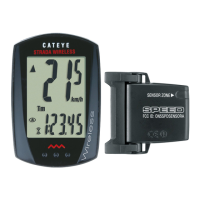
Speed sensor
4 Magnet
5 Sensor rubber pad
6 Bracket rubber pad
7 Nylon ties (x2)
Battery case cover
Push!
When the computer is
mounted on the bracket
: Speed unit
: Wheel size icon
: Sensor signal reception icon
WARNING / CAUTION
• Do not concentrate on the computer while riding. Ride safely!
• Install the magnet, sensor, and bracket securely. Check these periodically.
• If a child swallows a battery, consult a doctor immediately.
• Avoid having the computer in direct sunlight for unnecessary or extended periods.
• Do not disassemble the computer.
• Do not drop the computer. Doing so may result in a computer malfunction or damage.
• When using the computer installed on the bracket, change the MODE by pressing on the three dots below
the screen. Pressing hard on other areas can result in malfunction or damage to the computer.
• Tighten the dial on the Flex-Tight bracket by hand only. Over-tightening can damage the bracket
threads.
• When cleaning the computer, bracket and sensor, do not use thinners, benzene, or alcohol.
• Dispose of used batteries according to local regulations.
• LCD screen may be distorted when viewed through polarized sunglass lenses.
Wireless Sensor
The sensor was designed to receive signals within a maximum range of 70 cm, to reduce chance of
interference.
When adjusting the wireless sensor, note the following:
• Signals cannot be received if the distance between the sensor and the computer is too great.
• The transmission distance may be shorter due to low temperature or low battery.
• Signals can be received only when the back of the computer is facing the sensor.
Interference may occur, resulting in incorrect data, if the computer is:
• Near a TV, PC, radio, motor, or in a car or train.
• Close to a railroad crossing, railway tracks, TV stations and/or radar base.
• Using with other wireless devices in close proximity.
Install the sensor and magnet
Install the magnet
C
The clearance
between the
sensor surface
and the magnet
must not
exceed 5 mm.
B
The magnet
must pass
through the
sensor zone.
A
The distance between the computer
and the sensor must not exceed the
transmission range of 70 cm. The back
of the computer must face the sensor.
Install the sensor
Sensor zone
Inside of right front fork
Inside of right front fork
Max
70 cm
YES! NO!
Spoke
Toward the
sensor zone
* Install the sensor as close to the upper
part of the front fork as possible.
Pull
securely
While supporting it by hand,
push it out as if lifting the front up
Handlebar
Cut
Caution:
Make sure that the back of the computer faces the sensor.
* The computer may not function appropriately on some stem if its back does not
face the sensor as shown in
A
.
When attaching the bracket to the handlebar
When attaching the bracket to the stem
Attach the bracket to the stem or handlebar
Remove/install the computer
Caution:
Round off the cut edge of the
bracket band to prevent injury.
* After installation, rotate the front wheel gently to check that the speed is displayed on the
computer. If the speed is not displayed, check that conditions
A
,
B
, and
C
, above, have
been done appropriately.
Stem
ENG
Before using the computer, please thoroughly read this manual and keep it for
future reference.


 To Next Page
 Need help?
 General