CD42 Pipeline Pig Location & Tracking System
Page 26
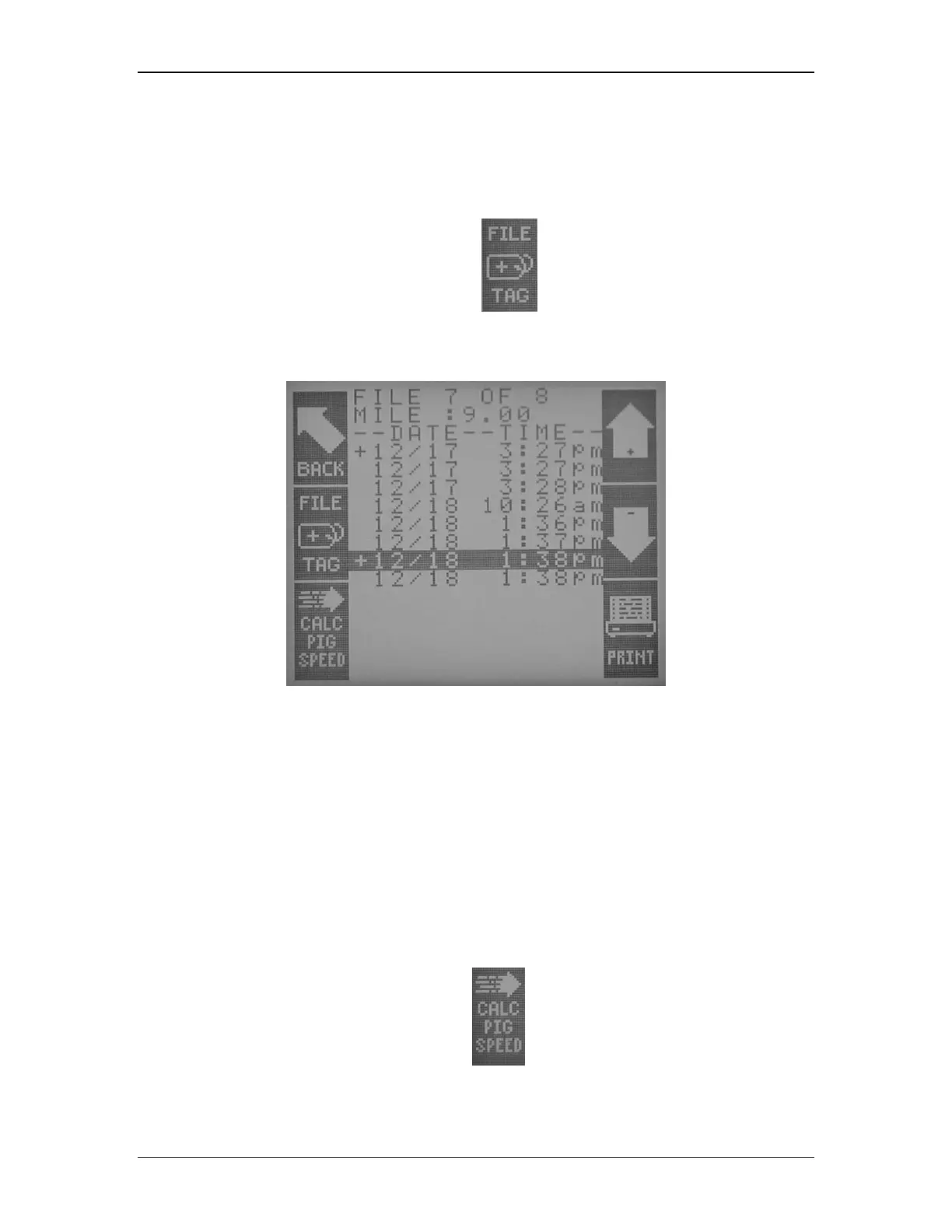
The list of available PIC files is displayed on the screen, each noting the time, date and Location ID
of each pig pass. Using the up and down buttons, highlight the first file to be tagged. Pressing the
File Tag button (Figure 31) places a plus (+) sign next to the tagged file (Figure 32). Repeat this
procedure for the second file to be tagged. If you would like to untag a file simply highlight the
selected file, press the File Tag button once more, and the file is no longer tagged.
Figure 31 File Tag Icon
Figure 32 Two Files Tagged
These files will stay tagged until the file is erased, or the operator chooses to untag the file.
Calculate a Pig’s Speed
In order to calculate a pig‟s speed as it moves through the pipeline, accurate Location ID‟s must be
used when recording a pig passage. Knowing the distance traveled is a critical component in
calculating the pig‟s speed.
To access the Calc Pig Speed function, press the More button on the File Submenu. First, make
sure two file recordings have been tagged, as described in the previous section. After the desired
files have been tagged, press the Calc Pig Speed button ( Figure 33).
Figure 33 Calculate Pig Speed Icon



 To Next Page