36 | CONGA 5490
ENGELSK
Press the time button to save the settings.
Scheduling cleaning tasks
Long press the schedule button for 3 seconds. The rst 2 digits, indicating
the hour, will start blinking.
Fig.22.
Use the up and down direction buttons to set the schedule time. Then, use
the left and right buttons to switch from hours to minutes and repeat the
before step.
Fig.23.
Press the schedule button again to save the settings.
To cancel the scheduled cleaning, follow the below steps:
Set the clock on the remote control at 00:00 a.m. and save it.
Switch the robot o for 1 minute and switch it on again.
Note: The robot will beep to indicate all settings have been saved.
Warning: When the remote control’s batteries are replaced, the clock and
schedule times must be set again.
Light indicator:
Operating: Steady blue light.
Low power: Orange light blinks slowly.
Charging: Orange light oscillates.
Network conguration: Blue light.
Start-up/rmware update: Blue light oscillates.
Error: Red light ashes quickly.
6. Mobile App and Wi-Fi connection
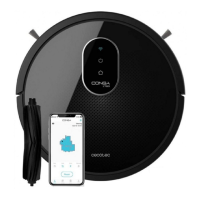
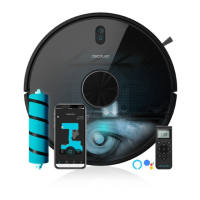
In order to access all the robot’s functions from wherever you are, it is sug-
gested to download the Conga 5000 App. You will be able to control the ro-
bot in the most ecient way, enjoying the excellence of cleaning.
App advantages:
Control your robot in an easy and intuitive way.
Activate the cleaning process from any point.
Carry out settings and daily scheduling.
Choose between its dierent cleaning modes: Auto, Spiral, Edge, Manual,
Twice, Restricted area, Spot, Smart area, back home or Scrubbing.
View how the robot creates an interactive map as it is cleaning.
Manage rooms smartly through its Room Plan function, which allows you to




 To Next Page