EasyManua.ls Logo

cecotec VQU10050 - Connecting to the Internet

cecotec VQU10050
Print Icon
To Next Page IconTo Next Page
To Previous Page IconTo Previous Page
Loading...
English - 24 -

on the screen.
Press Blue        
        
Yellow button to see
detailed information on the highlighted event. You can
also use the Red and Green buttons to see events
     
assigned to the coloured buttons on the remote when
they are available. Follow the on-screen information
for accurate button functions.
Press the Record button to add a timer for the
        
Schedule type
as Reminder or Record
Green button. The timer will be added
to the schedule list. You can access the schedule list
from the Record
DTV
is blocked from the Settings>Channel>Parental
Controls>Inputs Blocked
on Home Screen.
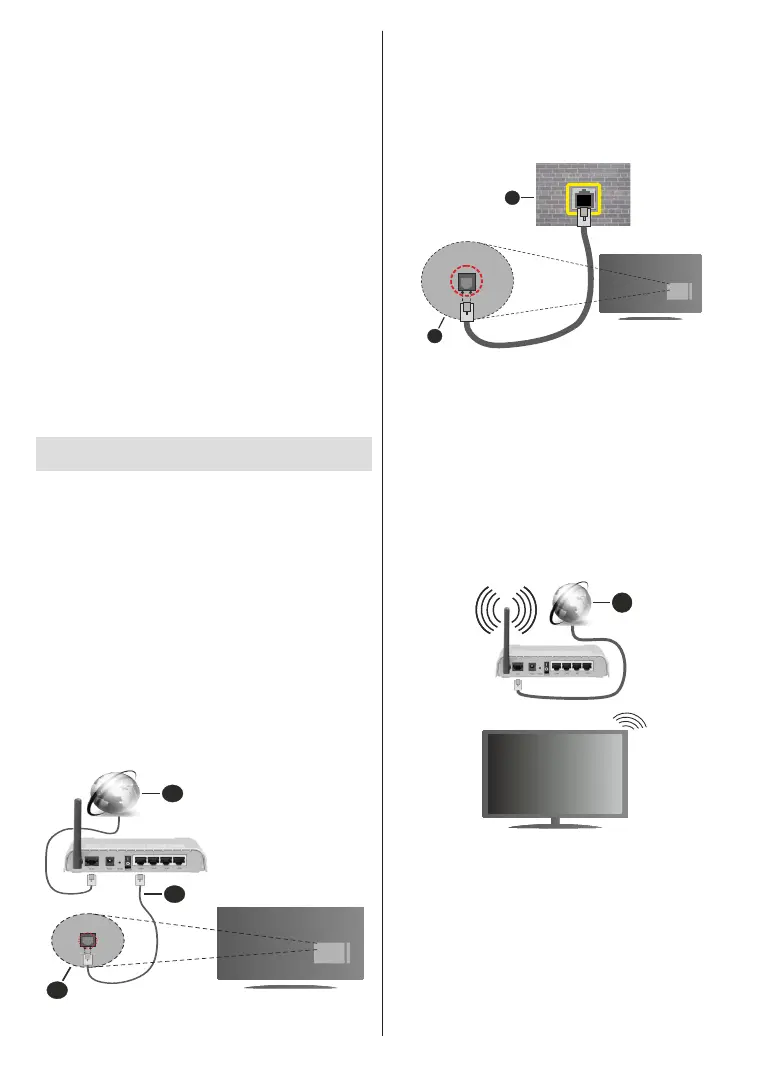
Connecting to the Internet


         
     
Settings>Network &
Internet menu. You can also highlight the Connected/
OK
to access this menu. For further information refer to
Network & Internet section under the title of Settings.
Wired Connection


The status of the connection under the Ethernet
section in the Network & Internet menu will change
from Not connected to Connected.
2
3
1
1. Broadband ISP connection
2. Ethernet
3. 
    


network using an Ethernet cable.
1
2
1. Network wall socket
2. 
Wireless Connection
A wireless LAN modem/router is required to connect

Highlight Wi-FiNetwork & Internet menu
OK to enable wireless connection. Available
OK to
connect. For more information refer to Network &
Internet section under the title of Settings.
1
1. Broadband ISP connection
A network with hidden SSID can not be detected by
other devices. If you want to connect to a network with
Add new network
under the Settings>Network & Internet menu on
OK. Add the network by

Some networks may have an authorisation system that
requires a second login as such in a work environment.



Related product manuals