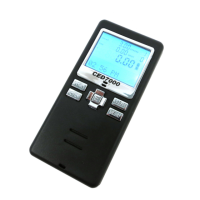
5. On the CED7000PRO application select Download
Data From WinMSS
6. Choose the folder you just saved the WinMSS data in
7. Click OK
8. Click the safely un-plug button once nished
transferring the data to the timer!
9. On the timer - select Menu -> Export/Import ->
Import and select Yes
The data is now loaded in the timer. You are ready to
run the match!
Note
It is important that no changes be made to shooter’s or
stage information. This will create conicts on upload.
Upload Data To WinMSS
When you are ready to upload the scored match back to
WinMSS, follow these steps:
You rst need to do an “export data” on the timer!
1. Connect the timer to the PC and ensure the applica
tion shows Ready
2. Click Upload Data To Timer and select the same
folder you saved the WinMSS data in while exporting
from WinMSS
3. Launch WinMSS
4. On WinMSS click Competition -> Match -> Import/
Restore
5. Select the folder WinMSS has the data in (see step
2). Tip - WinMSS should now show the match name
under match information within the popup window.
6. Click Yes when prompted that the match already ex
ists.
7. Click OK to conrm popup.
32


 To Next Page