Step 4
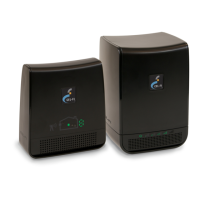
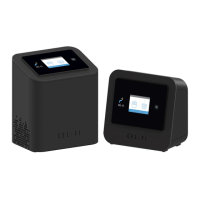
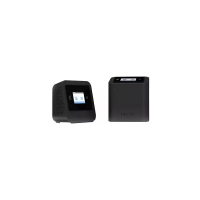
Place the Coverage Unit:
Place the Coverage Unit as far away,
inside the space, as possible from
the Network Unit or where you need
coverage the most, making sure that you
have enough distance between the two
units. After several minutes, the numeric
display will stop cycling.
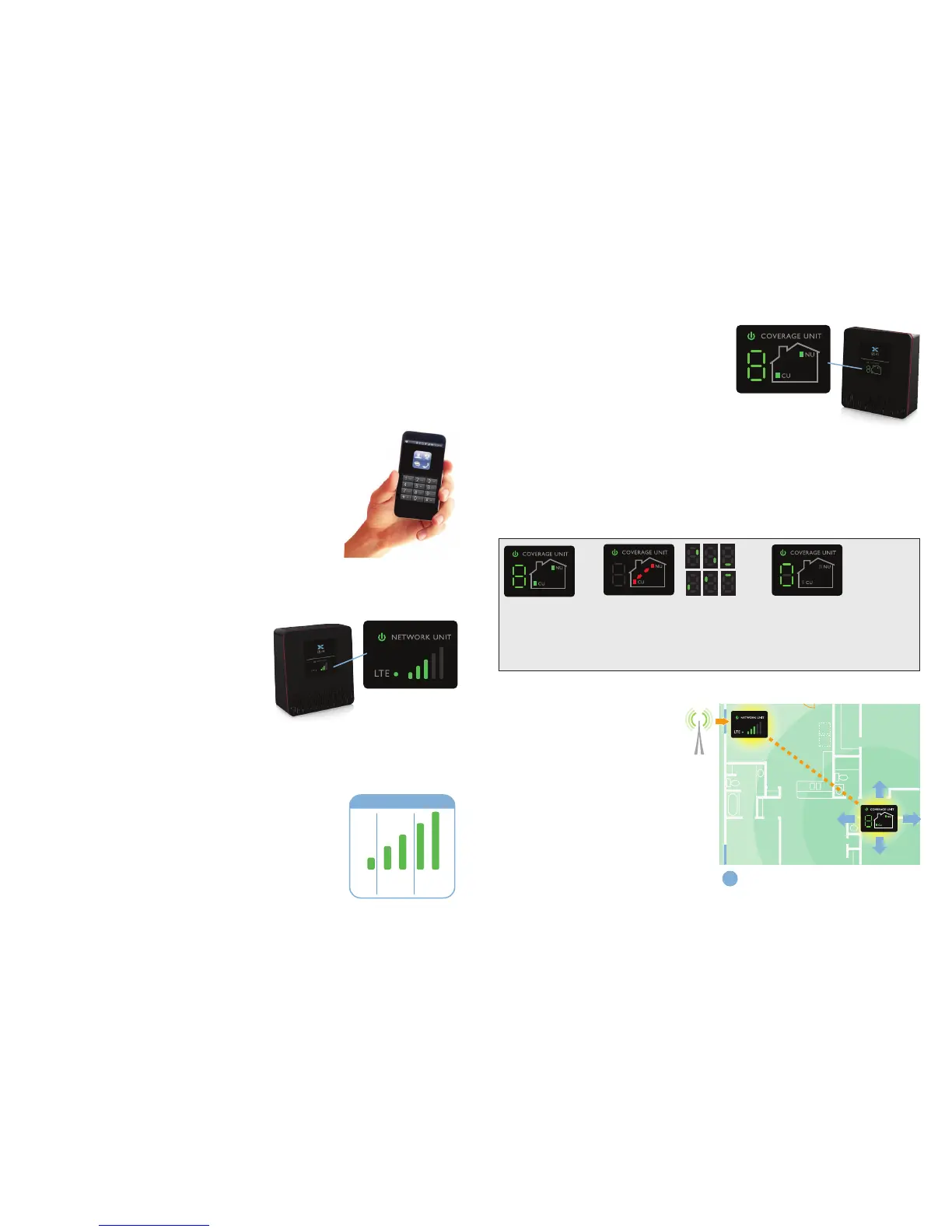
If your device is set-up properly, the green icons will appear on the display as
seen above. It is possible to place the Coverage Unit too close or too far from the
Network Unit. If this happens, a red icon will illuminate indicating that you need to
move the Coverage Unit either closer to, or farther away from the Network Unit
(see below).
Step 5
Optimize The Coverage
Unit Placement:
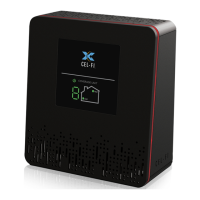
The number on the front of the
Coverage Unit display indicates the
quality of the placement. For the best
service experience, move the Coverage
Unit around your home until an 8 or
9 displays. Based on the Coverage
Unit number, you may need to move
farther/closer to the Network Unit.
If you can nd a place in your home that gets at least one bar of 4G LTE signal,
the revolutionary Cel-Fi DUO+ Smart Signal Booster system brings you smoother
video and surng, and improved coverage throughout your home. Cel-Fi DUO+
Smart Signal Booster is a true plug-and-play system that doesn’t require the
complicated installation of antennas or cables.
Step 1
Find the location with the best coverage:
The rst step in setting-up your Cel-Fi DUO+ Smart Signal
Booster is to nd the location with the best mobile network
signal. Use your phone to identify the area with the best
signal. Typically, the best service will be near a window in
the highest oor of your space. Make sure a 4G LTE icon
is displayed on your handset.
Step 2
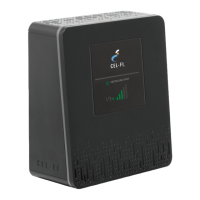
Plug-in the Network Unit:
Plug the Network Unit into an easily
accessible outlet near the area with the
strongest 4G LTE signal. (Note: the power
supplies in your kit are identical.) Make sure
that at least one bar is displayed on the
signal strength indicator on the front of the
Network Unit. If you do not see at least one
bar, try a different location.
Step 3
Optimize the Network Unit Placement:
The bars on the front of the device indicate the strength of
the mobile network signal in the area. Moving the Network
Unit to a different location may increase the signal, and
can improve the quality of your service.
NETWORK UNIT
DISPLAY
BETTER
2-3 bars
BEST
4-5 bars
OK
1 bar
Signal Strength
For the best service, move the
Coverage Unit until an 8 or 9 displays.
COVERAGE UNIT
DISPLAY
WIRELESS CONNECTION
NETWORK UNIT
DISPLAY
5
BEFORE You Begin
OK
Two green icons
indicate that the
Coverage Unit is
functioning normally.
TOO CLOSE
A zero on the numeric display
indicates that the Coverage Unit
needs to be moved farther away
from the Network Unit.
TOO FAR
Four red icons & a scrolling display
indicate that the Coverage Unit
needs to be moved closer to the
Network Unit.
SCROLLING DISPLAY
COVERAGE UNIT
DISPLAY
For additional information about Cel-Fi DUO+ Smart Signal Booster Installation go to: www.cel-.com


 To Next Page
 Loading...