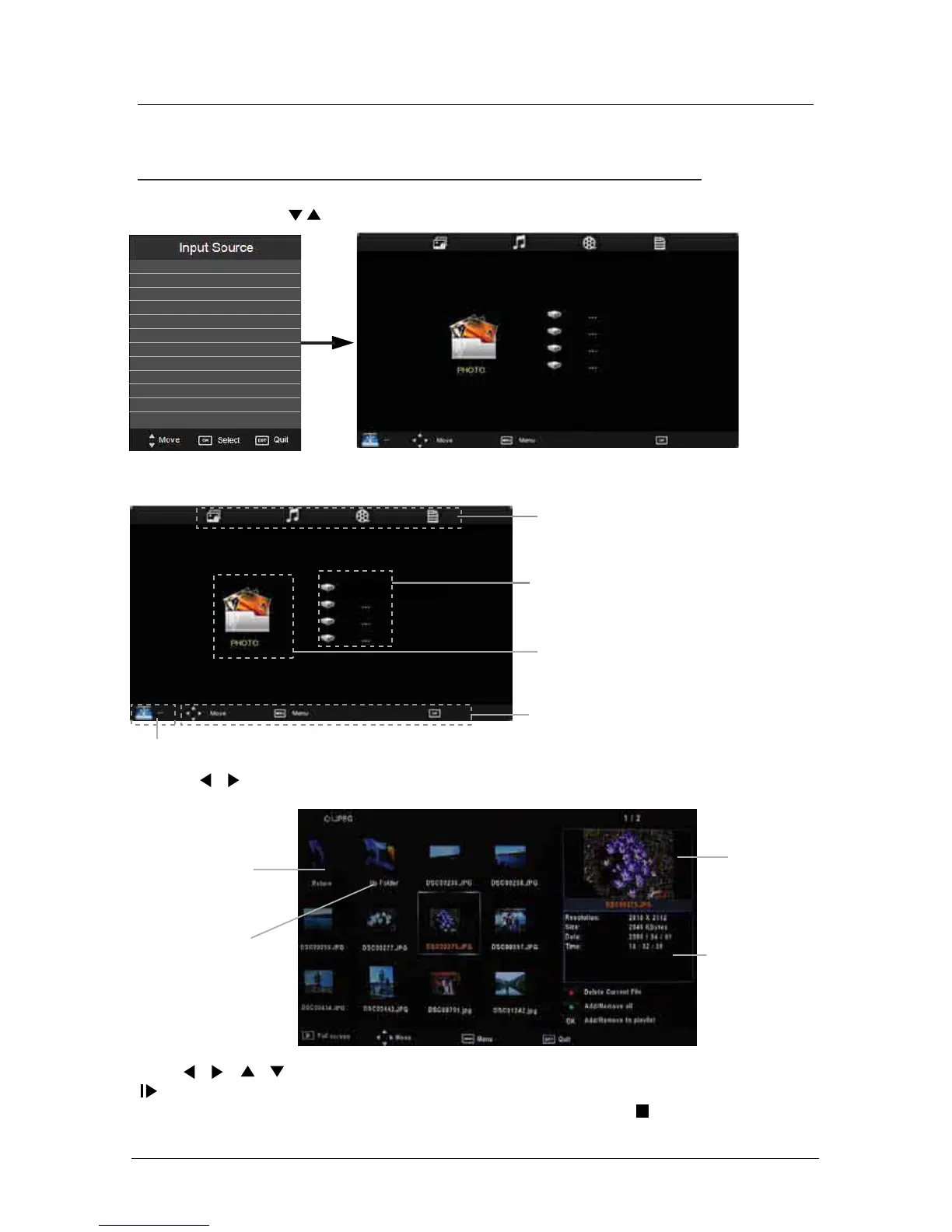
Press / / / buttons to select and the OK button to activate the file or open folder. Press
button to play the files in full screen mode. When in full screen mode press the OK button to
show the navigation option menu on the bottom of the screen or press stop button to return
to files.
Select
Multimedia Operation
Basic Operation
2). Insert the USB device, the name of the device will be displayed on the screen.
3). Press / button to select the files on the USB device (PHOTO, MUSIC, MOVIE, TEXT)
to view or play.
1). Press the SOURCE button on the remote control to display the input source menu, select the
USB source with the buttons and press the OK button to enter the Multimedia menu below.
28
MAINS MENU
PHOTO MUSIC MOVIE TEXT
MAINS MENU
PHOTO MUSIC MOVIE TEXT
Preview
Navigation options
Return to
main menu
Up Folder
Information of the USB device
USB device list
Select
Disk C:F
File Information
DTV
ATV
SCART
YPBPR
DVD
PC
HDMI
AV
USB


 To Next Page