5
2.3 - Battery charging
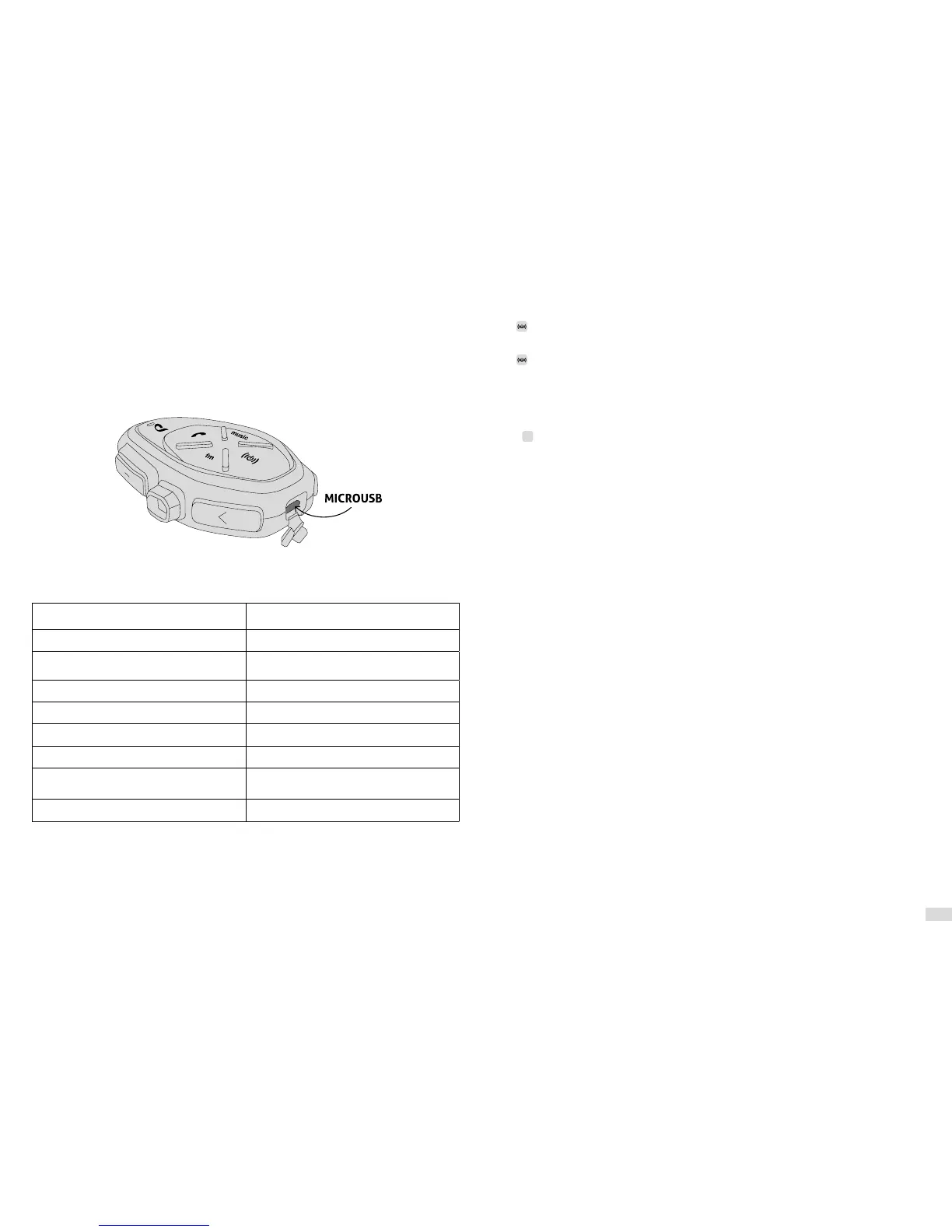
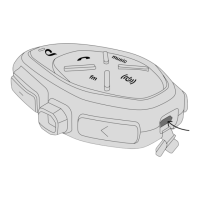
Insert the micro USB charging cable into the relevant intercom connector, as shown in the figure. Con-
nect the cable to a standard USB charger.
LED indications:
- red LED: charging.
- mgreen LED: fully charged.
2.4 LED indication
Standby
The BLUE LED flashes approximately every 3
seconds.
Intercom active
The LED turns BLUE with button intensity.
Device connected with phone/GPS
The LED emits a double BLUE flash approxima-
tely every 3 seconds.
The LED emits an alternate BLUE flash.
Device in pairing mode
The LED flashes RED/BLUE alternately.
The LED flashes RED/BLUE rapidly and alternately.
The LED lights up PURPLE.
Charging
The LED comes on RED during charging. The LED
comes on GREEN when charging is complete.
Dead battery
The LED lights up RED.
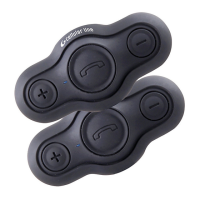
Press on both the units to switch on the devices. The units are already paired by default.
Press to turn the unit on. The device will go into “PAIRING MODE”. These are the possible choices:
- pairing with Cellularline Interphone devices (see chapter 4.1).
- pairing with intercoms of other manufacturers (see chapter 4.1.4).
- phone or GPS navigation pairing (see chapter 5.1).
• With the device turned on, press and hold the UP button (<) until the third beep. The LED will be purple.
• Press
+
to select the desired language.
• Keep pressing the UP button (<) until the third beep to save the selection. The LED will flash blue.
2.8 Listening priority
The device uses the following priorities in managing the various functions:
1. Mobile phone
2. Intercom (communication with other intercoms)
3. Bluetooth
®
A2DP audio source (Music from smartphone/Google Maps, MP3 Player etc.)
4. FM radio
This sequence is used by the device to manage the simultaneous use of multiple functions and to cho-
ose which function to stop.
Examples:
• if a call is received while listening to music, the latter will be interrupted, automatically switching to
the phone audio.
• If an intercom call is received while engaged in a phone call, the latter will not be interrupted.


 To Next Page