6
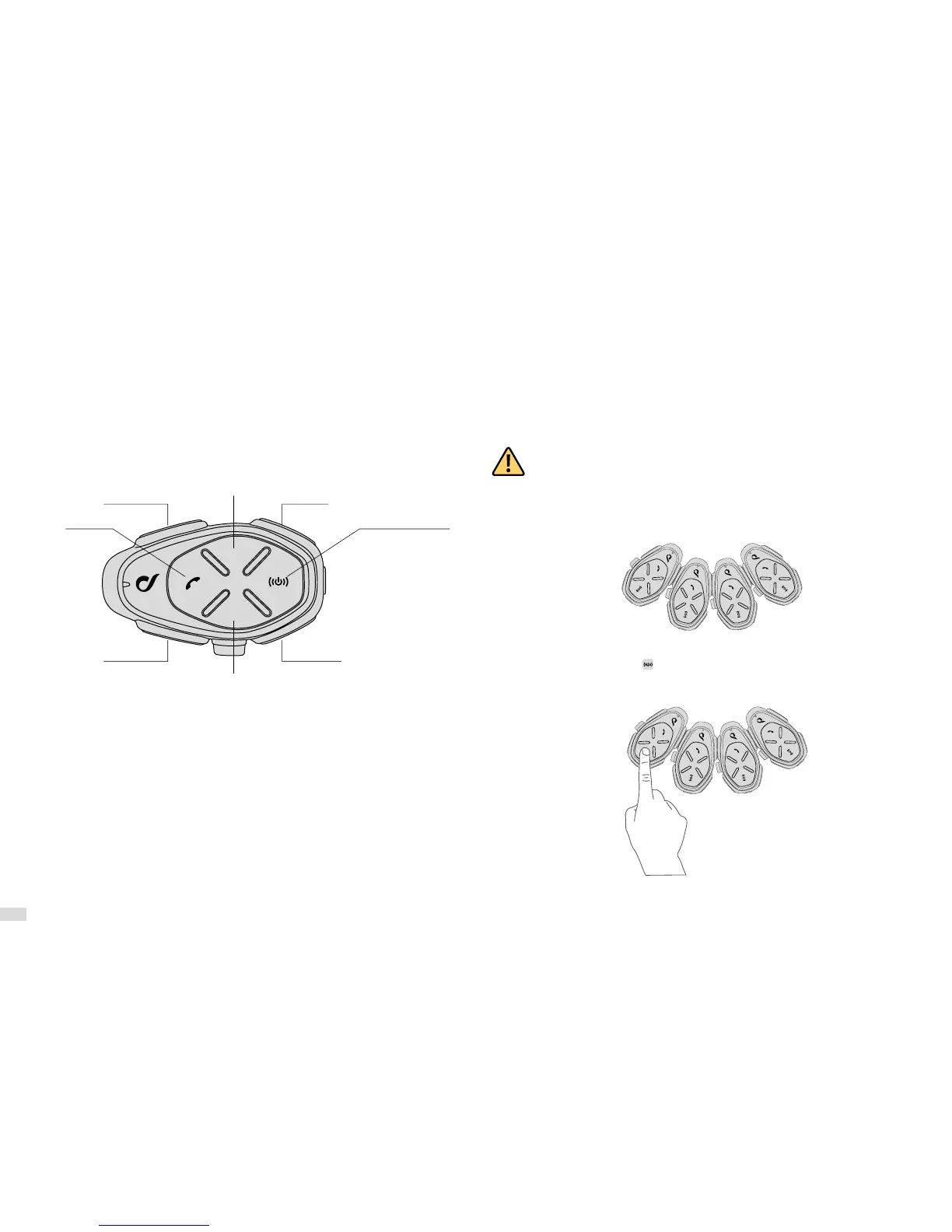
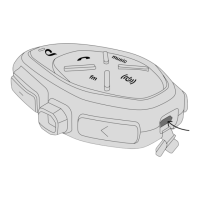
With the device turned on, press and hold the UP button (<) until the third beep. The LED will be purple.
Pressing each button will change a parameter, according to the figure shown below.
To save the parameters set simply exit the settings mode by keeping pressed the UP button (<) until the
third beep. The LED will flash blue.
3.1 System settings
each press of the button selects a different language for the voice guidance.
each press sets the volume of the radio in the background, on a value between Low/
Medium/High/Off. For more details see Chap. 6.2.
the device can automatically adjust the listening volume,
depending on the type of helmet being used. The function can be completely disabled, in which case
the user will manually adjust the volume. The maximum audio level possible can be obtained with the
AUTOMATIC VOLUME OFF.
Each press of the button switches the function on/off. See Chap. 4.6 for further de-
tails.
press this button for 5 seconds to delete from the memory all previously paired
Bluetooth devices. When erasing the pairings, exiting the Settings mode, the device will automatically
enter pairing mode, shown in Chap. 2.6.
this service allows the device to tune to an alternative frequency when the signal beco-
mes too weak. Each press of the button activates/deactivates the function.
If a phone call is received, the device can share the phone call with another
previously paired interphone (see Chap. 5.3). The function is deactivated by default. Each press of the
button activates/deactivates the function.
Where a phone call is received, it is possible to answer the call with a simple voice
command. This function can be switched on/off.
The device enables the interphone communication (function named “INTERCOM”) across multiple devi-
ces in conference (several people talking at once).
4.1 Pairing
Before starting the communication between intercoms it is necessary to perform pairing of the various
devices. This process will only need to be performed once.
Subsequently the interphone will automatically recognise the previously paired devices.
TOUR Interphone is compatible with the entire INTERPHONE range (including the previous series) and
with the ANYCOM function. It is also compatible with the interphones of other manufacturers.
Each TOUR Interphone can be paired to a maximum of two intercoms.
If a device already has two intercoms paired, performing a third pairing with erase the pairing
with the first device paired.
The GENIUS PAIRING™ feature allows the fully automatic pairing of up to 4 TOUR Interphone units.
1. Arrange the OFF units (maximum 4) next to one another as shown in the figure.
2. On the first unit to the left, press until the LED flashes red/blue. The procedure will end automa-
tically when the last unit has returned to stand-by mode (blue LED every three seconds). All the units
are now paired.
3. To start the conference between the recently paired unit follow steps 2 and 3 in Chap. 4.4.


 To Next Page