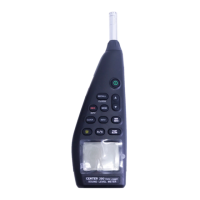
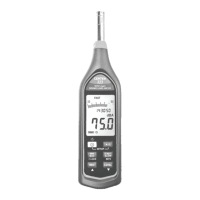
Sound Level Meter
15
Tutorial - Quick Start to Use SE323:
(1) Recording real time data in waveform.
(a) Power on the Sound Level Meter first and
connect it to a PC USB port with the cable.
(b) Start SE323 program.
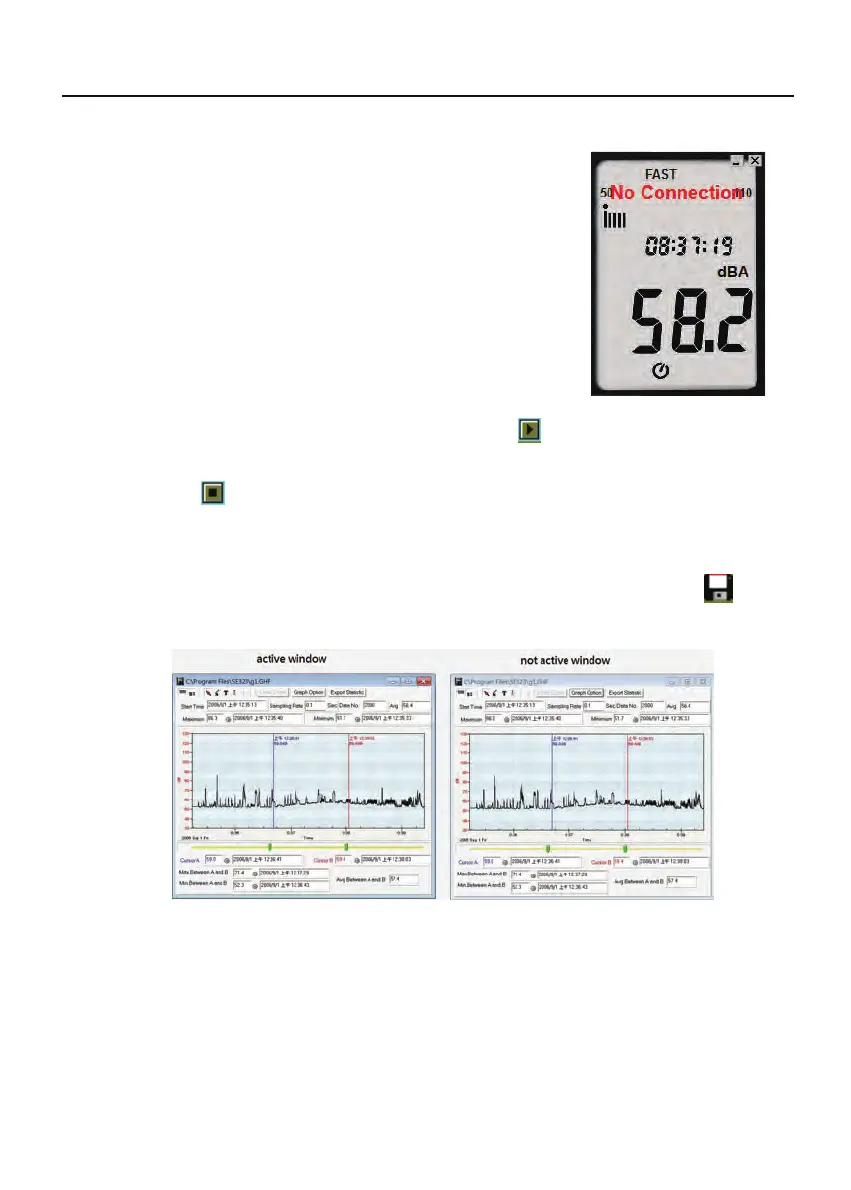
(c) If the connection is successful, the panel
will display the same value as the Sound
Level Meter. If fail to connect the meter with
PC, it will display "No Connection" on the
panel window in SE323.
(d) When the connection is successful, click
to start recording real time
data and there will be a waveform on the Real Time Graph Window.
(e) Click
to start recording.
(2) How to save the recorded real time data to a file?
(a) Click the graph window you want to save and the graph window will
become active, then choose File | Save from main menu or click
from
the tool bar.
(b) There will be a save dialog window for you to choose the file name and
file type to save. There are three types of file name you can choose, binary
file(*.ghf), text file(*.txt) and EXCEL format file(*.csv). The *.ghf file use
much fewer disk space to save the data than the other two file format, but
it can only be used in SE323. Text file can be opened by SE323 and any
other word processor program like word, notepad etc. EXCEL format file
can be opened by SE323 and Microsoft EXCEL.


 To Next Page