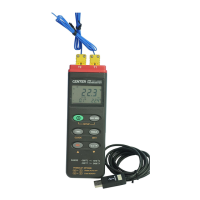
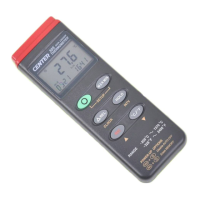
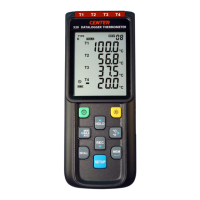
DATALOGGER THERMOMETER
11
10.7 How to load the recorded data from the memory of 4 Channel Thermometer
and save it to a file?
(1) Power on the 4 Channel Thermometer.
(2) Press the REC button of the meter to start recording data.
(3) After a while, press REC button again to stop recording data.
(4) Connect the Meter to PC
(5) Start SE374 program.
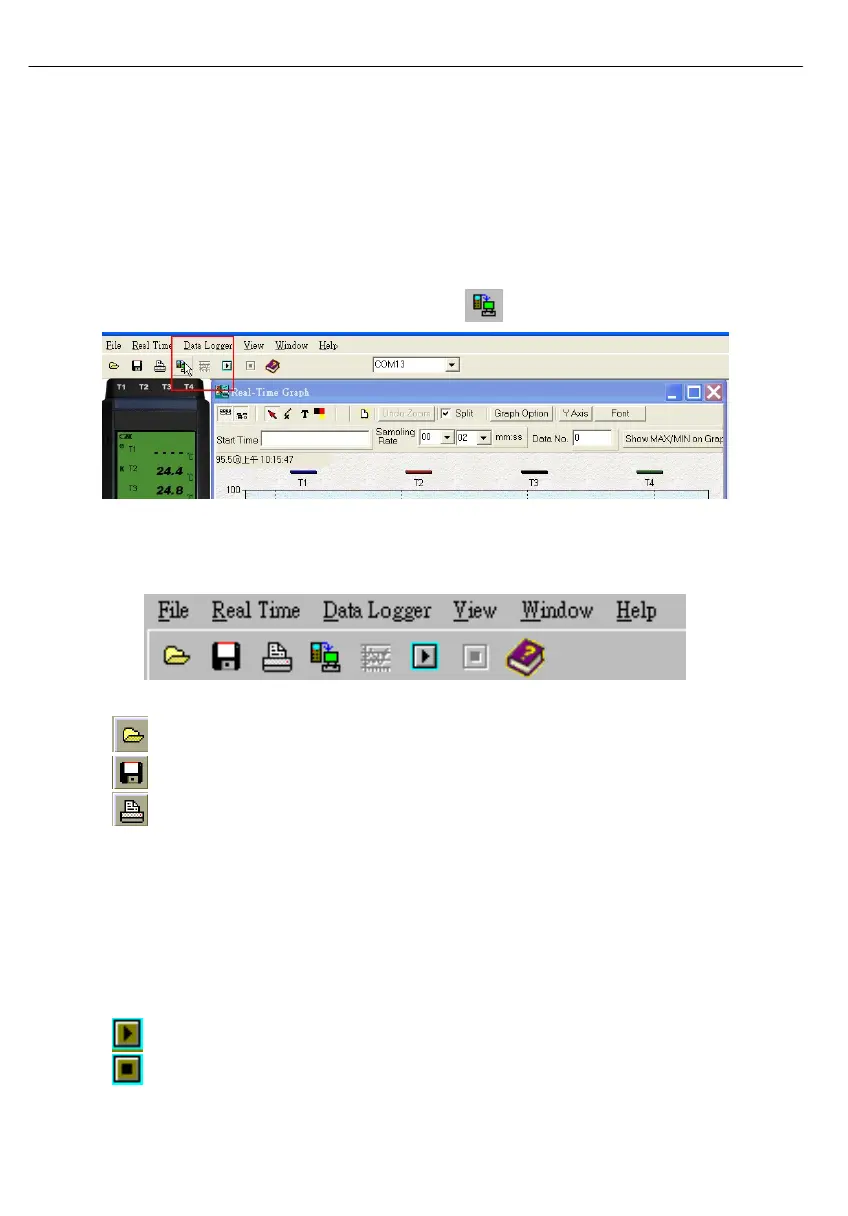
(6) Choose Data Logger from main menu or click
from tool bar.
(7) In reference to Data Logger , see DataLogger
10.8 Main Menu:
File | Oepn- Retrieve files from the disk.
Save - Save the active window (when the caption bar is highlighted) data to the disk.
Print - Print the data of the acitve window (graph or list).
Printer Setup - Select printer.
File | Exit: Terminates TestLink program.
View | Control Panel:
By opening the Panel Window, the user can control meter via the button in this
window.
View | Real-Time Graph:
Open Real-Time Graph display to graph the present data.
Real Time Data | Run - Start collecting real time data.
Stop - Stop collecting real time data.


 To Next Page