3. How to use the remote control
20
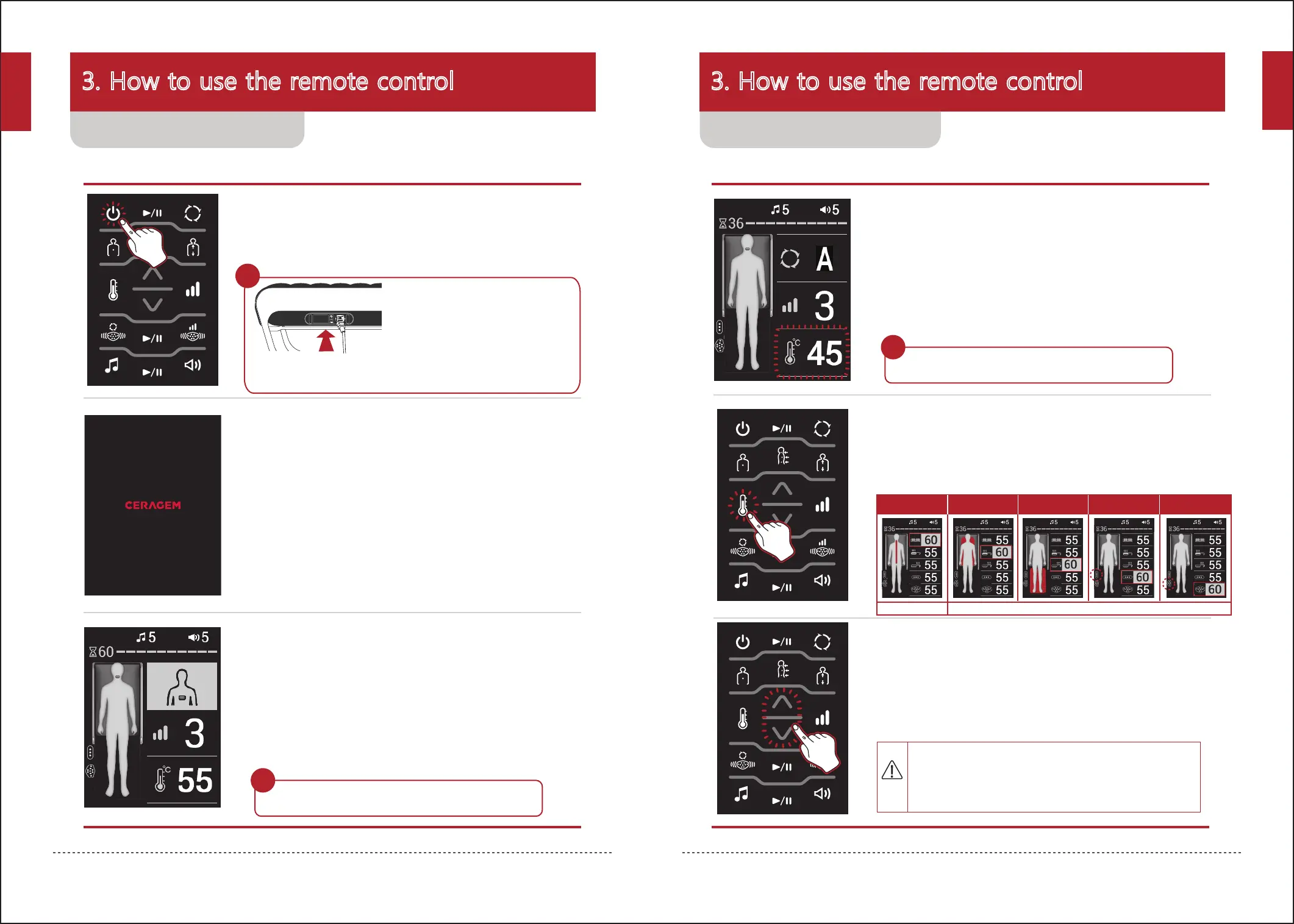
1. Check the power connection to the main body, and
then press the power button on the remote control.
2. The ceragem logo will appear on the screen of the
remote control and the remote control will turn on.
3. When the main screen is displayed, use the product
by pressing the desired button.
3. How to use the remote control
21
1. Check the current temperature and then press the
Temperature select button.
- The current temperature of the internal projector will be displayed
on the main screen.
2. Select a desired item by pressing the temperature
select button.
- Temperature selection order: Internal projector → Main body mat →
Supporting mat → 3-sphere projector → Abdominal vibration projector
- When a temperature is selected, the image of the relevant item will be
displayed in red.
- The abdominal vibration projector and 3-sphere projector will only be displayed
when connected and the position may vary according to the installation order.
3. Use the product after selecting a temperature and adjusting
it by using the up/down button.
- Shortly after the setting is complete, the screen will return to the main screen.
Wait!
- When the product is closed, the closed product image will be displayed.
- To turn off the product, press the Power button on the remote control
for approximately 2 seconds.
- The last-used set value will be displayed.
(The set value will not be stored if the product is turned off abnormally.)
Before using the product, check
if the power cord is connected to the
outlet correctly.
Wait!
Do not use the external projectors (abdominal vibration
projector, 3-sphere projector) on any part of the body for an
extended period of time.
(There is risk of receiving a burn, even at a low temperature.)
Caution
Off, 30~65℃ Off, 30~60℃
If there is any discomfort or emergency while operating the product,
press the on/off button on the remote control to stop the operation.
Internal projector
3-sphere
projector
Abdominal
vibration projector
Main body mat Supporting mat
Turning on the product Setting the temperature
Wait!
- When the product is closed, the closed product image will be displayed.
English
English


 To Next Page