34
3. How to use the remote control 3. How to use the remote control
35
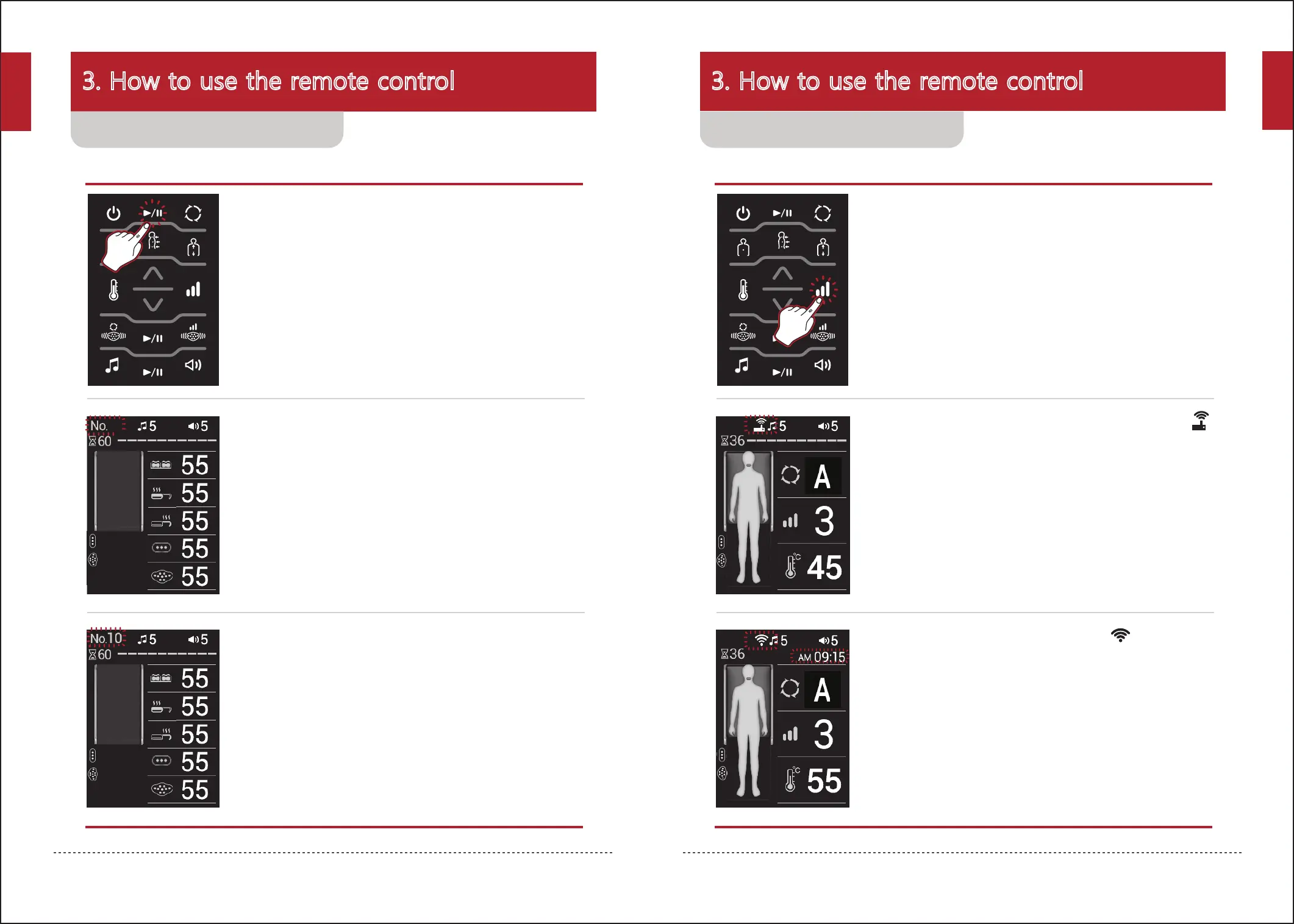
1. Close the supporting mat and press and hold the
start/pause button for about 3 seconds.
2. The current product number appears on the upper left
side of the screen.
3. Change the product number to the desired number
using the up/down button.
- The product number will only appear when setting.
- The product number can be set between No. 01~99.
1. Close the supporting mat and press and hold the
Strength button for about 3 seconds.
2. When the Internet connection is ready, the icon ( )
will appear.
3. If the connection is made, the icon ( ) will be
displayed according to the intensity of the Internet
signal, and the current time will also be displayed.
- The current time will not appear if there is no Internet connection.
* If there are two or more products in one space, the product number can be changed as required for use of the product.
* When Bluetooth or the Application is connected, Search using the set product number is available.
Changing a product number Connecting to the internet
5
01
5
* Download and use an application provided by ceragem from an application market.
* The IoT App. may not be supported in all countries.
English
English


 To Next Page