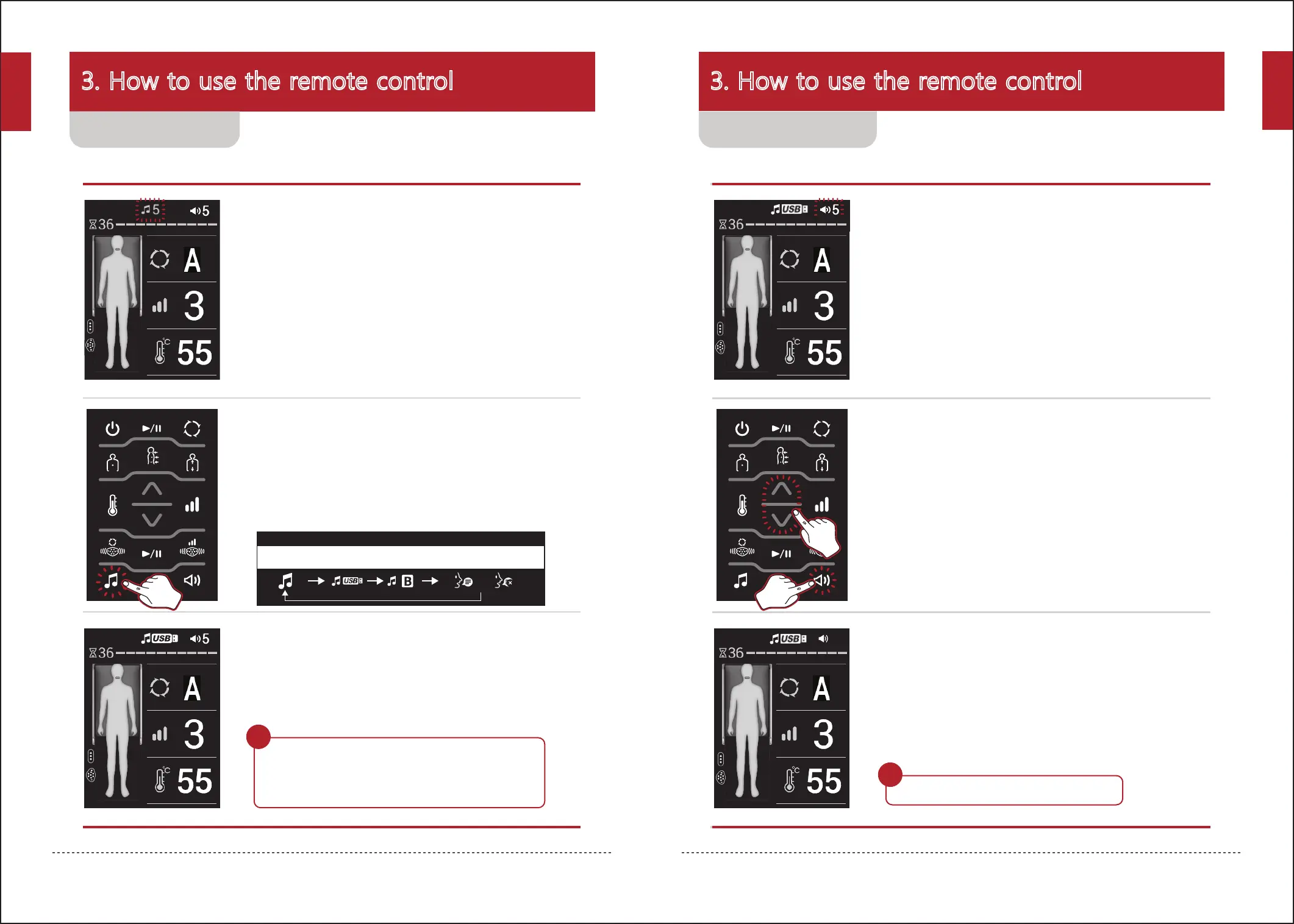
1. Check the current volume status.
2. Set the volume as desired by pressing the Volume
button repeatedly or the up/down button.
3. Check the changed volume status on the screen of the
remote control.
- When setting the sound status, the figures for the relevant item will be
displayed in yellow; the desired sound and volume may be set at this time.
- Volume can be set at Levels 0~20.
- The volume of voice guidance can be adjusted using the Volume button
only when the setting is selected.
3. How to use the remote control
24
3. How to use the remote control
25
1. Check the current sound status.
2. Press the Sound select button repeatedly to select the
desired sound, and set the desired value by using
either the play or the up/down button.
3. Check the changed sound status on the screen of the
remote control.
- File recognition time may be delayed according to the USB specification
or storage capacity.
- If a USB is connected but there is no sound source, the icon will not be displayed.
- If Bluetooth and USB is connected, the corresponding icon will be displayed.
- When the sound is paused, or 0 is set for the volume while voice guidance is
being set, voice guidance will be deactivated.
( )
Ceragem Sound → USB → Bluetooth →
When any external sound source is connected
Voice guidance is activated
(deactivated)
Wait!
- Noise may be heard as a result of electromagnetic waves.
Wait!
- When the Main mode is paused, the sound will be paused also.
The sound will play back when the Sound Start button is pressed again.
- When the sound is paused while using the product, the pause image
will be displayed.
- Noise may be heard as a result of electromagnetic waves.
2
1
6
Using the sound Using the volume
English
English


 To Next Page