32
MyQ
®
Smartphone Control
Get Connected
…and control your garage door opener with the MyQ
®
App.
You will need:
l A smartphone or tablet
l Broadband Internet connection
l A strong Wi-Fi signal (2.4 Ghz, 802.11b/g/n required) in the garage, see page 3
l Password for your home network
l MyQ
®
serial number located on the garage door opener
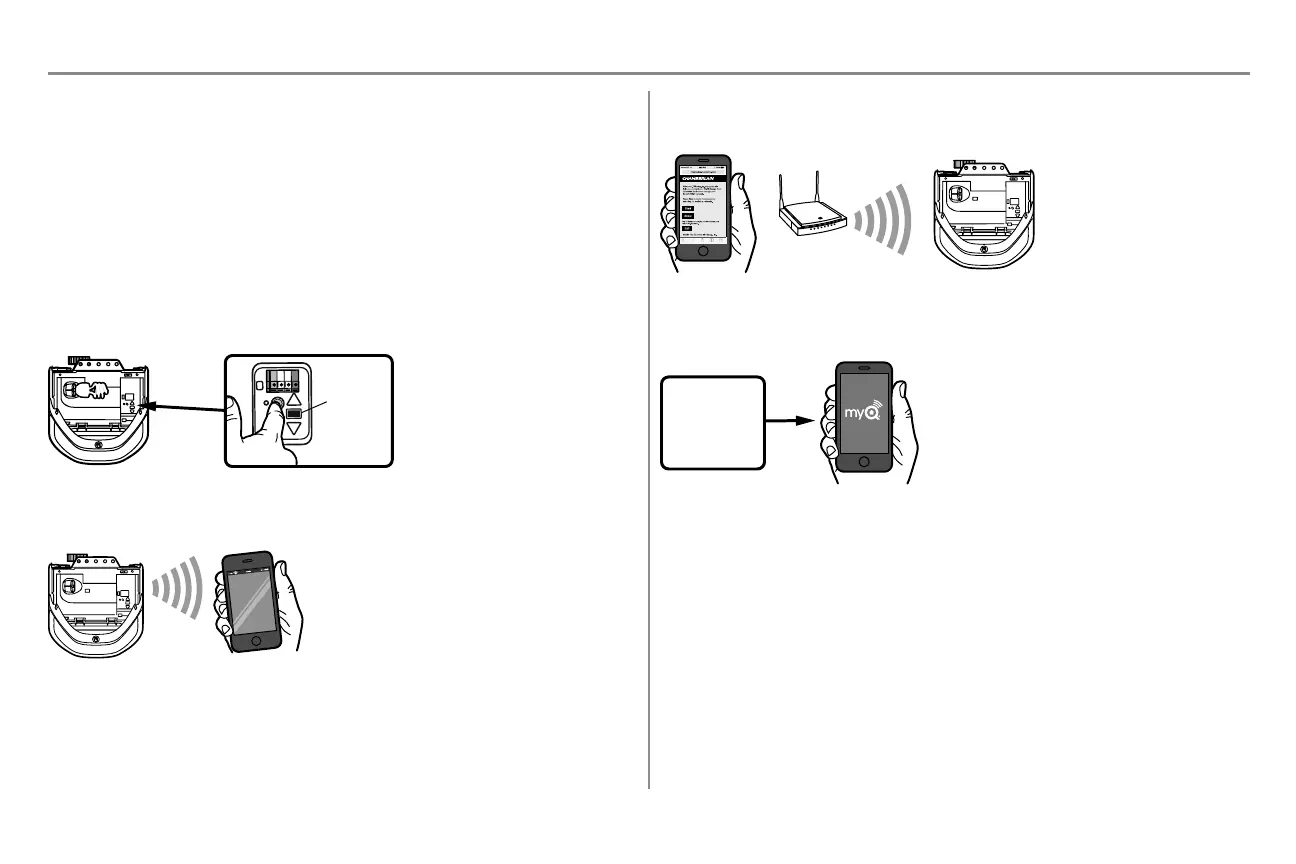
1. ACTIVATE "Wi-Fi LEARN" MODE
Press and release the yellow LEARN button on the garage door opener 3 times. The garage door opener will beep
once and a blue light will flash. You have 20 minutes to complete the connection process.
2. CONNECT TO THE MyQ
®
Wi-FiNETWORK
On your mobile device, go to Settings > Wi-Fi, and select the network with the "MyQ-" prefix.
3. CONNECT THE GARAGE DOOR OPENER TO YOUR HOME Wi-Fi NETWORK
Launch the web browser (such as Safari or Chrome) on your mobile device and go to "setup.myqdevice.com". Follow
the on-screen prompts to add the garage door opener to your home Wi-Fi network.
4. SETUP YOUR MyQ
®
ACCOUNT
Download the MyQ
®
app from the App Store
SM
or Google Play™ store. Sign up for your MyQ
®
account and add the
MyQ
®
serial number to your account.
Congratulations you've successfully completed the setup. Enjoy MyQ
®
Smartphone Control!
In addition to controlling your garage door opener you can control your house lighting with additional MyQ
®
accessories, see page 43.
NOTES:
To erase the Wi-Fi settings, see page 39.
To learn more go to wifihelp.chamberlain.com.






 To Next Page