Configuring a NTRIP Network Rover
Using a network rover requires either a DIP (Direct IP) or
NTRIP source of corrections. The most common network
source is NTRIP which is shown here.
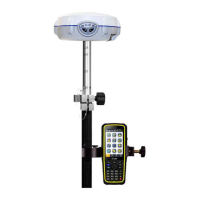
1. Attach the head to a range-pole, attach the data
collector to the pole.
2. Turn on the head, then turn on the data collector.
3. Connect data collector to MiFi and verify there is
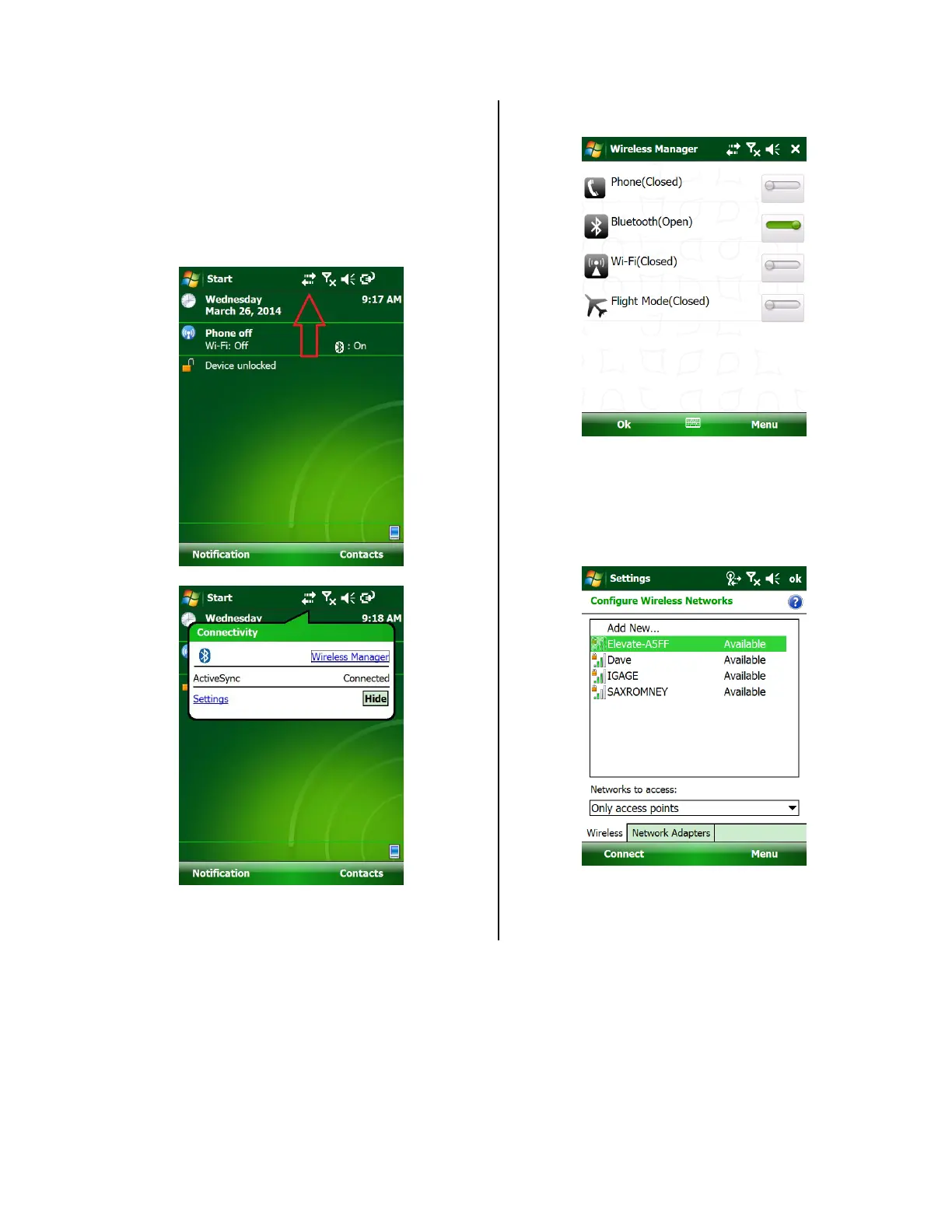
internet connectivity. Click on the Connectivity
Button:
4. Click on ‘Wireless Manager’:
5. Enable (Turn ON, OPEN) the Wi-Fi connection by
clicking on the slider to the right of Wi-Fi:
6. If you have connected to the hotspot before,
waiting 30 seconds usually allows the data
collector to automatically reconnect.
If not, then you may need to manually connect or
setup a new access point.
Connect to the Wi-Fi Hotspot. The demo hotspot
name is “Elevate-A5FF” (yours will be different):
7. Highlight ‘Elevate-A5FF’ (the hotspot’s name) then
click on connect in the lower left corner. Enter the
passcode, it may be displayed on the hotspot’s
front screen.


 To Next Page