iGage X9x User Manual page 34 of 53
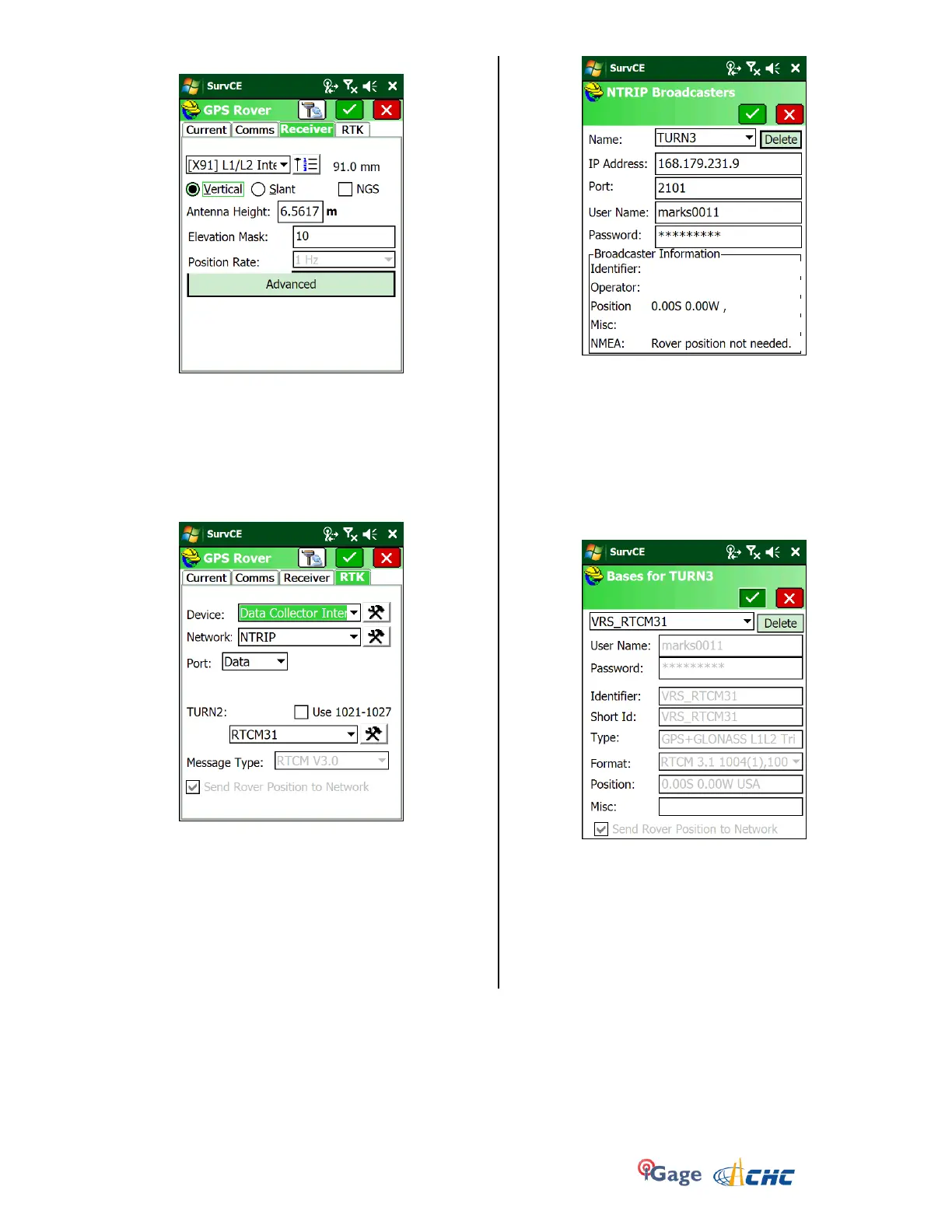
25. Click on the ‘Receiver’ tab:
Configure as shown above.
Make sure the antenna height is correct. If you are
using a 2 meter rod, you can enter “2M” for the
‘Antenna Height’, even if your projection is feet or
survey feet.
The ‘Elevation Mask’ typically is between 5 and 15
degrees. 10 is reasonable.
26. Click on the ‘RTK’ tab:
Configure as shown.
27. Click on the Hammer/Wrench button to the right
of the ‘Network’:
Enter the correct service Name, IP Address, Port,
User Name and Password fro your network. (The
example above shows ‘The Utah Reference
Network’ or TURN.
Both the ‘User Name’ and Password are case
sensitive and must match your network credentials
exactly.
Click on Green Checkmark.
28. The data collector will load the mount table via the
internet and display the list of bases:
Choose the correct mount point for your area.
Consult with your network provider for the best
mount point.
Most of the time, a RTCM 3.0 VRS mount point is
the best choice and will outperform a CMR+
mount point.
After selecting the correct base, Click the Green
checkmark.


 To Next Page