11
Gaming mode:
In Gaming mode, the Win-Key lock is activated.
This stops you selecting Windows commands
by mistake.
When the Win-Key lock is activated, the signals
from the following keys are not sent to the PC:
• Windows key
•ALT + F4
•ALT + TAB
• CTRL + ALT + DEL
• To switch between Office and Gaming mode,
press the CHERRY key ( ) above the
numerical keypad.
The illumination of the Windows key changes
between on (Office mode) and off (Gaming
mode).
The keyboard saves the setting.
9Tips
9.1 Cleaning the keyboard
NOTICE: Damage may be caused
by harsh cleaning agents or liquids
in the keyboard
• Do not use solutions such as gasoline or
alcohol and scouring agents or scouring
sponges for cleaning.
• Prevent fluids from entering the keyboard.
• Do not remove the keycaps of the
keyboard.
1 Unplug the keyboard.
2 Clean the keyboard with a slightly damp
cloth and some mild cleaning agent
(e.g.: dishwashing liquid).
3 Dry off the devices with a soft, lint-free cloth.
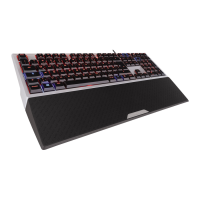
9.2 Cleaning the palm rest
When the surface of the palm rest is dirty, it
provides less grip.
1 Remove the palm rest from the keyboard by
pulling the palm rest forwards.
2 Already when the palm rest is only slightly
soiled, clean it with a slightly damp cloth
and some mild cleaning agent
(e.g.: dishwashing liquid).
3 Dry the palm rest with a soft, lint-free cloth.
4 Reattach the palm rest to the keyboard (see
2 "Attaching the palm rest").
9.3 Updating the firmware
Always use the latest keyboard driver. You can
download it for free from:
www.cherry.de > Service > Downloads >
CHERRY MX BOARD 1.0 (Full size).
On the download page you will find a
description of the changes and the new
functions.
1 Load the file onto your PC/laptop.
2 Run the *.exe file.
3 Follow the instructions on the screen.
9.4 RSI syndrome
9.5 Troubleshooting
• Make sure that the FN key is not activated
(see 6 "Activating/deactivating the FN key").
• Make sure that the Win-Key lock is not acti-
vated (see 8 "Win-Key lock").
• Update the firmware (see 9.3 "Updating the
firmware").
• To make sure that the keyboard is not
defective, test it if possible with another
PC/laptop.
RSI stands for "Repetitive Strain
Injury". RSI arises due to small
movements continuously repeated
over a long period of time.
Typical symptoms are discomfort in the
fingers or neck.
• Set up your workspace ergonomically.
• Position the keyboard and mouse in such a
manner that your upper arms and wrists
are outstretched and to the sides of your
body.
• You can choose the most comfortable
angle for the keyboard by adjusting the feet
on the back.
• Use the palm rest.
• Take several short breaks, with stretching
exercises if necessary.
• Change your posture often.
EN



 To Next Page