9
Before you begin ...
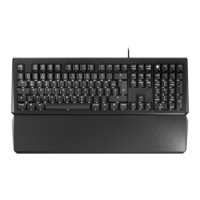
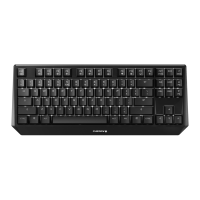
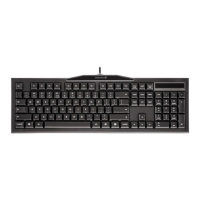
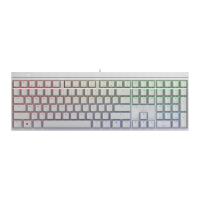
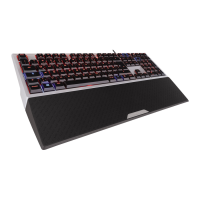
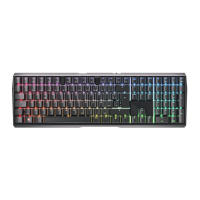
The CHERRY MX BOARD 1.0 BACKLIGHT is a
keyboard for operating PCs and laptops.
It is characterized by the following features:
• Precise response of the
legendary CHERRY MX key
modules, which you can still feel
after 50 million key strokes. The
modules are entirely developed and
manufactured in Germany.
• Win-Key lock: Windows buttons can be
disabled to prevent inadvertent operation
• Full N-Key Rollover: Simultaneous operation
of all keys without any key ghosting effects
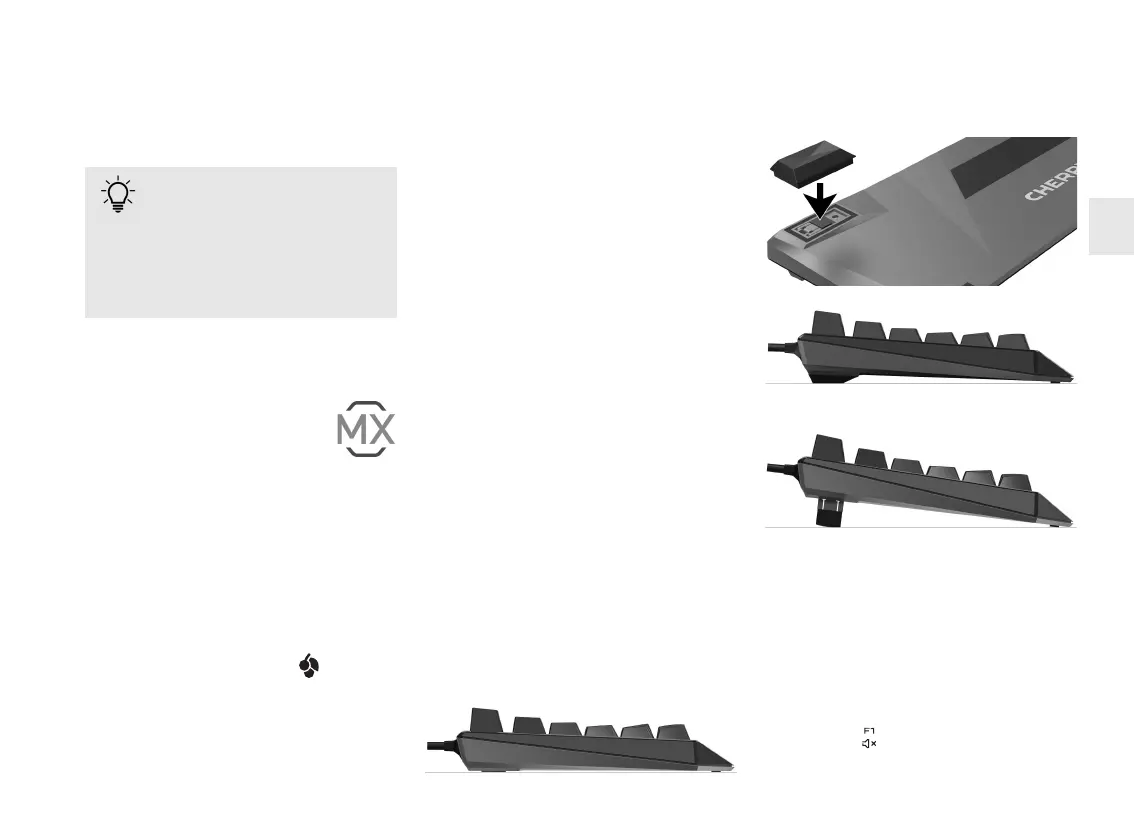
• Additional feet for non-slip grip and custom
height adjustment in 3 stages
• Dimmable, white key backlighting
• USB plug with white, glowing logo
For information on additional products,
downloads, and much more, please visit
www.cherry.de.
Every device is different!
The operating instructions contain
information on effective and
reliable use.
• Read the operating instructions carefully.
• Keep the operating instructions and pass
them on to other users.
1 Connecting the
keyboard
• Connect the keyboard to the USB port of the
PC/laptop.
The keyboard is ready to use without installing
any software. Regularly check that the
software is up to date (see 9.3 "Updating the
firmware").
2 Attaching the palm rest
1 Slide the palm rest close to the keyboard.
2 Align the palm rest with the center of the
keyboard.
3 Applying slight pressure, move the latching
hooks of the palm rest into the openings
provided on the keyboard.
The palm rest latches into the keyboard
housing with a click.
3 Adjusting the angle of
the keyboard
You can adjust the angle of the keyboard in
3 stages.
Position 1 (closed foldable feet):
Position 2 (plugged rubber feet):
Position 3 (deployed foldable feet):
4 Adjusting the volume
The symbols for adjusting the volume are
secondary functions of F1 to F3.
• To adjust the volume, press the FN key and
the appropriate key as shown in the table.
Example:
To switch the sound on or off, press the FN
key and F1 ( ).
OPERATING MANUAL
CHERRY MX BOARD 1.0 BACKLIGHT – Corded Mechanical Keyboard
EN



 To Next Page