Chevrolet Corvette Owner Manual (GMNA-Localizing-U.S./Canada/Mexico-
14622938) - 2021 - CRC - 9/22/20
Infotainment System 143
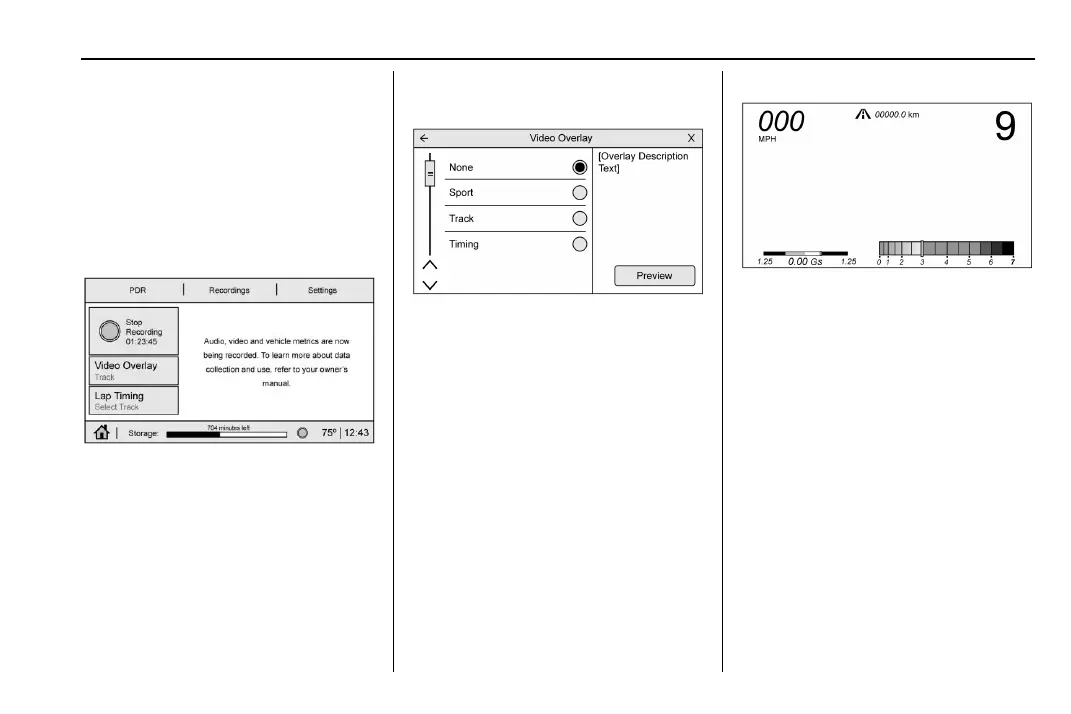
If the system is unable to begin recording,
the Start Recording button is grayed out.
Touch Start Recording to begin recording.
After recording begins, this button changes
to Stop Recording. Touch to stop the
recording session.
The recording must be stopped and the file
closed before removing the SD card, or the
recording cannot be reviewed.
The elapsed time will show when recording.
The following errors or warnings may be
displayed while recording:
.
Storage Full
.
No Storage Available
.
System Error
.
SD Card Error
.
SD Card Speed Insufficient
.
GPS Accuracy Warning
.
SD Card Write Protected
Video Overlay
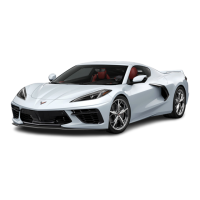
Touch Video Overlay to display the menu
screen.
Touching preview provides a live preview of
the overlay selected.
Select one:
.
None
.
Sport
.
Track
.
Timing
None:
No vehicle data displays on top of the
recorded video. Vehicle data is still available
with the video when accessed in the toolbox
software. See www.chevrolet.com/
performance-data-recorder to download
Toolbox Software.
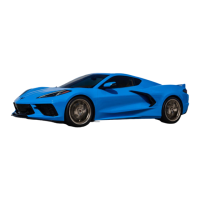
Sport:
Displays these vehicle metrics:
.
Vehicle Speed: Up to three digits are
displayed in km/h or MPH depending on
vehicle settings.
.
Engine Revolutions Per Minute (rpm): The
vertical line and triangle show current
rpm’s. As the rpm’s increase, the backfill
follows.
.
Transmission State (Current Gear):
Transmissions display 1, 2, etc.
.
Lateral G-Force Graphic: Left and Right
G-Forces are displayed. The graphic fills to
the left or the right depending on the
measure value. The measured G-Force
displays as a number at the top of the
graphic.
.
Event Odometer: This displays the
distance driven since the recording began.



 To Next Page