MULTIMEDIA 235
UCONNECT THEATER CONTROLS
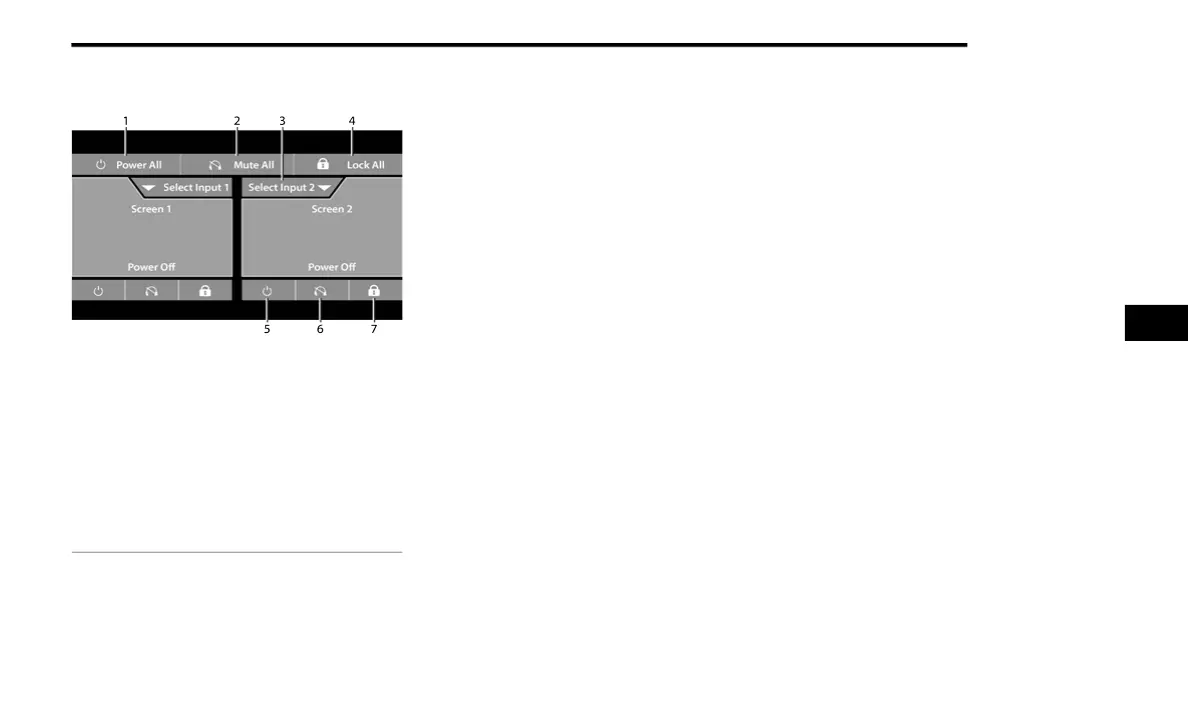
Uconnect Theater Summary Screen (Front
Touchscreen)
Parents can control certain features of the
system with the Uconnect Theater Controls
screens, right from the Uconnect touchscreen
radio. Options include:
Change media sources or select Apps by
using the drop-down list
Lock one or both screens
Mute an individual screen or both screens
Turn “On/Off” one or both screens
View media showing on a specific screen
while gear selector is in PARK
Listen in to a particular Uconnect Theater
screen through the vehicle’s sound system
by selecting the “Listen In” feature after
selecting the “Press to Enter” option.
ACCESSING THE SYSTEM FROM THE
U
CONNECT THEATER REAR SCREENS
You can also access your Uconnect Theater
system from the screens from the steps below:
1. Lift screen upward; the system will
automatically power on.
NOTE:
A message asking if you would like to pair a
remote will pop up if one has not already been
paired to the system.
2. If “YES” is selected to pair a remote, push
any button on the remote and pairing will
immediately start.
3. If “NO” is selected, the Uconnect Theater
home screen will pop up.
1 — Power All On/Off (Controls Both Screens)
2 — Mute All On/Off (Controls Both Screens)
3 — Source Drop-Down List for Current Screen
4 — Lock All On/Off (Controls Both Screens)
5 — Power On/Off for Current Screen
6 — Mute On/Off for Current Screen
7 — Lock for Current Screen
5
21_RUP_OM_EN_USC_t.book Page 235















 To Next Page