EasyManua.ls Logo

Cisco 7910 Series - User Manual

Cisco 7910 Series
2 pages
Print Icon
To Next Page IconTo Next Page
Loading...
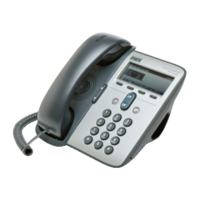
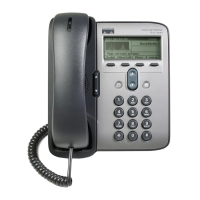
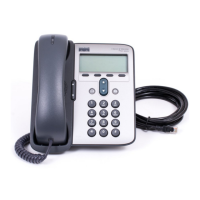
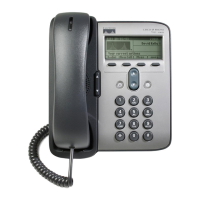
| CISCO IP PHONE 7910 SERIES |
Instructional & Information Technology Services
|
1. Line
2. Hold
3. Transfer
4. Settings
5. Msgs
6. Conf
7. Forward
8. Redial
9. Speaker & Mute
10. Navigation
11. Speed 1/Speed 2
Place a Call
• Lift handset
or
For hands-free
, press Line button
or SPEAKER button
• Dial the number
Answer a Call
• Lift handset
End a Call
• Hang up handset
or
• Press LINE Button
Place a call on hold
1. Press HOLD Button
2. Press HOLD Button again to resume
call
Check Messages
Red light on handset indicates new
message.
To retrieve message(s):
1. Press MSGS button
2. Follow prompts to check voice mail.
Speed Dial
To program speed dial buttons, see
Web Interface Section. To dial
:
1. Lift handset and press SPEED 1 or
SPEED 2 button
Redial last number called
• List handset (optional)
• Press REDIAL button
Mute a Call
Disables microphone
• Press MUTE button to activate
• To deactivate, press MUTE button
again
Switch between handset & speaker
1. If on SPEAKER, lift handset
2. If on handset, press
SPEAKER button and replace
handset
Place a Conference Call
Up to six
participants.
1. While on a call, press CONF button
2. Call the next person
3. Press CONF Button again to connect
Repeat as necessary.
Meet Me Conference
Meet Me Conference can only be
established from a 7940/60 model
Join a Meet Me call:
1. Dial the assigned MEET ME
conference number
Place 2nd call on hold
1. Place 1
st
call on hold with HOLD
button
2. Press LINE button to get 2
nd
line
(You will hear a dial tone to make
second call)
3. Dial number for the second call
4. Press LINE button to end 2
nd
call
or
5. Press HOLD button to place your
second caller on hold
6. Press HOLD a second time to return
to your rst caller
Note: Press HOLD button twice to
alternate between 1
st
and 2
nd
call
Transfer a Call
1. Press TRANSFER button
2. Dial number
3. Announce call transfer (
optional
)
4. Press TRANSFER button again to
complete the transfer
Call Forward
1. Press FORWARD button (2 beeps)
2. Dial number to forward call to
To Deactivate:
1. Press FORWARD button (
1 beep)
Note: See Web Interface Section for
forwarding calls online
Call Waiting
1. When you hear call waiting beep
(single alert)
2. Press HOLD button (rst call goes
on hold)
3. Press HOLD twice to alternate
between calls
4. Press LINE to disconnect current
caller
To join calls:
• Press TRANSFER button to join the 2
incoming callers and exit call yourself
or
• Press CONF button to join the 2
incoming callers and yourself together
in a conference call
QUICK REFERENCE
20/02/07
CISCO IP 7910 Series
Question and Answer IconNeed help?

Do you have a question about the Cisco 7910 Series and is the answer not in the manual?

Overview

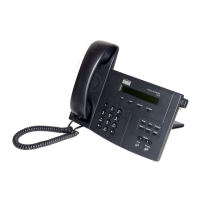
The Cisco IP Phone 7910 Series is a robust and user-friendly communication device designed for efficient voice communication within an enterprise environment. This model, as indicated by the quick reference guide, offers a comprehensive suite of features for managing calls, personalizing settings, and integrating with a web-based call management system.

Function Description:

The Cisco IP Phone 7910 serves as a primary endpoint for voice over IP (VoIP) communication. It enables users to make, receive, and manage calls with a variety of advanced features such as call forwarding, call transfer, conference calling, and speed dial. The device is designed to be intuitive, with clearly labeled buttons for common functions and a menu-driven interface for more complex settings. Its integration with a web interface (Call Manager) allows for remote configuration and management of personal phone features, enhancing user control and flexibility.

Important Technical Specifications (Inferred from the manual):

While specific technical specifications like power consumption or exact display resolution are not explicitly stated, the manual implies several key technical aspects:

  • Display: The phone features an LCD display, which can be adjusted for contrast, indicating a monochrome or limited color display. It shows call information, menu options, and alerts.
  • Connectivity: As an IP phone, it connects to a network, likely via Ethernet, to access the VoIP system and the Call Manager web interface.
  • Audio: It supports both handset and speakerphone operation, with mute functionality for privacy. The ringer volume and type are adjustable, suggesting internal sound generation capabilities.
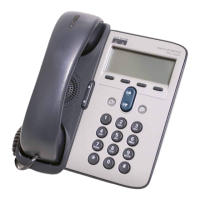
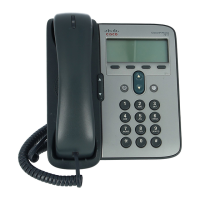
  • User Interface: The physical interface includes a numeric keypad, dedicated function buttons (Line, Hold, Transfer, Settings, Msgs, Conf, Forward, Redial, Speaker & Mute, Navigation, Speed 1/Speed 2), and navigation keys (+/-) for menu interaction.
  • Call Capacity: The phone supports managing multiple calls simultaneously, including placing a second call on hold and facilitating conference calls with up to six participants.
  • Compatibility: It is designed to integrate with Cisco's Call Manager system, indicating a proprietary or standards-compliant (e.g., SIP, SCCP) VoIP protocol implementation. The mention of "Meet Me Conference" being established from a 7940/60 model suggests the 7910 might have limitations in initiating certain advanced conference types, but can join them.

Usage Features:

The Cisco IP Phone 7910 offers a wide array of usage features to streamline daily communication:

  • Basic Call Handling:
    • Making Calls: Users can lift the handset or press a Line/Speaker button and dial the number.
    • Answering Calls: Simply lift the handset.
    • Ending Calls: Hang up the handset or press the LINE button.
  • Call Management:
    • Hold: A dedicated HOLD button allows users to place a call on hold and resume it. It also facilitates alternating between two active calls by pressing the HOLD button twice.
    • Transfer: The TRANSFER button enables users to transfer an active call to another number, with an optional announcement before completion.
    • Conference Calling: The CONF button allows users to initiate a conference call with up to six participants by adding new callers sequentially. It also supports joining existing conference calls.
    • Call Forwarding: Users can forward calls to another number or voicemail using the FORWARD button on the phone or through the web interface. Deactivation is also straightforward.
    • Call Waiting: The phone signals incoming calls with a beep, and users can manage these by placing the current call on hold and switching between calls.
    • Redial: A REDIAL button quickly dials the last number called.
    • Speed Dial: Two dedicated SPEED buttons (Speed 1/Speed 2) allow for quick dialing of pre-programmed numbers, configurable via the web interface.
  • Audio Control:
    • Mute: A MUTE button disables the microphone for privacy during a call.
    • Handset/Speaker Toggle: Users can easily switch between handset and speakerphone mode during a call.
  • Personalization (Phone Settings Menu):
    • Volume Control: Adjusts handset, speaker, and ringer volumes.
    • LCD Contrast: Allows users to set the display contrast for optimal viewing.
    • Ringer Type: Users can choose from available ringer types.
    • Model Information: Provides access to view phone model details.
    • Timer: A timer function is available.
    • Network Configuration: While listed, users are advised "Do not alter!" this setting, indicating it's for administrative use.
  • Web Interface (Call Manager) Features:
    • Remote Configuration: Users can access their personal web page via the MyConcordia Portal to manage advanced phone features.
    • Speed Dial Programming: Configure speed dial buttons with phone numbers, remembering to prefix external numbers with '9'.
    • Call Forwarding Setup: Set up or deactivate call forwarding to voicemail or another number.
    • Ring Setting Customization: Choose different ring settings for when the phone is idle or in use for each line.
    • PIN Management: Change the personal identification number (PIN) for accessing certain services.
    • Device Selection: For users with multiple phone sets, the web interface allows selection of the specific device to configure.
    • User Locale Profile: Select the display language for the phone and web interface.

Maintenance Features (Inferred):

The manual primarily focuses on usage and configuration, but some aspects can be inferred regarding maintenance:

  • Firmware Updates: While not explicitly mentioned for end-users, an IP phone system typically allows for remote firmware updates by administrators to ensure optimal performance, security, and access to new features.
  • Troubleshooting: The quick reference guide itself serves as a first-line troubleshooting tool for common operational questions. For more complex issues, the "Instructional & Information Technology Services" contact information implies support channels are available.
  • Cleaning: Although not detailed, standard electronic device cleaning practices (e.g., wiping with a soft, damp cloth) would apply to maintain the physical appearance and hygiene of the handset and keypad.
  • PIN Management: The ability to change a PIN via the web interface can be considered a security maintenance feature, allowing users to regularly update their credentials.

In summary, the Cisco IP Phone 7910 Series is a comprehensive and user-centric VoIP device, designed to facilitate efficient and flexible communication within an organizational framework, supported by both on-device controls and a powerful web-based management system.
Cisco 7910 Series Specifications

General IconGeneral
BrandCisco
Model7910 Series
CategoryIP Phone
LanguageEnglish

Related product manuals