EasyManua.ls Logo

Cisco 7962 - User Manual

Cisco 7962
132 pages
Print Icon
To Next Page IconTo Next Page
Loading...
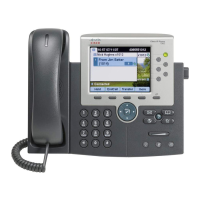
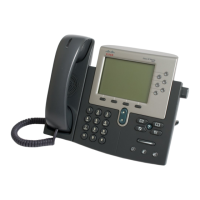
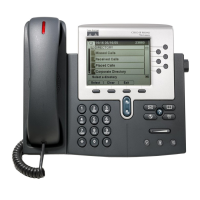
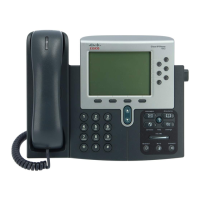
Cisco Unified IP Phone 7941G, 7941G-GE, 7942, 7961G, 7961G-GE, and
7962 User Guide for Cisco Unified Communications Manager 9.0 (SCCP
and SIP)
First Published: June 19, 2012
Last Modified: February 03, 2014
Americas Headquarters
Cisco Systems, Inc.
170 West Tasman Drive
San Jose, CA 95134-1706
USA
http://www.cisco.com
Tel: 408 526-4000
800 553-NETS (6387)
Fax: 408 527-0883

Table of Contents

Other manuals for Cisco 7962

Questions and Answers

  • C
    Catherine GarciaAug 16, 2025
    Why can't I set up Call Forward All on my Cisco 7962?
    • K
      Katherine PorterAug 16, 2025
      Your Cisco IP Phone may reject your attempt to set up Call Forward All directly on the phone if the target number that you enter would create a Call Forward All loop or would exceed the maximum number of links permitted in a Call Forward All chain. Contact your system administrator for details.
  • S
    Shawn MosesAug 19, 2025
    Why can't I hear a dial tone on my Cisco 7962 IP Phone?
    • J
      John PayneAug 19, 2025
      There are several reasons why you might not hear a dial tone or be able to complete a call on your Cisco IP Phone: * You might not be connected to the Extension Mobility service. If this is the case, log into the Extension Mobility service. * The system might require a Client Matter Code (CMC) or Forced Authorization Code (FAC) after dialing a number (SCCP phones only). If so, enter the required code after dialing. * Your phone might have time-of-day restrictions. If this is the case, change the time-of-day restrictions that prevent you from using some features during certain hours.
  • E
    Elizabeth SmithAug 22, 2025
    What to do if softkey doesn't appear on Cisco IP Phone?
    • K
      kwilliamsAug 22, 2025
      If a softkey you need isn't showing on your Cisco IP Phone, it could be due to a few reasons: * There might be more softkeys available than currently displayed. Press the More button to see additional options. * The available softkeys depend on the current line state. Try changing the line state, such as going off-hook or having a call connected. * It's possible your phone isn't configured to support the feature associated with the softkey. In this case, contact your system administrator to request access to the feature.
  • J
    jeffrey56Aug 25, 2025
    Why does Cisco 7962 IP Phone show Security Error?
    • M
      Margaret GoldenAug 26, 2025
      If your Cisco IP Phone displays a Security Error, it means your phone's firmware has identified an internal error. If the message continues to appear, contact your system administrator.
  • E
    Elizabeth HarrisAug 28, 2025
    How to fix too light or too dark Cisco IP Phone screen?
    • B
      baxterhollyAug 28, 2025
      If the screen display on your Cisco IP Phone is too light or too dark to read, it's likely due to changes in the display settings. To fix this, choose . Press 1, 3 on the keypad. Press until you can see the phone screen display. Press Save.
  • C
    Christopher RiveraAug 31, 2025
    What to do if Cisco 7962 IP Phone Settings button is unresponsive?
    • M
      Mary SmithAug 31, 2025
      If the Settings button on your Cisco IP Phone is unresponsive, it's possible that your system administrator has disabled it on your phone. Contact your system administrator to resolve this.
  • M
    Megan WatsonSep 3, 2025
    Why does Barge fail on Cisco 7962?
    • J
      James ReedSep 3, 2025
      Barge fails and results in a fast busy tone because you cannot barge an encrypted call if the phone you are using is not configured for encryption.
  • C
    Carla WilliamsSep 6, 2025
    What causes disconnection after using Barge on Cisco 7962?
    • A
      Adam HardinSep 6, 2025
      You are disconnected from a call that you joined using Barge if the call is put on hold, transferred, or turned into a conference call.
  • A
    Anthony HessSep 9, 2025
    Why does CallBack fail on Cisco 7962?
    • A
      Amanda DavilaSep 9, 2025
      CallBack might fail on your Cisco IP Phone if the other party has Call Forward enabled.
  • T
    Thomas LopezSep 12, 2025
    Why is my Cisco 7962 IP Phone screen blank?
    • A
      alexandragrahamSep 12, 2025
      If your Cisco IP Phone screen is blank and the Display button is not lit, the phone is likely powered down (sleeping) to save energy. The phone will power up (wake) when the system sends the wake up message. You cannot wake the phone before its scheduled power up time.

Summary

Preface

Safety and Performance Information

Details the impact of power outages and external devices on the Cisco Unified IP Phone.

CHAPTER 1 Phone Features

Phone Overview

Introduces Cisco Unified IP Phones as full-feature telephones for voice communication.

Buttons and Hardware

Describes the physical buttons and hardware components of the Cisco Unified IP Phone.

Phone Screen Features

Illustrates and explains the various elements displayed on the main phone screen.

SIP and SCCP Signaling Protocols

Explains the two signaling protocols (SIP and SCCP) your phone can use.

CHAPTER 2 Phone Installation

Phone Installation Overview

Explains how the phone connects to the IP telephony network and refers to subsequent sections.

Cisco Unified IP Phone Cable Installation

Provides figures and tables showing how to connect the phone's cables.

CHAPTER 3 Calling Features

Calling Features Overview

Introduces basic and enhanced call-handling features available on the phone.

Basic Call Options

Explains simple methods for placing calls on the Cisco Unified IP Phone.

Place Call

Provides instructions on how to initiate a phone call using the handset.

Make Speed Dial Call

Explains how to make calls using speed dial buttons, abbreviated dialing, or fast dial.

Call Answer

Describes various methods for answering incoming calls on the phone.

Call Disconnect

Details methods for ending calls using the handset, headset, or speakerphone.

Hold and Resume

Explains how to place calls on hold and then resume them.

Put Call on Hold

Step-by-step guide to placing an active call on hold.

Mute

How to mute the microphone during a call.

Mute or Unmute Call

Steps to mute and then unmute the microphone during a call.

In-Progress Call Movement

Features for moving calls between devices like desk phone and mobile.

Switch In-Progress Call on Desk Phone to Mobile Phone

Steps to transfer an active call from the desk phone to a mobile phone.

Switch In-Progress Call from Mobile Phone to Desk Phone

How to transfer an active call from a mobile phone back to the desk phone.

Switch In-Progress Call from Mobile Phone to Desk Phone Sharing Same Line (Session Handoff)

Transferring calls between devices on the same line using Session Handoff.

Call Transfer

Explains how to transfer a connected call to another party.

Transfer Call Without Talking to Transfer Recipient

Guide on performing a blind transfer of a call without speaking to the recipient.

Talk to Transfer Recipient Before Transferring Call (Consult Transfer)

Steps for performing a supervised transfer, consulting with the recipient first.

Call Forward

How to redirect incoming calls to another number.

Set Up or Cancel Call Forwarding

Instructions for enabling or disabling call forwarding features.

Set Up and Cancel Call Forward All from Phone

Steps to set up or cancel unconditional call forwarding directly on the phone.

Do Not Disturb

How to enable or disable the Do Not Disturb feature to block incoming calls.

Turn DND On and Off

Simple steps to toggle the Do Not Disturb feature.

Conference Calls

Information on how to set up and manage conference calls with multiple participants.

Ad Hoc Conference

Creating a conference call by dialing each participant individually.

Create Conference by Calling Participants

Step-by-step guide to initiating a conference call by adding participants.

Join Conference

Instructions on how to join an existing conference call.

Intercom Calls

Making and receiving intercom calls for quick communication.

Advanced Call Handling

Overview of advanced features for managing calls based on needs.

Speed Dial

Using speed dial features like buttons, abbreviated dialing, and fast dials.

Make Call Using Speed-Dial Buttons

How to place calls using pre-configured speed-dial buttons.

Call Pickup

Answering calls ringing on a coworker's phone.

Call Park

Storing calls to retrieve them later from another phone.

Store and Retrieve Active Call Using Call Park

Step-by-step guide to parking and retrieving calls.

Shared Lines

Using shared lines for multiple phones or shared call handling.

Privacy

Enabling privacy to prevent others on a shared line from viewing or barging calls.

Barge, cBarge, and Shared-line Calls

Using barge features to join calls on shared lines.

Privacy and Shared Lines

How privacy settings affect call visibility and barging on shared lines.

Prevent and Allow Others to View or Barge Calls on Shared Line

Steps to enable or disable call privacy and barging on shared lines.

Busy Lamp Field Features

Using BLF to view line status and answer calls.

Use BLF Pickup to Answer Ringing Call

How to use BLF pickup to answer calls ringing on monitored lines.

Secure Calls

Information on placing and receiving secure, authenticated, and encrypted calls.

Cisco Extension Mobility

Using any Cisco IP Phone as your own temporarily by logging into your user profile.

Log In to EM

Step-by-step guide to logging into Cisco Extension Mobility.

Log Out of EM

Procedures for logging out of Cisco Extension Mobility.

Business Calls Using Single Phone Number

Associating mobile and desk phone numbers for unified call handling.

Mobile Connect and Mobile Voice Access

Using mobile phone features with desktop phone numbers for call handling.

CHAPTER 4 Handset, Headset, and Speakerphone

Headset, Handset, and Speaker Overview

Introduction to using the phone with different audio devices.

Handset

Basic usage and features of the phone's handset.

Headset

Information on using wired and wireless headsets with the phone.

Speakerphone

How to use the speakerphone for hands-free calls.

AutoAnswer with Headset or Speakerphone

Configuring AutoAnswer to use headset or speakerphone for incoming calls.

CHAPTER 5 Phone Customization

Ring and Message Indicator Customization

Customizing ringtones and message waiting indicators for incoming calls and voicemails.

CHAPTER 6 Call Logs and Directories

Call Logs and Directories Overview

Introduces features for managing call logs and phone directories.

Call Logs

Information on how the phone maintains records of missed, placed, and received calls.

Directory Features

Overview of corporate and personal directory features.

Corporate Directory

Using the corporate directory to call coworkers.

Personal Directory

Information about using the Personal Address Book (PAB) and Fast Dials.

CHAPTER 7 Voice Messages

Voice Messages Overview

Introduction to accessing and managing voice messages on the phone.

Voice Message Identification

How to identify when you have new voice messages.

CHAPTER 8 User Options Web Pages

User Options Web Pages Overview

Overview of using web pages to control phone features and settings.

User Options Web Page Actions

How to log in, select devices, and perform actions on user options web pages.

Sign In and Out of User Options Web Pages

Procedures for signing in and out of the User Options web pages.

Personal Directory on Web

Using the web interface to manage Personal Address Book (PAB) and Fast Dials.

Fast Dials on Web

Setting up and managing Fast Dials through User Options web pages.

Speed Dial Setup on Web

Configuring speed dial features via the web interface.

Phone Service Setup on Web

Subscribing to and accessing phone services via web pages.

User Settings on Web

Managing user-specific settings like password, PIN, and language.

Line Settings on Web

Configuring line-specific settings like call forwarding and labels via web pages.

Phone and Access List setup for Mobile Connect

Setting up mobile connect and defining access lists for call routing.

Set Up, View, or Change WebDialer Preferences

Managing WebDialer settings like language and device preferences.

CHAPTER 10 Troubleshooting

No Dial Tone or Cannot Complete Call

Solutions for issues with lacking dial tone or call completion.

Cisco 7962 Specifications

General IconGeneral
Line Keys6
Headset JackDedicated headset port
Weight3.5 lbs
Ethernet10/100BASE-T Ethernet connection through 2-port switch
Protocol SupportSCCP, SIP
PowerIEEE 802.3af PoE
SpeakerphoneFull-duplex speakerphone
Supported CodecsG.711, G.729a, G.729ab, G.722
Display320 x 222 pixel, 4-bit grayscale graphical LCD
AudioHandset, headset, and speakerphone

Related product manuals