EasyManua.ls Logo

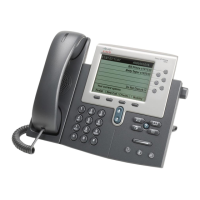
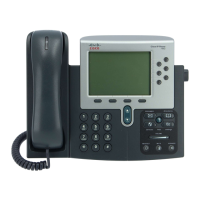
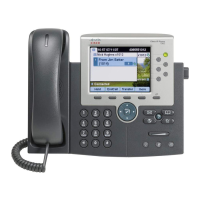
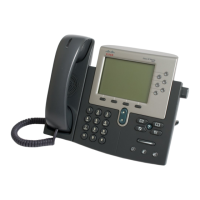
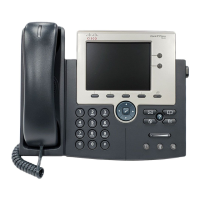
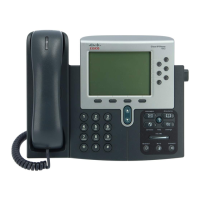
Cisco 7962G - User Manual

Cisco 7962G
110 pages
Print Icon
To Next Page IconTo Next Page
Loading...
Americas Headquarters
Cisco Systems, Inc.
170 West Tasman Drive
San Jose, CA 95134-1706
USA
http://www.cisco.com
Tel: 408 526-4000
800 553-NETS (6387)
Fax: 408 527-0883
Cisco Unified IP Phone User Guide
for Cisco
Unified Communications
Manager 8.6 (SCCP
and SIP)
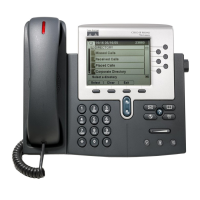
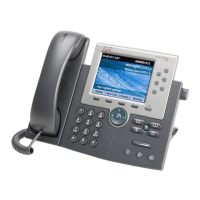
For Cisco Unified IP Phone 7962G, 7942G, 7961G, 7961G-GE, 7941G,
and 7941G-GE

Table of Contents

Other manuals for Cisco 7962G

Questions and Answers

  • C
    Christopher Howard MDAug 19, 2025
    Why can't I hear a dial tone or complete a call on my Cisco IP Phone?
    • R
      Ryan NguyenAug 19, 2025
      If you cannot hear a dial tone or complete a call on your Cisco IP Phone, make sure that you have logged into the Extension Mobility service. Also, if you are using an SCCP phone, ensure that you enter a client matter code (CMC) or forced authorization code (FAC) after dialing a number. Your inability to complete a call might also be due to time-of-day restrictions set on your phone, preventing you from using certain features during specific hours.
  • C
    Christina NicholsAug 21, 2025
    How to fix Cisco IP Phone when it is unable to obtain IP address?
    • S
      shelley07Aug 21, 2025
      If the Cisco Unified IP Phone is unable to obtain an IP address, make sure that the network or VLAN to which the phone is connected has access to the DHCP server, and make sure that the switch port is enabled.
  • S
    Scott EdwardsAug 25, 2025
    How to adjust the screen display if it is too light or too dark on Cisco 7962G?
    • S
      Shawn MarksAug 25, 2025
      To adjust the contrast on Cisco Unified IP Phones 7961G, 7961G-GE, 7941G, and 7941G-GE: 1. Choose . 2. Press 1, 3 on the keypad. 3. Press until you can see the phone screen display. 4. Press Save. For Cisco Unified IP Phones 7962G and 7942G: 1. Choose . 2. Press 1, 4 on the keypad. 3. Press until you can see the phone screen display. 4. Press Save.
  • T
    Tara WintersAug 26, 2025
    What to do if the softkey I want to use does not appear on my Cisco 7962G IP Phone?
    • C
      Carolyn NicholsonAug 26, 2025
      If the softkey that you want to use does not appear on your Cisco IP Phone, try pressing the 'more' button to reveal additional softkeys. You might also need to change the line state, for example, by going off-hook or having a connected call. It is also possible that your phone is not configured to support the feature associated with that softkey.
  • C
    colleenmorganAug 28, 2025
    Why does Barge fail and result in a fast busy tone on my Cisco 7962G IP Phone?
    • M
      Madison JonesAug 28, 2025
      If Barge fails and results in a fast busy tone when using your Cisco IP Phone, it may be because you cannot barge an encrypted call if the phone you are using is not configured for encryption.
  • S
    Scott JohnsonAug 30, 2025
    Why does Cisco CallBack fail?
    • R
      Richard SandersAug 30, 2025
      Cisco CallBack may fail if the other party has call forwarding enabled.
  • C
    Chad HartSep 1, 2025
    What to do if Join fails on my Cisco 7962G?
    • E
      Elizabeth MeyerSep 1, 2025
      If Join fails on your Cisco IP Phone (SCCP phones only), ensure that you have selected at least one call in addition to the active call, as Join requires multiple selected calls. Also, verify that the selected calls are on the same line. If necessary, transfer calls to one line before joining them.
  • K
    Kyle BrownSep 3, 2025
    Why is the Settings button unresponsive on my Cisco 7962G IP Phone?
    • L
      Lisa CollinsSep 3, 2025
      The Settings button on your Cisco IP Phone might be unresponsive because your system administrator has disabled it on your phone.
  • J
    Joseph EdwardsSep 5, 2025
    How to fix Cisco 7962G IP Phone when I cannot hear a dial tone?
    • J
      jenniferthomasSep 5, 2025
      If you cannot hear a dial tone or complete a call on your Cisco IP Phone, ensure you are logged into the Extension Mobility service. Also, if you are using an SCCP phone, you may need to enter a client matter code (CMC) or forced authorization code (FAC) after dialing. Finally, check if your phone has time-of-day restrictions that prevent usage during certain hours.
  • M
    Mark RichardsonSep 8, 2025
    Why the softkey that I want to use does not appear on my Cisco 7962G?
    • B
      browncarolynSep 8, 2025
      If a softkey is missing on your Cisco IP Phone, first press the 'more' button to see additional softkeys. If it's still not there, try changing the line state by lifting the handset or connecting a call. It's also possible that your phone is not configured to support the feature associated with the softkey.

Summary

Getting Started

Safety and Performance Information

Understand the impact of power outages and other devices on your Cisco Unified IP Phone's operation.

Cisco Product Security Overview

Information on cryptographic features and compliance with US and local country laws.

Connecting Your Phone

Basic Call Handling

Placing a Call-Basic Options

Guides on how to place calls using the handset, speakerphone, or headset.

Answering a Call

Instructions on how to answer incoming calls using various phone audio devices.

Advanced Call Handling

Speed Dialing

Methods for configuring and using speed-dial features for quick calling.

Making and Receiving Secure Calls

Details on how to make and receive authenticated, encrypted, or protected calls.

Using a Handset, Headset, and Speakerphone

Using a Handset

Instructions for using the phone's primary handset for calls.

Changing Phone Settings

Accessing Voice Messages

Using the User Options Web Pages

Accessing Your User Options Web Pages

Steps to log in to and navigate the Cisco Unified CM User Options web pages.

Troubleshooting Your Phone

General Troubleshooting

Information to help troubleshoot common phone problems and issues.

Cisco 7962G Specifications

General IconGeneral
MountingDesk/Wall
Handset typeWired handset
Product typeIP Phone
Case materialABS
Product colorBlack, Grey
Wall mountableYes
BluetoothNo
Security algorithms128-bit AES, 802.1x RADIUS
Networking standardsIEEE 802.1Q, IEEE 802.1p, IEEE 802.1x, IEEE 802.3af
Ethernet LAN data rates10, 100 Mbit/s
Ethernet LAN interface typeFast Ethernet
Ethernet LAN (RJ-45) ports2
Voice codecsG.711, G.711a, G.722, G.729A, G.729ab, iLBC
Volume controlDigital
Display diagonal5 \
Display resolution320 x 222 pixels
Display number of colorsMonochrome
Caller ID-
Lines quantity- lines
Phonebook capacity- entries
Storage temperature (T-T)-10 - 60 °C
Operating temperature (T-T)0 - 40 °C
Operating relative humidity (H-H)10 - 95 %
Number of handles included1 pc(s)
Weight and Dimensions IconWeight and Dimensions
Depth203.2 mm
Width266.7 mm
Height152.4 mm
Weight1600 g

Related product manuals