13
Access Point Mounting Instructions
OL-166451-01
Securing an Access Point
Securing the Access Point to the Mounting Plate
Use the security hasp on the adapter cable access cover and a padlock (that you provide) to secure your
access point to the mounting plate. Compatible padlocks are Master Lock models 120T or 121T. The
cable access cover on the mounting bracket covers the cable bay area (including the power port, Ethernet
port, console port, and the mode button) to prevent the installation or removal of the cables or the
activation of the mode button.
Follow these instructions to install the padlock:
Step 1 With the access point installed on the mounting bracket, insert a padlock into the security hasp.
Note If your access point is mounted to a hard ceiling, the clearance between the mounting bracket
and the ceiling is small. Work slowly using both hands to position and secure the lock into
the mounting bracket hasp.
Step 2 Rotate the lock clockwise and align the bail with the lock body.
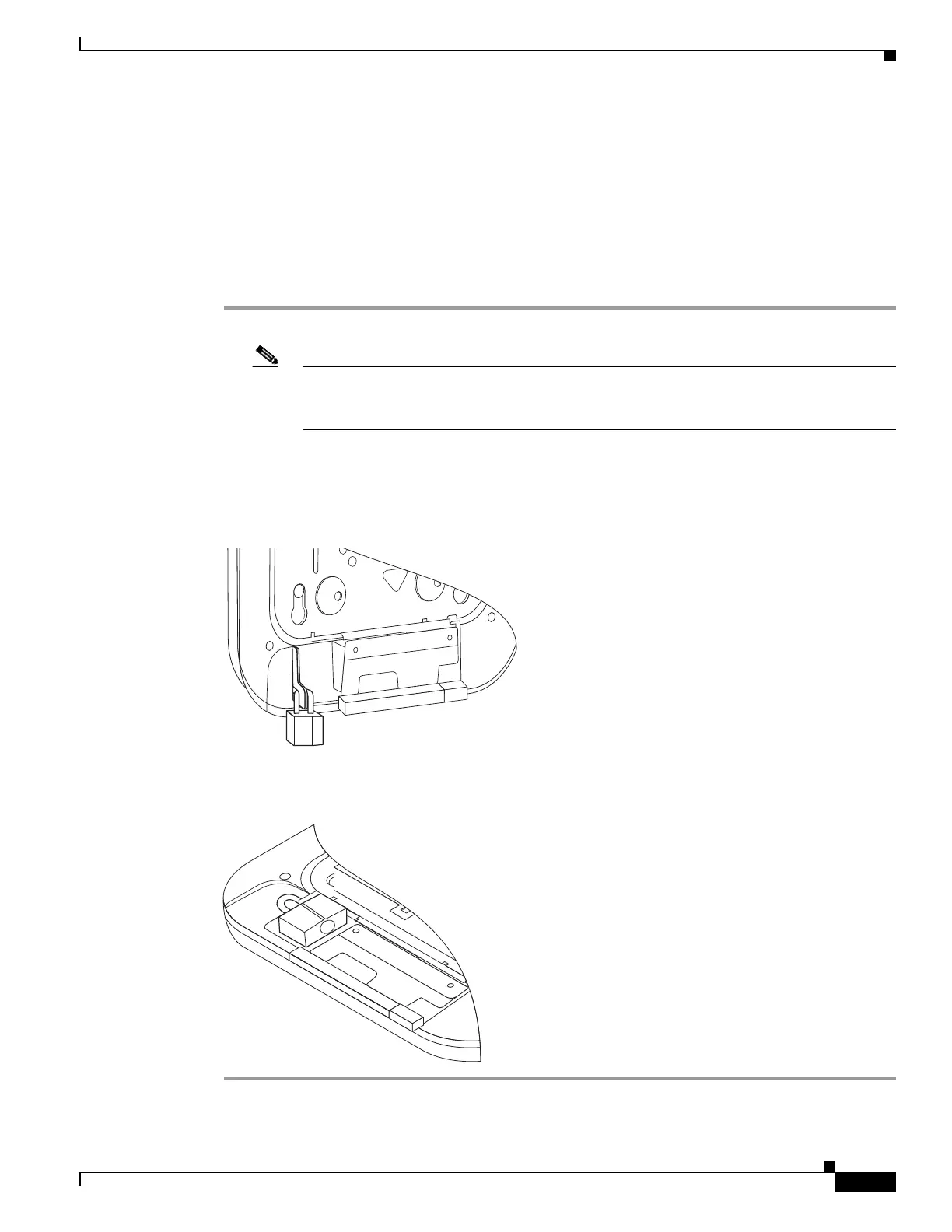
Step 3 Grasp the lock and push it into the bail to lock the lock. See Figure 12.
Figure 12 Inserting the Padlock into the Security Hasp
Step 4
Rotate the padlock into the padlock area. See Figure 13.
Figure 13 Rotating the Padlock into the Padlock Area
272383


 To Next Page