Need help?
Do you have a question about the Cisco SPA508G and is the answer not in the manual?
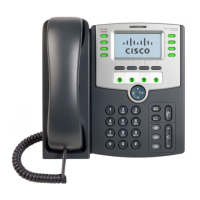
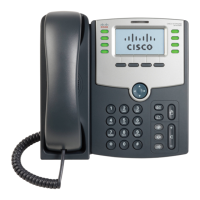
This document serves as a quick user guide for the Cisco SPA508G, a 4-line appearance phone designed for use with the Star2Star Communications system. It outlines basic phone features and customization options, providing instructions for making and receiving calls, managing calls, and configuring various phone settings.
To place a call using the handset, simply pick up the handset and dial the desired number, then press the "dial" soft key. For hands-free calling via the speakerphone, ensure the handset is on-hook, then press either the speaker button or a line button, dial the number, and press "dial." If using a headset, connect it, then press the headset button or a line button, dial the number, and press "dial." During an active call, you can switch between handset, headset, or hands-free modes by pressing the corresponding keys.
To answer a call using the handset, pick it up. For speakerphone use, press the "answer" soft key or the red flashing line button. If using a headset, press the headset button to answer.
To end a call, press the "endCall" soft key or replace the handset. If using the speakerphone, headset, or handset, you can also press a line button. Alternatively, if using a headset, you can press the headset button.
To mute the phone's microphone (for handset, speaker, or headset), press the mute button. It will glow red, indicating that the other party cannot hear you. To unmute, press the mute button again.
During a call, press the "hold" button to place the call on hold. The line button will flash red, and the caller on hold will hear music or a message if configured on your system. To resume the call, press the "resume" soft key or the flashing red line button.
To create a three-way local conference call, during an active call, press the right arrow, then the "conf" soft key to create a new call. The active call is placed on hold, and the caller will hear music or a message. Dial the second party's phone number. When the second party answers, press the "conf" soft key again to join all parties in the conference. If you hang up, the other two parties are disconnected. To remain in the call while you disconnect, press "join." For larger conferences, use the Star2Star Conference room feature.
For a blind transfer (without announcement), during a call, press the "bxfer" soft key. The caller on hold will hear music or a message. Dial the number you want to transfer the call to, then press the "dial" soft key.
For an announced transfer, during a call, press the "xfer" soft key. The caller on hold will hear music or a message. Dial the number, then press the "dial" soft key. When the called party answers, announce the call, then press the "xfer" soft key to complete the transfer.
To enable call forwarding, press the "cfwd" soft key from the phone's idle display. A tone will be heard, and the phone will display "Enter CWFD All Number." Enter the required number, then press the "dial" soft key. The soft key will change to "-cfwd" and be highlighted. To disable call forwarding, press the "-cfwd" soft key. For more advanced call forwarding, use the Star2Star Find-Me / Follow-Me feature in the Star2Star Web Portal Individual Phone Settings section, which includes Follow Me (Immediate), Find Me (Sequential), and Find Me (All).
To redial, press the "redial" soft key and use the navigation arrows to select the desired number from the Redial List. Lift the handset or press the "dial" soft key. You can also select the "edit" soft key to modify the selected number before dialing, for example, to add an area code.
To enable Do Not Disturb, press the "dnd" soft key. The soft key will change to "-dnd" and be highlighted. To turn off the feature, press the "-dnd" soft key again. Callers will be directed to Voice Mail or the Star2Star Find-Me / Follow-Me feature if invoked.
The indicator at the top of the phone will glow red when new messages are waiting, and a message envelope icon will appear against your extension number in the phone display. To listen to voice messages, press the message button or dial 1000. The system will prompt for your password. When accessing the voice mail system for the first time, your password is your extension number. It is recommended to change your password to a different 4-digit number that you can easily recall.
The Company Extension Directory is automatically downloaded to the phone. To access the Directory, press the "dir" soft key or the setup button, then press the "select" soft key. The phone will display three options: Directory (contd), New Entry, and Search Directory.
Select the "New Entry" option to add personal address entries. Select the "add" soft key and use the keypad to enter the name. Use the down arrow navigation button to move to the Number field. Use the down arrow navigation button to move to the Ring field. This can be changed from "Default" to a specific ringer sound by selecting the "option" soft key. Use the up arrow navigation button to search available options. Select the "play" soft key to listen to your selection. Select the "save" soft key when done. Use the "Search" option to search entries in the Personal Address Book.
The corporate extension directory is automatically downloaded to the phone, displaying 32 entries at a time. Press the "Next" soft key to display additional entries. Using the navigation arrows, select option 3 Directory, then press the "Select" soft key. The Company Directory is displayed. Use the navigation arrows to select the entry you require. Press the "Dial" soft key to dial the entry.
You can create speed dials assigned to a number that, when pressed on the keypad, dials the assigned number. You can have up to 8 speed dials (2-9), with location 1 reserved for voice mail. Press the setup button.
Scroll to "Speed Dial" and press the "Select" soft key. For a new speed dial, scroll to select an unused speed dial location (2 through 9). To edit an existing speed dial or add a new one, select it using the navigation buttons, then press the "edit" soft key. Enter the phone number for the speed dial and select the "ok" soft key. To call one of your configured speed dial numbers, open a phone line and press the number for the speed dial (2-9), then wait a few seconds or press the "dial" soft key. Alternatively, press the setup button, select "Speed Dial," choose the number, and press the "dial" soft key. If your phone has an expansion module, use the Star2Star Web Portal Individual Phone Settings / Speed Dials section to configure this device. This is useful for adding local extensions to view their presence and allow one-touch transfer of calls.
Press the volume button to adjust handset, headset, and speakerphone volume during a call. Pressing this button with the phone in an idle state will adjust the ringer volume. Press the "save" soft key to keep the setting.
Press the setup button to enter the Setup Menu. Scroll to "4 Ring Tone."
Press the "Select" soft key. Scroll to the extension you wish to change. Typically, all calls will arrive on Ext 1. Press the "change" soft key to view and subsequently scroll the available ring tone options. Press the "play" soft key to listen. When you have selected the tone, press the "select" soft key.
With a call in progress, press the "park" soft key. The phone will announce the system retrieval code (e.g., 7001) and automatically park the call in the first available park position (e.g., Park 1). The park button glows red, and the caller is parked. The caller will hear music or a message on hold if configured on your system. Press the relevant Park position button on your phone or any similar model local extension to retrieve the call. Alternatively, dial the retrieval code (e.g., 7001) to retrieve the call.
To pick up a call ringing a specific phone that is not ringing as part of a Ring Group, dial *8xxx (where xxx is the extension of the ringing phone). For example, if your neighbor's phone extension 112 is ringing, you would dial *8112 to pick up that call. To pick up a call on any ringing phone, dial *8.
 General
| Lines Supported | 8 |
|---|---|
| Protocol | SIP |
| Power over Ethernet (PoE) | Yes |
| Speakerphone | Yes |
| QoS | Yes |
| Display | Monochrome backlit display |
| Ethernet Ports | 2 |
| Headset Port | Yes, 2.5 mm |
| Voice Codecs | G.711, G.722, G.726, G.729ab |
| Weight | 0.9 kg |

 To Next Page