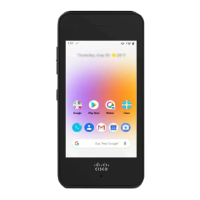
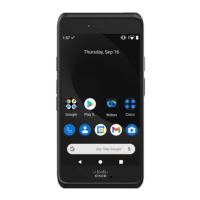
Cisco Webex Wireless Phone 840 and 840S Quick Reference Guide
Mar 2021
Copyright © 2021 Cisco Systems, Inc. All rights reserved.
Your Phone
1. Power button
2. Barcode scanner (840S only) and
programmable button (by default Emergency)
3. Receive speaker and front camera
4. Programmable button (by default PTT)
5. Microphone
6. Headset jack, USB charging port, and speaker
7. Programmable buttons (by default: Volume up,
Volume down, and the lower button is Scanner
(for 840S) or No action (for 840))
8. Rear camera, flash lens/torch, and rear
microphone
9. Charger contacts, battery latch, and
rechargeable battery pack
Turn On Your Phone
Press and hold the Power button until the phone
vibrates and the rst screen displays.
Unlock Your Phone
1. If the phone screen is in sleep mode, briefly
press the Power button.
2. From the lock screen, swipe up on the Lock
icon.
3. Enter your PIN or password and tap Enter .
Lock Your Phone
Briey press the Power button.
Turn Off Your Phone
1. Press and hold the Power button.
2. Tap Power off .
Make a Call from the Keypad Tab
1. Access the Cisco Phone app.
2. Tap Keypad .
3. Enter a phone number.
4. Tap Answer/Call .
Answer a Call
Swipe Answer/Call to the right.
Mute Your Microphone
1. From the active call screen, tap Mute .
2. To unmute your microphone, tap Mute
again.
Change Your Audio Option
1. From the active call screen, tap Audio
options .
2. Select the desired available audio option:
Headphones , Speaker , Bluetooth ,
or Phone .
Hold a Call
1. From the active call screen, tap Hold .
2. To return to the held call, tap Hold .
Transfer a Call to Another Person
1. From the active call screen, tap More .
2. Tap Transfer to number.
3. Enter the number to call or select an entry
from your recent Calls .
4. Tap Transfer .

 Need help?

 To Next Page
 General