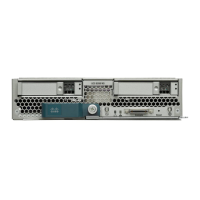
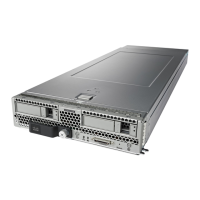
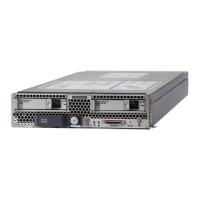
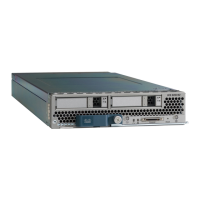
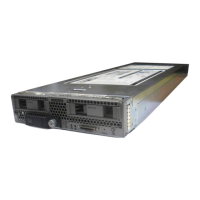
Installing a Blade Server Hard Drive
Procedure
Step 1
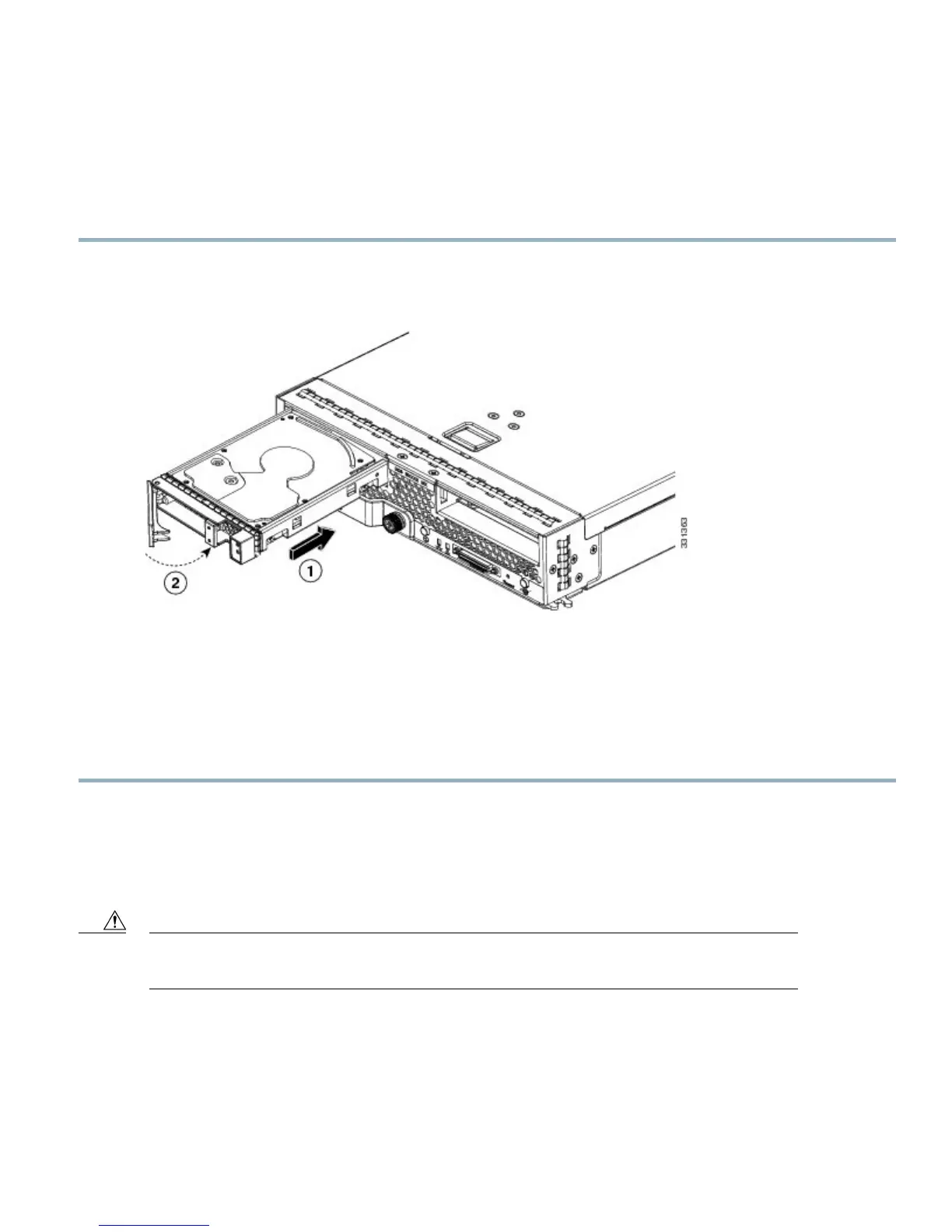
Place the hard drive lever into the open position by pushing the release button.
Figure 4: Installing a Hard Drive in a Blade Server
Step 2
Gently slide the hard drive into the opening in the blade server until it seats into place.
Step 3
Push the hard drive lever into the closed position.
You can use Cisco UCS Manager to format and configure RAID services. For details, see the Configuration Guide for the
version of Cisco UCS Manager that you are using. The configuration guides are available at the following URL: http://
www.cisco.com/en/US/products/ps10281/products_installation_and_configuration_guides_list.html
If you need to move a RAID cluster, see the Cisco UCS Manager B-Series Troubleshooting Guide.
Blade Server Removal and Installation
Before performing any internal operations on this blade server, you must remove it from the chassis.
To prevent ESD damage, wear grounding wrist straps during these procedures and handle modules by the
carrier edges only.
Caution
7


 To Next Page
 Loading...