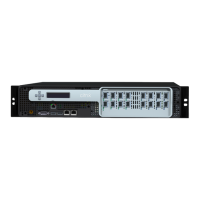
Citrix | ADC Quick Start Guide: MPX 16000T appliance
Setting up connectivity
Connect the appliance to a management workstation or the network by using the ADC configuration
utility (GUI), or the command line interface (CLI).
Log on to the appliance as nsroot. For initial configuration, use the serial number of the appliance as
the administrative password. For subsequent access, use the password assigned during initial
configuration.
Using the GUI
To set up the appliance by using the GUI, you need a management workstation or laptop configured
on the same network as the appliance. To run the configuration utility, the Java RunTime Environment
(JRE) version 1.4.2_04 or later must be installed on the workstation or laptop.
Note: The Setup Wizard automatically opens upon logon when the appliance is configured with the
default IP address, when licenses are not installed on the appliance, and when a subnet IP address is
not configured.
To configure the appliance by using the ADC GUI
1. Connect the port labelled 0/1 on the appliance to a management workstation or network.
2. Open a browser and type: http://192.168.100.1
Note: The ADC is preconfigured with the IP address 192.168.100.1.
3. In the User Name box, type nsroot and in the Password box, type the serial number of the
appliance.
4. In Deployment Type, select ADC.
5. In the Setup Wizard, click Next and follow the instructions in the wizard to configure the basic
parameters, such as IP address, netmask, and gateway.
6. To confirm that the ADC appliance is configured correctly, you can either ping the new ADC IP
address (NSIP) or use the new NSIP to open the configuration utility in a browser.
For information about deploying a high availability (HA) pair, see https://docs.citrix.com/en-us/citrix-
adc/current-release/system/high-availability-introduction/configuring-high-availability.html.
Using the ADC serial console
To set up the appliance by using the command-line interface (CLI), connect the 6-foot RJ-45/DB-9
serial cable to the console port. Access the command line with a terminal or terminal emulator with the
following settings:
• Baud rate: 9600
• Data bits: 8
• Parity: None
• Stop bits: 1
• Flow control: None
Log on to the ADC with the following credentials:



 To Next Page