EasyManua.ls Logo

Clarion CZ209A - User Manual

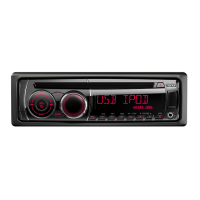
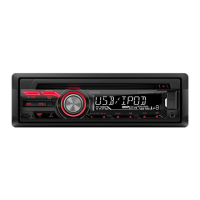
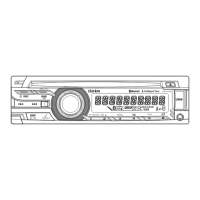
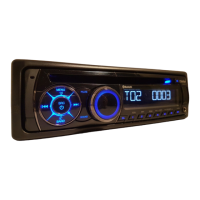
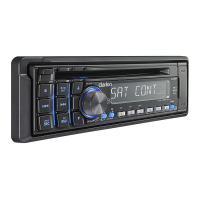
Clarion CZ209A
22 pages
Print Icon
To Next Page IconTo Next Page
Loading...
CZ2 09A

Questions and Answers

  • M
    Megan ChristensenAug 19, 2025
    Why can't I connect my device to the USB cable on my Clarion CZ209A Car Receiver?
    • B
      Benjamin MendozaAug 19, 2025
      If you can't connect your device to the USB cable on your Clarion Car Receiver, the device may have been connected improperly. Try connecting it in the reverse direction. If that doesn't work, the connector might be broken, and you may need to replace the device.
  • C
    Christian JacksonAug 21, 2025
    Why does my Clarion Car Receiver have no power and no sound?
    • B
      baxterscottAug 21, 2025
      If your Clarion Car Receiver isn't powering on and there's no sound, the fuse might be blown. Replace it with a fuse of the same amperage. If it blows again, it could be due to incorrect wiring. In this case, consult your dealer.
  • H
    hailey47Aug 23, 2025
    What to do if my Clarion CZ209A Car Receiver has no sound when using amplifiers or a power antenna?
    • A
      Anthony PotterAug 23, 2025
      If you're experiencing no sound with your Clarion Car Receiver when amplifiers or a power antenna are connected, the power antenna lead might be short-circuited, or the amplifiers/antenna are drawing too much current. Here's what to do: 1. Turn the unit off. 2. Disconnect all wires from the power antenna lead and check for short circuits with an ohm meter. 3. Turn the unit back on. 4. Reconnect each amplifier remote wire to the power antenna lead one by one. If the amplifiers turn off before all wires are attached, an external relay is needed to provide remote power due to excessive current draw.
  • S
    Sean RayAug 26, 2025
    What to do if my Clarion Car Receiver has no sound?
    • W
      Wayne WardAug 26, 2025
      If there is no sound from your Clarion Car Receiver, the speaker protection circuit may be activated. Try turning the sound volume down. You can also try turning the power off and on again. If the sound is still muted, consult your dealer.
  • N
    Natalie BlairAug 28, 2025
    What to do if buttons on my Clarion CZ209A don't work and the display is wrong?
    • J
      Jordan BaileyAug 28, 2025
      If the buttons on your Clarion Car Receiver aren't responding or the display is inaccurate, it could be due to a microprocessor malfunction caused by noise. Try the following: 1. Turn off the power, then press the Reset button [RELEASE] button and remove the DCP. 2. Use a thin rod to hold the reset button depressed (2 sec.). If a disc is loaded, eject it and reload it before trying to play it again. Also, the DCP or main unit connectors might be dirty. Wipe them off with a soft cloth dampened with cleaning alcohol.
  • M
    Marilyn MillerAug 30, 2025
    Why does my Clarion Car Receiver sound skip or is noisy?
    • L
      Laura MedinaAug 30, 2025
      If the sound from your Clarion Car Receiver skips or is noisy, the CD might be dirty. Clean it with a soft cloth. Alternatively, the CD could be heavily scratched or warped, in which case you should replace it.
  • D
    Dr. Kari SmithSep 1, 2025
    Why does my Clarion Car Receiver have no sound with CD/MP3/WMA files?
    • B
      Brittney CombsSep 1, 2025
      If your Clarion Car Receiver isn't playing sound from CD/MP3/WMA files, ensure that the MP3/WMA files are properly written onto the disc and that the files are correctly encoded as MP3/WMA files. Also, verify that you're using a compatible file system like ISO9660 level 1, 2, JOLIET, or Romeo.
  • C
    Chris VaughnSep 4, 2025
    Why does my Clarion CZ209A Car Receiver sound cut out or skip, or have noise?
    • B
      Brenda MartinezSep 4, 2025
      If the sound from your Clarion Car Receiver cuts out, skips, or has noise, the MP3/WMA files may not be encoded properly. Try using properly encoded MP3/WMA files.
  • J
    Jeremiah HansonSep 6, 2025
    Why does my Clarion Car Receiver sound poor when first turned on?
    • W
      weaverdavidSep 6, 2025
      If the sound quality of your Clarion Car Receiver is poor when first turned on, condensation may have formed on the internal lens due to humidity. Let it dry for about 1 hour with the power on.
  • B
    Brandon WallaceSep 8, 2025
    Why does my Clarion CZ209A show the wrong file name?
    • D
      Donald ClementsSep 8, 2025
      If your Clarion Car Receiver is displaying the wrong file name, the file system might not be correct. Use ISO9660 level 1, 2, JOLIET, or Romeo file system.

Summary

Features and Precautions

USB Direct Connection for iPod

Enables direct connection of iPod via USB for playback.

Front Panel 3.5 mm Auxiliary Input

Provides an auxiliary input for external audio devices on the front panel.

4 ch;2 V RCA Output

Offers 4-channel audio output with 2V RCA for external amplifiers.

Handling Compact Discs

Advises on care for CDs, especially CD-R/RW, to prevent damage from heat and humidity.

Display Screen Behavior

Explains normal screen behavior in extreme cold conditions.

Controls Overview

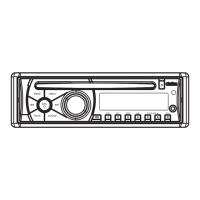
Main Unit Button Functions

Details the function of each button on the main unit's control panel.

Release Button Operation

Unlocks the detachable control panel (DCP) from the main unit.

SRC Button Functionality

Turns the unit on/off and cycles through operation modes.

Rotary Knob Usage

Adjusts volume and navigates through menus and settings.

Detachable Control Panel (DCP)

DCP Removal Procedure

Step-by-step guide on how to detach the control panel from the main unit.

DCP Attachment Procedure

Instructions for securely reattaching the control panel to the main unit.

DCP Handling Safety

Advises on careful handling to prevent damage and notes connector importance.

Remote Control Operations

Remote Control Button Functions

Explains the operations of various buttons on the remote control unit.

Shared Mode Functions

Describes common functions like power, volume, and mute applicable across modes.

Radio Mode Remote Functions

Details remote control functions specific to radio tuning and presets.

CD;MP3;WMA;USB Mode Functions

Explains remote functions for playback, track selection, and scan/repeat/random modes.

iPod Mode Remote Functions

Outlines remote control operations for iPod playback and track selection.

Basic Operations

Remote Battery Insertion

Guide on how to insert the battery into the remote control unit.

Core Unit Operations

Covers essential operations like turning power on/off, selecting modes, and adjusting volume.

Power On;Off Instructions

Instructions for powering the unit on and off using the SRC button.

Mode Selection Process

Explains how to switch between different operation modes like Radio, CD, USB, and AUX.

Volume Adjustment

Details how to increase or decrease the audio volume using the rotary knob.

Sound Adjustment

Changing Sound Settings

Steps to access and adjust various sound parameters like bass, treble, and balance.

Z-Enhancer Plus Customization

Describes how to select and customize Z-Enhancer Plus sound effects.

Bass Adjustment Details

Explains how to adjust bass gain, frequency, and Q curve when Z-Enhancer Plus is set to CUSTOM.

Treble Adjustment Details

Details how to adjust treble gain and frequency when Z-Enhancer Plus is set to CUSTOM.

Balance Adjustment

How to adjust the sound balance between left and right speakers.

Fader Adjustment

How to adjust sound balance between front and rear speakers.

Non-Fader Volume Control

Adjusts volume output from the unit's non-fader output terminal.

MAGNA BASS EXTEND Function

How to enable or disable the MAGNA BASS EXTEND function.

Radio Operations

Listening to Broadcasts

Instructions on how to select radio mode and reception bands.

Tuning Methods Overview

Covers seek tuning, manual tuning, and preset tuning methods.

Seek Tuning Guide

Guide on how to automatically seek radio stations.

Manual Tuning Guide

Explains quick tuning and step tuning for manual station selection.

Recalling Preset Stations

How to recall stored radio stations using direct buttons.

Memory and CD;MP3;WMA Operations

Manual Memory Storage

Allows storing current station in preset memory.

Auto Store Function

Automatically stores up to 6 stations with good reception.

Preset Scan Operation

Sequentially receives stations stored in preset memory.

Instant Station Recall (ISR)

Allows instant access to a favorite preset station.

MP3;WMA File Playback

Information on playing MP3 and WMA files, including DRM notes.

MP3;WMA File Creation Precautions

Guidelines for file sampling rates, bit rates, and extensions.

Logical Format for Discs

Advice on file system formats (ISO9660) and file naming for discs.

CD;MP3;WMA Playback Details

File and Folder Limits

Limits on files per folder and total files for discs.

Disc-In-Play Function

Automatic playback of disc when inserted with ignition on.

Backup Eject Function

Ejects disc even when unit power is off.

Playing Loaded Discs

How to play a disc that is already in the unit.

CD Loading Instructions

Steps for inserting a CD into the CD slot.

Pausing and Resuming Playback

How to pause and resume playback of audio tracks.

Displaying CD;MP3;WMA Titles

How titles for CD-text/MP3/WMA discs are displayed.

CD;MP3;WMA Track and Mode Operations

Selecting Tracks

Instructions for advancing or going back to tracks.

Fast-Forward;Fast-Reverse

How to fast-forward or fast-reverse through tracks.

Folder Selection

How to navigate and select folders on MP3/WMA discs.

Advanced Play Modes

Explains scan, folder scan, repeat, and folder repeat play modes.

Random Play Functions

How to play all tracks on a disc or within a folder in random order.

Canceling Play Modes

Method to cancel active playback modes like scan or repeat.

Operations Common Across Modes

Changing Unit Settings

General procedure to access and modify unit settings.

Setting the Clock

Steps to set the current time on the unit.

Viewing Current Settings

How to view the current operational settings of the unit.

Screen Saver Control

Instructions to enable or disable the screen saver function.

Title Scroll Method Setting

How to configure title scrolling for CD-TEXT and MP3/WMA.

Dimmer Control Setting

How to adjust the display brightness.

Speaker Output for Cell Phones

Configures speaker output for phone calls via AUX.

Cell Phone Interrupt Setting

Manages how the unit sound is interrupted for cell phone calls.

AUX Input Function

Details the use of the external AUX input jack.

AUX Input Sensitivity Adjustment

Adjusts input sensitivity for external devices when using AUX.

Accessories: USB Operations

USB Memory Device Operation Overview

General overview of operating USB memory devices.

Common USB Operations

Notes common operations shared with CD mode for USB.

Understanding USB Memory

Information about USB standards, compatibility, and file types.

USB Device Handling Precautions

Warnings about inserting/removing USB devices and handling them in vehicles.

Connecting a USB Memory Device

Steps for connecting a USB device and starting playback.

Listening to Connected USB Devices

How to switch to USB source and resume playback.

Stopping USB Playback

Instructions on how to stop USB playback and remove the device.

iPod Operations

Connecting an iPod

Guide on connecting an iPod via USB and its effects on shuffle settings.

Selecting iPod Mode

How to select the iPod mode and start playback.

Setting iPod Simple Mode

Configures the unit for simplified iPod operation.

Various iPod Play Functions

Describes repeat, random, and all random play for iPod.

Canceling iPod Play Modes

How to cancel active iPod play modes.

Selecting iPod Categories

Navigates iPod menus to select categories like Playlist, Artist, Album.

iPod Menu Alphabet Search

Utilizes alphabet search to find specific content within iPod menus.

iPod Category Selection by Preset

Assigns and selects iPod categories using direct buttons.

iPod Title Display Information

Information on displaying title information from a connected iPod.

Troubleshooting

Power and Sound Issues

Addresses power, sound, and unresponsive button issues.

Display Accuracy Problems

Addresses display inaccuracies, possibly due to dirty connectors.

No Sound Troubleshooting

Covers no sound issues, possibly due to protection or file formats.

USB;iPod Sound Issues

Troubleshoots no sound, interruptions, or noise from USB/iPod.

USB;iPod Device Recognition

Solutions for when a USB/iPod device is not recognized by the unit.

USB Device Connection Issues

Troubleshooting connection issues with USB devices.

Error Displays and Specifications

CD;MP3;WMA Error Codes

Indicates CD deck failure, unplayable CDs, or upside-down loading.

iPod Error Codes

Relates to iPod analysis failure, playback issues, or unrecognized devices.

USB Error Codes

Points to USB memory device format errors.

FM Tuner Specifications

Technical specifications for the FM radio tuner.

AM Tuner Specifications

Technical specifications for the AM radio tuner.

CD Player Specifications

Technical specifications for the CD playback system.

Audio Specifications

Specifications related to audio output power and frequency response.

General Unit Specifications

General specifications like power supply, current consumption, and dimensions.

Clarion CZ209A Specifications

General IconGeneral
TypeCar Receiver
BrandClarion
ModelCZ209A
Channels4
BluetoothYes
USB PortYes
USB InputYes
AUX InputYes
AM/FM TunerYes
Display TypeLCD
Compatible FormatsMP3, WMA
MP3 PlaybackYes
WMA PlaybackYes
Max Power Output50W
Peak Power Output50W
Preamp Outputs2

Related product manuals