EasyManua.ls Logo

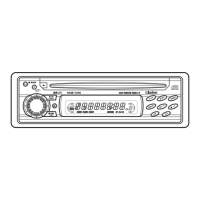
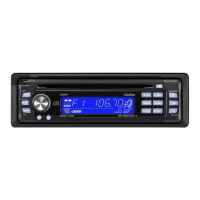
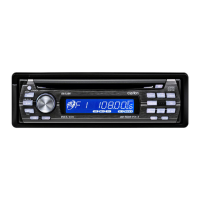
Clarion DFZ675MC - User Manual

Clarion DFZ675MC
42 pages
Print Icon
To Next Page IconTo Next Page
Loading...
Owner's manual
Mode
d'emploi
Manual de instrucciones
DFZ675MC
2-DIN CD/SD/MP3IWMA RECIEVERI
CeNET CONTROUMUSIC CATCHER®n
RECEPTEUR CD/SD/MP3fWMA 2 DIN!
COMMANDE CeNET/MUSIC
RECEPTOR DE CD/SD/MP3IWMA 2-DINI
CONTROL CeNET/MUSIC
CATCHER@n

Other manuals for Clarion DFZ675MC

Questions and Answers

  • T
    Timothy SmithAug 15, 2025
    Why does my Clarion DFZ675MC Car Receiver have no power and no sound?
    • K
      krollinsAug 15, 2025
      The fuse may be blown. Replace it with a fuse of the same amperage. If it blows again, consult your store of purchase. Also, check for incorrect wiring and consult your store of purchase.
  • J
    Jonathan ShermanAug 18, 2025
    What to do if Clarion Car Receiver buttons don't work and the display is inaccurate?
    • S
      Sarah BrownAug 18, 2025
      The microprocessor may have malfunctioned. Press and hold the [RESET] button for 2 seconds or longer with a thin rod.
  • P
    Patrick GuzmanAug 21, 2025
    Why is there no sound heard from my Clarion Car Receiver?
    • M
      Michael GrayAug 21, 2025
      There may be a disc other than a compact disc or foreign matter already in place. Press and hold the [CDo] button for 3 seconds or longer to forcibly eject the foreign matter. Alternatively, MP3/WMA files may be absent; write MP3/WMA files onto the disc or the SD memory card properly. The files may not be recognized as MP3/WMA files, so use MP3/WMA files encoded properly. Finally, the file system might be incorrect; use ISO9660 level 1, 2 or JOLIET or Romeo file system. Format SD memory card as FAT12, FAT16, FAT32 or VFAT.
  • C
    Crystal PinedaAug 25, 2025
    What does “FAIL ****” mean on my Clarion DFZ675MC Car Receiver?
    • J
      Jennifer KimAug 25, 2025
      The anti-theft function is out of order. Press and hold the [RESET] button for 2 seconds or longer with a thin rod. If the situation is not improved, contact your local authorized Clarion dealer.
  • N
    Neil LambertAug 27, 2025
    Why does the sound skip or is noisy on my Clarion DFZ675MC?
    • T
      Tony WrightAug 27, 2025
      The disc may be dirty. Clean the disc with a soft cloth. Alternatively, the disc may be heavily scratched or warped; replace it with a disc with no scratches.
  • D
    David GloverAug 30, 2025
    Why is the sound bad directly after turning on my Clarion Car Receiver?
    • T
      Tommy WilsonAug 30, 2025
      Water droplets may have formed on the internal lens when the car was parked in a humid place. Let it dry for about 1 hour with the power on.
  • E
    Ebony SmithSep 2, 2025
    Why is the filename wrong on my Clarion DFZ675MC?
    • S
      Susan WestSep 2, 2025
      The file system may not be correct. Use ISO9660 level 1, 2 or JOLIET or Romeo file system. Format SD memory card as FAT12, FAT16, FAT32 or VFAT.
  • J
    Jessica HubbardSep 5, 2025
    Why is play list play not performed on my Clarion DFZ675MC?
    • A
      ayersbrendaSep 5, 2025
      The file name or extension may not be correct. Use alphanumeric/ASCII characters for the MP3/WMA file name. Use “.M3U” for the file extension of a play list.
  • E
    everettandrewSep 8, 2025
    What to do if there is no sound output when operating Clarion DFZ675MC with amplifiers or power antenna?
    • S
      Seth GarciaSep 8, 2025
      The power antenna lead may be shorted to ground or excessive current is required for remote-on the amplifiers or power antenna. Here's what to do: 1. Turn the unit off. 2. Remove all wires attached to the power antenna lead. 3. Check each wire for a possible short to ground using an ohm meter. 4. Turn the unit back on. 5. Reconnect each amplifier remote wire to the power antenna lead one by one. If the amplifiers turn off before all wires are attached, use an external relay to provide remote-on voltage (excessive current required).
  • M
    Mark HornSep 12, 2025
    Why can't I record any audio tracks on my Clarion DFZ675MC Car Receiver?
    • C
      Collin CookSep 12, 2025
      An MP3/WMA disc may be currently played back; only audio CD (CD-DA) can be recorded using MC. Switch to CD mode and playback audio CD as the sound source. Also, if SCN, RPT, or RDM is turned ON, cancel Scan play, Repeat play, Random play and record the track. The track might already be recorded in the MC memory; erase the track and record again. There might be no available folder; erase the unnecessary folder. Finally, there might be no available memory (the MC memory capacity is full); erase the unnecessary folder or file.

Summary

1. FEATURES

2. PRECAUTIONS

Handling Compact Discs;SD memory card

Proper handling of CDs and SD memory cards to prevent damage.

3. CONTROLS; LES COMMANDES; CONTROLES

4. NOMENCLATURE

Names of the Buttons and their Functions

Detailed explanation of each button's function.

Major Button Operations When External Equipment is Connected to This Unit

When the CD;DVD changer is connected

Operations when a CD/DVD changer is connected.

When the TV is connected

Operations when a TV tuner is connected.

When the iPod is connected

Operations when an iPod is connected.

Display Items

Display Screen

5. REMOTE CONTROL

Inserting the Battery

Step-by-step guide to insert the battery into the remote.

Functions of Remote Control Unit Buttons

6. OPERATIONS

Basic Operations

Fundamental operations like power, volume, and display.

Adjusting the volume

How to adjust the audio volume using the rotary knob.

Switching the display

How to change the information displayed on the unit.

Basic Operations

Setting the DZE (Digital Z-Enhancer)

How to select and adjust digital sound enhancement effects.

Adjusting the tone

Adjusting bass, treble, balance, and fader settings.

Adjusting the LPO (Listening Position Optimizer)

Optimizing soundstage based on speaker distance and car type.

Basic Operations

Adjusting the treble (Gain, Frequency)

Adjusting treble frequencies and gain.

Adjusting the balance

Adjusting the left-right speaker balance.

Adjusting the fader

Adjusting the front-rear speaker balance.

Radio Operations

Listening to the radio

How to select radio mode and bands.

Tuning

Methods for tuning into radio stations.

Seek tuning

Automatically scanning for radio stations.

Manual tuning

Manually tuning radio frequencies.

Radio Operations

Instant station recall (ISR)

Instantly accessing a favorite radio station.

CD;MP3;WMA, SD memory card, and MUSIC CATCHER II (Playing) Operations

Playing Operations

General operations for playing media.

MP3;WMA

Information and precautions for MP3 and WMA files.

Precautions when creating MP3;WMA files

Guidelines for creating compatible MP3/WMA files.

CD;MP3;WMA, SD memory card, and MUSIC CATCHER II (Playing) Operations

Loading a CD or a SD memory card

How to insert CDs and SD memory cards.

CD;MP3;WMA, SD memory card, and MUSIC CATCHER II (Playing) Operations

Selecting a track

Navigating between tracks.

Folder Select

Selecting folders for playback.

CD;MP3;WMA, SD memory card, and MUSIC CATCHER II (Playing) Operations

Scan play

Playing the first 10 seconds of each track.

Repeat play

Repeating the current track.

Random play

Playing tracks in random order.

MUSIC CATCHER II (Recording;Erasing) Operations

Notes on recording using MUSIC CATCHER II

Important notes and limitations for recording.

Setting a recording mode

How to select recording quality modes.

MUSIC CATCHER II (Recording;Erasing) Operations

Recording operation (REC function)

How to record tracks or entire discs.

Erasing operation (ERASE function)

How to erase recorded files or folders.

Common Operations

CATS function (Clarion Anti-Theft System)

Information about the anti-theft system and PIN.

Entering titles

How to input custom titles.

Common Operations

Display Adjust Mode

Adjusting display settings.

Setting the clock

How to set the unit's clock time.

Common Operations

Adjust Mode

Accessing various adjustment settings.

Setting a recording mode

Selecting the recording quality for MUSIC CATCHER II.

Common Operations

Setting the TV diver

Adjusting TV antenna diversity settings.

Selecting AUX IN sensitivity

Adjusting the sensitivity for external audio input.

How to register;delete PIN

Steps to register or remove the PIN for the CATS function.

7. OPERATIONS OF ACCESSORIES

CD Changer Operations

How to operate the CD changer.

Selecting a track

Navigating tracks on the CD changer.

Scan play

Playing the first 10 seconds of each track on a CD.

TV Operations

TV tuner functions

Overview of TV tuner control features.

Watching a TV

How to select TV mode and tune stations.

Tuning

Methods for tuning TV stations.

iPod Operations

iPod functions

Overview of iPod control features via the unit.

Selecting iPod mode

How to select the iPod mode.

Title display

Displaying album, artist, and song titles.

iPod Operations

Repeat play

Repeating the current iPod track.

Random play

Playing iPod tracks randomly from an album.

Selecting tracks in the iPod MENU mode

Navigating iPod menus to select tracks by category.

8. TROUBLE SHOOTING

General

Troubleshooting common issues.

CD;MP3;WMA, SD

Troubleshooting media playback issues.

9. ERROR DISPLAYS

CD;MP3;WMA

Error messages related to CD/MP3/WMA playback.

M.CATCHER

Error messages related to MUSIC CATCHER II.

SD

Error messages related to SD memory cards.

10. SPECIFICATIONS

FM Tuner

Technical specifications for the FM tuner.

CD Player

Technical specifications for the CD player.

Audio

Technical specifications for audio output.

Installation;Wire Connection Guide

1. BEFORE STARTING; PRÉPARATIFS; ANTES DE COMENZAR

Preparations and initial steps before installation.

Installing the Source Unit in a NISSAN Vehicle

Installing the Source Unit in a TOYOTA Vehicle

Removing the Source Unit

4. WIRE CONNECTIONS; CONNECTIQUE; CONEXIÓN DE CABLES

5. CAUTIONS ON WIRING; PRÉCAUTIONS AU SUJET DESCONNEXIONS; PRECAUCIONES PARA LA CONEXIÓN DE CABLES

6. SYSTEM EXAMPLE; EXEMPLE DE SYSTEME; EJEMPLO DESISTEMA

Clarion DFZ675MC Specifications

General IconGeneral
Display TypeLCD
Audio Formats SupportedMP3, WMA
Built-in AmplifierYes
Radio TunerAM/FM
Detachable FaceYes
MP3 PlaybackYes
WMA PlaybackYes
CD-R PlaybackYes
CD-RW PlaybackYes
Channels4
Built-in DisplayYes
CD PlayerYes
Remote ControlYes
Preamp Voltage4V
AM/FM Presets18 FM, 6 AM
Auxiliary InputYes
Peak Power Output50W x 4

Related product manuals