EasyManua.ls Logo

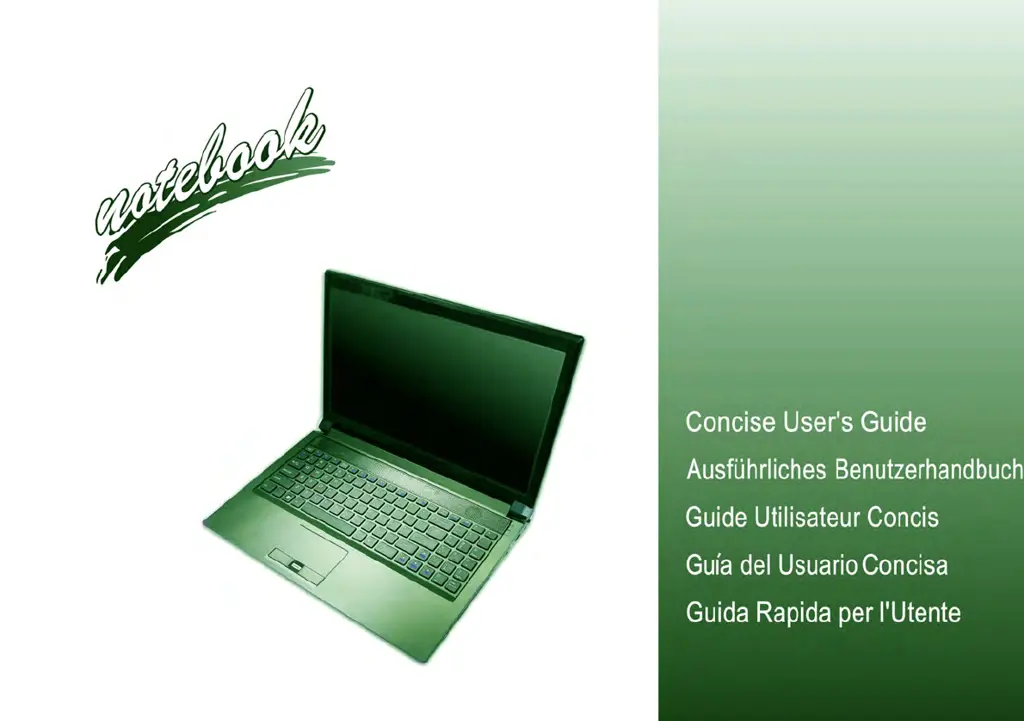
Clevo P170EM - User Manual

Clevo P170EM
196 pages
Print Icon
To Next Page IconTo Next Page
Loading...

Table of Contents

Other manuals for Clevo P170EM

Questions and Answers

  • L
    Larry BurnsJul 26, 2025
    What to do if my Clevo P170EM Laptop isn't charging devices via USB when off?
    • R
      Ronald RichardsonJul 26, 2025
      If your Clevo Laptop, while off or in Sleep Mode and powered by AC/DC adapter or battery (above 20%), isn't charging a device plugged into the powered USB port, it may be because the port is not powered on. Try toggling power to the port using the Fn + power button combination. Note that this function may not work with all external USB devices. If that's the case, power on the computer and connect the USB device to charge it.
  • K
    Kimberly MorenoJul 30, 2025
    How to fix no sound after installing Windows on my Clevo P170EM?
    • J
      Jacob PattersonJul 30, 2025
      If you can't hear any sound after installing Windows on your Clevo Laptop, the audio driver may not be installed. Install all the drivers as instructed in the section "Driver Installation" and ensure that you install the audio driver.
  • M
    Marcus ZimmermanAug 4, 2025
    How to turn on Bluetooth on Clevo P170EM Laptop after sleep?
    • A
      Angela HarrisonAug 4, 2025
      If the Bluetooth module is off after resuming from Sleep on your Clevo Laptop, use the key combination (Fn + F12) to power on the Bluetooth module.
  • M
    Mary BrownAug 7, 2025
    Why can't I hear any sound after installing Windows 7 on my Clevo Laptop?
    • N
      Nathan CampbellAug 7, 2025
      If you've installed Windows 7 on your Clevo Laptop and can't hear any sound, it's likely that the audio driver hasn't been installed. Make sure to install all the drivers as instructed in the "Driver Installation" section, paying special attention to the audio driver.
  • S
    Sheila Hunter MDAug 12, 2025
    What to do if my USB device isn't charging on my Clevo Laptop?
    • M
      Michael WoodsAug 12, 2025
      If your Clevo Laptop is powered by the AC/DC adapter or battery (above 20%) but a device plugged into the powered USB port isn't charging, the port might not be powered on. Try toggling power to the port using the Fn + power button combination. Note that this function may not work with all external USB devices. If that’s the case, power the computer on and connect the external USB device to charge it.
  • J
    Jessica GreenAug 16, 2025
    How to enable Wireless LAN/Bluetooth on Clevo Laptop?
    • B
      Barbara HaasAug 16, 2025
      If you can't detect the Wireless LAN or Bluetooth modules on your Clevo Laptop, the modules might be turned off. Check the LED indicator to see if the modules are on or off. If the LED indicator is not illuminated, press the appropriate function key combination to enable the modules.
  • J
    Joseph YoungAug 20, 2025
    How to turn on Bluetooth after sleep on Clevo Laptop?
    • L
      Lisa JonesAug 20, 2025
      To power on the Bluetooth module after your Clevo Laptop resumes from Sleep mode, use the key combination (Fn + F12).

Clevo P170EM Specifications

General IconGeneral
BrandClevo
ModelP170EM
CategoryLaptop
LanguageEnglish

Related product manuals