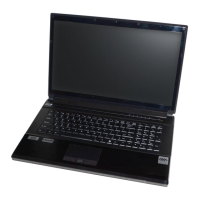
EasyManua.ls Logo

Clevo P150EM - User Manual

Clevo P150EM
196 pages
Print Icon
To Next Page IconTo Next Page
Loading...

Table of Contents

Other manuals for Clevo P150EM

Questions and Answers

  • C
    calhounshirleyAug 3, 2025
    What to do if my Clevo Laptop isn't charging devices via USB when off?
    • J
      Justin PhamAug 3, 2025
      If your Clevo Laptop, while off or in Sleep Mode and powered by AC/DC adapter or battery (above 20%), isn't charging a device plugged into the powered USB port, it may be because the port is not powered on. Try toggling power to the port using the Fn + power button combination. Note that this function may not work with all external USB devices. If that's the case, power on the computer and connect the USB device to charge it.
  • L
    Lee GonzalezAug 7, 2025
    How to fix no sound after installing Windows on my Clevo P150EM?
    • R
      Robert LeeAug 7, 2025
      If you can't hear any sound after installing Windows on your Clevo Laptop, the audio driver may not be installed. Install all the drivers as instructed in the section "Driver Installation" and ensure that you install the audio driver.
  • C
    carol33Aug 12, 2025
    How to turn on Bluetooth on Clevo P150EM Laptop after sleep?
    • B
      brandy64Aug 12, 2025
      If the Bluetooth module is off after resuming from Sleep on your Clevo Laptop, use the key combination (Fn + F12) to power on the Bluetooth module.
  • L
    Leon ScottAug 16, 2025
    Why can't I hear any sound after installing Windows 7 on my Clevo Laptop?
    • A
      autumnbrownAug 16, 2025
      If you've installed Windows 7 on your Clevo Laptop and can't hear any sound, it's likely that the audio driver hasn't been installed. Make sure to install all the drivers as instructed in the "Driver Installation" section, paying special attention to the audio driver.
  • H
    Harry GrahamAug 21, 2025
    What to do if my USB device isn't charging on my Clevo Laptop?
    • J
      Joseph GuzmanAug 21, 2025
      If your Clevo Laptop is powered by the AC/DC adapter or battery (above 20%) but a device plugged into the powered USB port isn't charging, the port might not be powered on. Try toggling power to the port using the Fn + power button combination. Note that this function may not work with all external USB devices. If that’s the case, power the computer on and connect the external USB device to charge it.
  • J
    Jacob PerezAug 25, 2025
    How to enable Wireless LAN/Bluetooth on Clevo Laptop?
    • M
      Miguel WarrenAug 26, 2025
      If you can't detect the Wireless LAN or Bluetooth modules on your Clevo Laptop, the modules might be turned off. Check the LED indicator to see if the modules are on or off. If the LED indicator is not illuminated, press the appropriate function key combination to enable the modules.
  • W
    wrightmauriceAug 29, 2025
    How to turn on Bluetooth after sleep on Clevo Laptop?
    • J
      Joseph LopezAug 29, 2025
      To power on the Bluetooth module after your Clevo Laptop resumes from Sleep mode, use the key combination (Fn + F12).

Summary

About this Concise User Guide

Regulatory and Safety Information

Details on regulatory compliance and safety precautions for system use.

Trademarks

Lists trademarks and registered trademarks related to the computer.

FCC Statement

Details FCC compliance rules for the device operation.

Instructions for Care and Operation

Power & Battery Safety

Guidelines for safe and proper use of the computer's power adapter and battery.

Polymer Battery Precautions

Battery Disposal & Caution

Important information and warnings regarding battery disposal and handling.

Cleaning

Servicing

System Startup

Model Differences

Details on the variations between different notebook models (A, B, C).

System Software

HDD RAID Support (Model C Only)

Describes HDD RAID setup for Model C, supporting AHCI or RAID modes.

RAID Setup for Windows 7

Information on configuring RAID for Windows 7.

RAID Setup for Windows 8

Guidance for setting up RAID in Windows 8.

RAID Setup for Windows 7 (Model C Only)

RAID Setup Procedure

Part I: BIOS

Steps to configure SATA Mode and BIOS settings for RAID.

Part II: Intel Matrix

Steps to create RAID volumes using the Intel Matrix.

System Map: Front View with LCD Panel Open

Wireless Device Operation Aboard Aircraft

Information on using wireless devices while aboard an aircraft.

LED Indicators

Keyboard & Function Keys

Keyboard LED (Models A & C Only)

Keyboard Backlight Application

How to access and configure keyboard backlight settings and effects.

Control Center

System Map: Front, Left, Right & Rear Views (Models A & B)

System Map: Front, Left, Right & Rear Views (Model C)

System Map: Bottom Views

Battery Information

Instructions for initial charging, discharging, and maintenance of the battery.

HDMI Port Functionality

Details on HDMI port supporting video/audio and its interaction with THX Tru Studio Pro.

CPU and Overheating

Information about CPU serviceability and preventing overheating by ensuring vent clearance.

Windows Control Panel & Desktop

Video Features

NVIDIA Optimus & AMD PowerXpress

Seamless switching between integrated and discrete GPUs for power saving and performance.

Display Devices

Power Options

Audio Features

Audio Setup for HDMI

Steps to configure HDMI audio output through the Sound control panel.

Setup for Audio Recording

Setup for 5.1 or 7.1 Surround Sound

THX TruStudio Pro Audio

THX TruStudio Pro AP Installation

Steps to install the THX TruStudio AP software for audio configuration.

THX TruStudio Pro Activation

Steps to activate the THX TruStudio Pro application via internet connection.

THX TruStudio Pro Application Usage

How to run the THX TruStudio Pro application and its settings.

THX Tru Studio Pro & HDMI Compatibility

Information on THX audio effects disabling with HDMI display connection.

Driver Installation

Manual Driver Installation

Procedure for manually installing drivers from the CD/DVD.

PC Camera (Option)

PC Camera Driver Installation (Win 7)

Steps to install the PC Camera driver for Windows 7.

Camera Application (Win 7)

Guide to using the camera application for video viewing and capture.

Set Capture File

How to set file name and location before capturing video.

Reducing Video File Size

Metro UI Camera App (Win 8)

Taking Pictures;Capturing Video

Wireless LAN Module (Option)

WLAN Driver Installation

Instructions for installing WLAN drivers for Intel and Third Party modules.

WLAN Configuration in Windows 7

WLAN Configuration in Windows 8

Intel Wireless Display Application

Intel WiDi Application Installation

Steps to install the Intel WiDi Application for wireless display.

Intel WiDi Application Configuration

Guide to configuring the Intel WiDi application for wireless display setup.

Fingerprint Reader (Option)

Fingerprint Reader Driver Installation

Steps to install the driver for the fingerprint reader.

User Enrollment

Procedure for enrolling fingerprints using the AuthenTec TrueSuite.

Fingerprint Reader Help and Settings

Accessing help topics and personalization settings for the fingerprint reader.

Bluetooth Module (Option)

Bluetooth Driver Installation

Instructions for installing Bluetooth drivers for Intel and Third Party modules.

Bluetooth Configuration in Windows 7

Setup your Bluetooth Device

Making your Bluetooth device discoverable for the computer.

Turning the Bluetooth Module On

How to power on the Bluetooth module and access its control panel.

Bluetooth Help and Support

Finding help and support for Bluetooth transfer and configuration.

Bluetooth Configuration in Windows 8

Intel Rapid Storage Technology

IRST Driver Installation

Steps to install the Intel Rapid Storage Technology (IRST) driver.

Intel Smart Response Technology

Overview of Intel Smart Response Technology for system acceleration.

Enabling Intel Smart Response Technology

Guide on how to enable and configure Intel Smart Response Technology.

Intel Rapid Start Technology

Intel Rapid Start Technology Configuration

Steps to configure Intel Rapid Start Technology for faster system resume.

Intel Rapid Start Technology Driver Installation

Troubleshooting

Specifications

Latest Specification Information

Correctness of specifications at time of printing; potential for changes.

Processor Options

Lists available Intel Core processors for different models (A, B, C).

LCD Specifications

Details the display size and resolution for Models A & B and Model C.

Memory Specifications

Information on memory slots, type, speed, and expansion.

Core Logic, BIOS, and Security

Details on Chipset, BIOS version, and security features like lock slot and password.

Storage Options

Keyboard Features

Pointing Device

Video Adapter Specifications

Audio Features

Mini-Card Slots

Card Reader

Interface Ports

Communication Features

WLAN and Bluetooth Modules

Environmental Specifications

Power Specifications

Dimensions & Weight

Clevo P150EM Specifications

General IconGeneral
BrandClevo
ModelP150EM
CategoryLaptop
LanguageEnglish

Related product manuals