11
The PVM is capable of displaying JPEG images or AVI video files from an SD Card. Before
loading files onto the SD Card, you MUST format the card to FAT-32. Failure to format the
SD Card may result in a black screen showing instead of the desired image or video.
The preferred JPEG image size is 1024 x 768. Load files directly onto the card. Do not place
files into folders. Skip to step 6 below for using JPEG images.
The preferred video format for Video is AVI with a maximum resolution size of 720 x 540. If
you already have a supported video, simply load it onto the SD Card.
To convert an unsupported video to the correct AVI format, follow the procedure below:
1. Download VLC
Download, install, & open the free program VLC. http://www.videolan.org/vlc/index.html
2. Convert
From the File menu select Convert/Stream.
3. Drop Media
Drag/Drop the desired video into the box that says “Drop Media Here”.
4. Choose Profile
A) Under Choose Profile, Click the Customize button. Select AVI under the
Encapsulation menu.
B) Click the Video codec tab, under the Codec dropdown, select DIVX 3.
In the Resolution field, enter 720 for width, and 540 for height.
Note: 640x480 will also work. (The Bitrate and Frame Rate should automatically
populate based on the quality of the original video).
C) Click Apply.
5. Choose Destination
Under Choose Destination, click Save File As > Browse to select the SD Card in which you
would like to save the file to. (Load files directly onto the card. Do not place files into
folders). Click Save when the progress bar has completed loading.
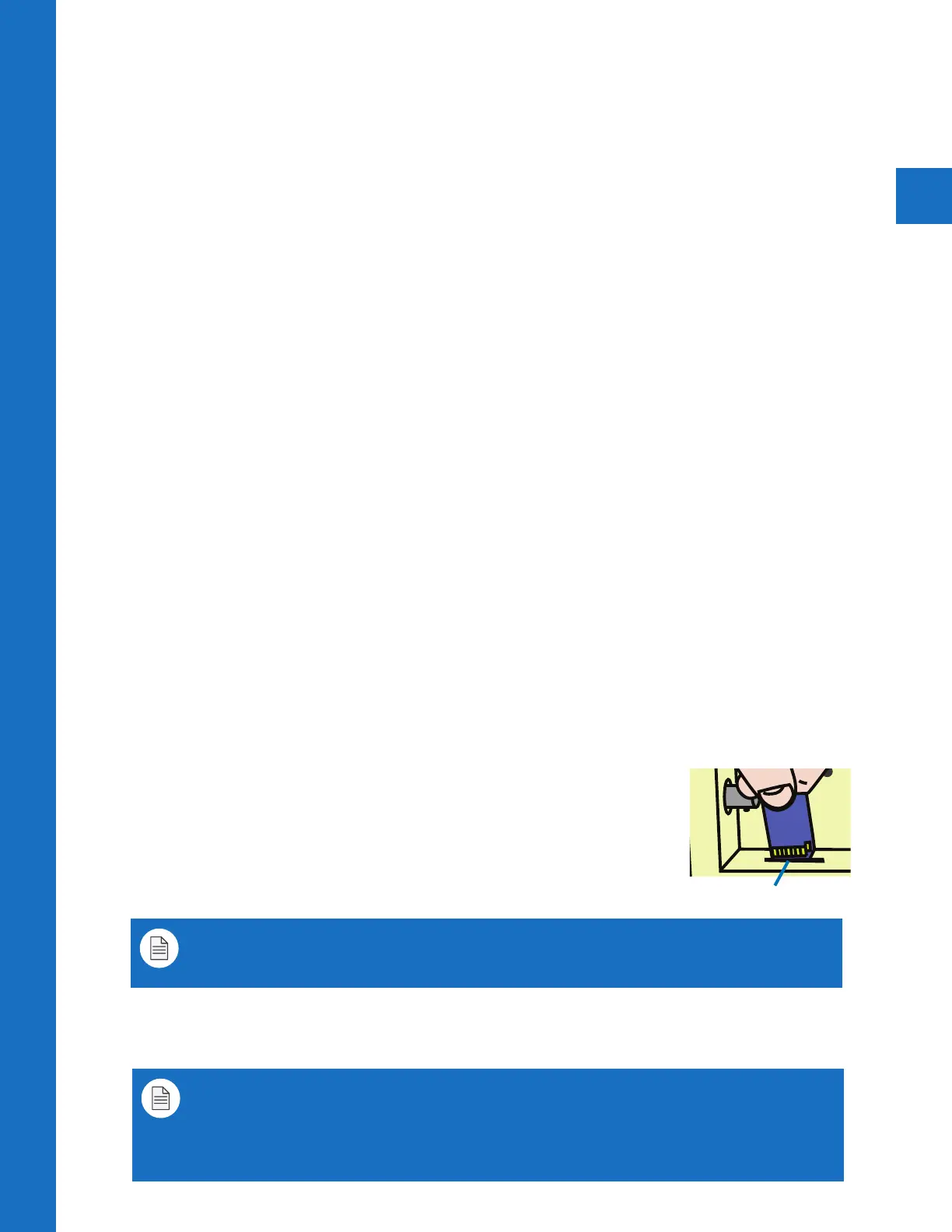
6. Insert Card into PVM
Insert the SD Card into the PVM with the contacts facing outward
(see image on right). Push the card down until it clicks into place.
7. Power Cycle
Power cycle the unit by unplugging the power cord, or pressing the
power button on the remote control.
8. Set Viewing Options
In the PVM’s OSD menu, under Display, make sure the image mode is set to a mode which
can display SD Card content.
Upload SD Card Content
SD-Card
AUTO
MENUUP
DOWNPOWER
UP
DOWN
LEFT
RIGHT
SET
LAN
(POE)
DC 24V
INPUT
HDMI
LAN
(POE)
DC 24V
INPUT
HDMI
LAN
(POE)
DC 24V
INPUT
BNC
OUTPUT
BNC
OUTPUT
BNC
OUTPUT
VIDEO SD MEMORY
DO NOT REMOVE - CIF MEMORY
VIDEO SD MEMORY
DO NOT REMOVE - CIF MEMORY
POWER
AUTO
UP
DOWN MENU
POWER
AUTO
UP
DOWN MENU
VIDEO SD MEMORY
DO NOT REMOVE - CIF MEMORY
Contacts Facing Out
Note: If using an Apple Computer, you will not be able to preview an AVI file.
Note: The SD Card player is not High Definition.
Note: If the video is not formatted/sized correctly (too large), the VOV window will display
a default blue or black screen.
Note: When an SD Card is inserted , you MUST power cycle the unit! Not doing so, may
result in corrupted SD Card which can eect PVM operation. Press power button on
remote control, or remove and replace power cord to power cycle.



 To Next Page