13
IP CAMERA / System Management
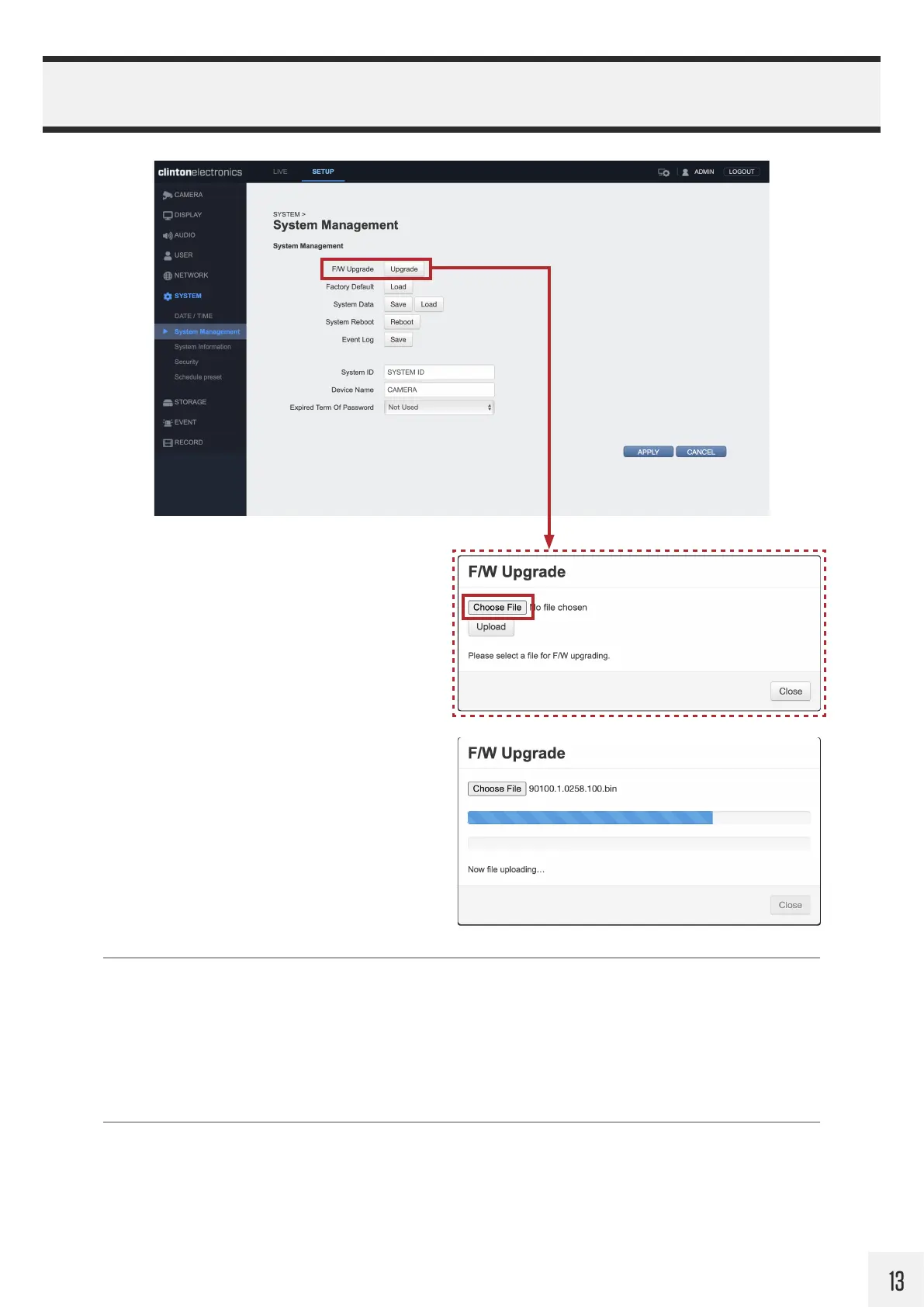
Firmware Upgrade:
To update the camera’s firmware, click the
Upgrade button, then click the Choose
File button. Select the location on your
computer where the firmware file is saved.
Click Upload to begin the firmware update.
For the most up-to-date firmware, visit
www.clintonelectronics.com/downloads
The firmware update could take up to 5-10
minutes to complete. During the firmware
update do not adjust additional camera
settings. Once the firmware update is
complete the camera will reboot.
Factory Default:
Click the Load button to restore the camera’s default settings. This will reset or erase all of the settings on
the camera, with the exception being network settings (the camera’s IP Address should remain unchanged,
unless the DHCP server re-assigned a new address)
During the Factory Default process the camera will be inaccessible for about 1 minute and perform a reboot.
System Data:
The camera’s settings can be saved as a “config” file that can be used to quickly setup additional cameras.
Click Save to save the camera’s settings to your computer. Click Load to copy the saved settings from the
connected computer to the camera.


 To Next Page