

EasyManua.ls Logo

Cloud Sunshine T1 - User Manual

Cloud Sunshine T1
21 pages
Print Icon
To Next Page IconTo Next Page
Loading...
Question and Answer IconNeed help?

Do you have a question about the Cloud Sunshine T1 and is the answer not in the manual?

Summary

PRECAUTIONS

On the Road

Advice on using the device while driving.

Near Sensitive Electronics or Medical Equipment

Warnings about using the device near sensitive electronics and medical equipment.

While Flying

Guidelines for using the device on aircraft and following airline regulations.

At a Petrol Station

Precautions for using the device at petrol stations due to explosive materials.

Making Repairs

Instructions against unauthorized repairs and using the device with a damaged antenna.

Around Children

Safety advice regarding keeping the device out of children's reach.

Near Explosives

Instructions to turn off the device in areas with explosive materials.

Working Temperature

Information on the device's safe operating temperature range and hearing safety.

PARTS AND BUTTONS OF THE DEVICE

TOUCH BUTTONS

INSERTING;REMOVING CARDS

HOME SCREEN

QUICK NOTIFICATION PANEL

SETTINGS MENU

Network & Internet

Configuration for Wi-Fi, mobile networks, data usage, and hotspots.

Connected devices

Managing Bluetooth and USB connections.

Apps & notifications

Adjusting notification settings, app info, permissions, and battery.

Display

Adjusting display settings.

Sound

Adjusting audio settings like ringtones.

Storage

Viewing internal and external storage settings.

Privacy

Changing privacy settings.

Location

Adjusting location detection and GPS settings.

Security

Adjusting phone security settings.

Accounts

Adding or removing accounts like Google.

DuraSpeed

Enabling or disabling the DuraSpeed feature.

System

System configuration including language, input, date, time, and backup.

About Tablet

Displays information about the phone.

INSERTING;REMOVING SIM CARDS

VIEW THE PHOTOS

SEND E-MAIL

VIEW THE FILES

SOFTWARE KEYBOARD

HOW TO CONNECT TO A COMPUTER

CONNECTION TO INTERNET

MOBILE DATA AND INTERNET

BLUETOOTH

CAMERA

TROUBLE SHOOTING

Power “OFF”; Restart; Reset the Phone

Restore Default Setting

FCC RF EXPOSURE INFORMATION

Overview

This document is a user manual for the Cloud Sunshine T1 tablet.

Function Description

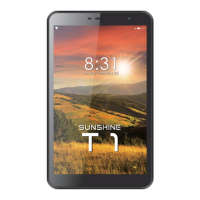
The Cloud Sunshine T1 is a portable tablet designed for various functions including communication, internet browsing, multimedia consumption, and productivity tasks. It supports mobile data (2G/3G/4G) with SIM card functionality, Wi-Fi connectivity, and Bluetooth for connecting to other devices. The tablet features a touchscreen interface for intuitive navigation and interaction. It also includes a camera for taking photos and recording videos, and a software keyboard for text input.
Important Technical Specifications

  • Working Temperature: The device operates optimally between 0 and 40 degrees Celsius.
  • Connectivity: Supports Wi-Fi, Bluetooth, and mobile data (2G/3G/4G) with SIM card slot.
  • Storage: Includes a T-FLASH (micro SD) card slot for expandable storage.
  • Ports: Micro-USB connector, Earphone Jack.
  • Buttons: Volume Button, Power Button, Touch Buttons (Back, Home, Recent Apps).
  • Camera: Front Camera and Rear Camera with Flash.
  • Audio: Microphone, Speaker.
  • Other Features: Reset Hole.

Usage Features

  • Navigation:
    • Touch Buttons: A dedicated "back" button for navigating to the previous menu/page, a "home" button to return to the main screen, and a "recent applications" button to display a menu of recently opened apps (including a "CLEAR ALL" button).
    • Swipe Gestures: Swiping up on the home screen opens the application list.
    • Touchscreen: Responds to finger touch for single clicks (to select icons/options), long presses (to delete/move apps, display APP info, widgets, shortcut menu), and dragging (to move icons to different screens).
  • SIM Card and SD Card Installation:
    • SIM Card: Insert fingernail into the slot next to the top card slot, buckle the cover outward, gently press to remove/pull out. After insertion, turn on the phone and wait for network information.
    • TF Card (micro SD card): Ensure the phone is OFF before inserting. Insert the TF card into the slot under the card cover until it clicks. A "Preparing SD card" prompt will appear.
    • TF Card Removal: Close all applications/documents opened from the TF card. Go to "Settings" > "Storage" > "Unmount SD card." A "SD card safe to remove" prompt will appear. Gently press the TF card to remove it.
    • Warning: Insert the front of the card toward the front of the tablet. Do not use other kinds of SIM cards or non-standard SIM cards cut from a SIM card to avoid damage. Ensure the card slot cover is pressed tightly with no gap.
  • Home Screen: Displays shortcuts to frequently used applications and widgets. The status bar shows system information like time, wireless connectivity, and battery status.
  • Quick Notification Panel: Slide a finger from the top of the screen down to the center to access notifications. Dragging further down reveals a second fast access menu for functions like brightness, auto rotation, Wi-Fi, and Bluetooth.
  • Settings Menu: Allows adjustment of cell phone system configuration. Categories include:
    • Network & Internet: Wi-Fi, Mobile network (SIM card, data network 2G/3G/4G), Data usage, Hotspot & tethering.
    • Connected devices: Bluetooth, USB.
    • Apps & notifications: Notifications, App info, App permissions.
    • Battery: View status, adjust power consumption.
    • Display: Adjust display settings.
    • Sound: Adjust audio settings (ringtones).
    • Storage: View internal and external storage.
    • Privacy: Change privacy settings.
    • Location: Change approximate location detection, improve search results, GPS satellites.
    • Security: Adjust phone's security settings.
    • Accounts: Add/remove Google accounts.
    • DuraSpeed: "ON" / "OFF" setting.
    • System: Language & input, Date & time, Backup (backup/restore data, factory reset), Reset options.
    • About Tablet: Displays information about the phone.
  • Email: Use the Gmail icon to send emails, enter account details, or select from contacts.
  • File Management: Use the "Files" icon to view and manage device files, including content stored on the T-Flash card. Files can be opened, edited, or deleted.
  • Internet Connection:
    • Wireless: Go to "Settings" > "Network & Internet" > "Wi-Fi," slide to ON. Select desired network, enter key if necessary. The device will automatically connect to known networks.
    • Web Browsing: Launch the browser and type the URL.
  • Bluetooth: Go to "Settings" > "Bluetooth," turn ON. Search for devices, select "PAIR."
  • Camera: Touch the camera icon to enter camera mode.
    • Take Photo: Touch the photo icon.
    • Record Video: Touch the video icon.
    • View/Manage Photos/Videos: Touch the "Video" icon on the top right to see previous pictures, delete, share, or set as wallpaper.
    • Switch Camera: Touch the camera switch icon to toggle between front and back cameras.
  • Connecting to a Computer:
    • Note: Turn on the phone before connecting via USB cable.
    • Use a USB cable to connect. The phone will detect the connection.
    • The USB connection menu will appear in the notification bar; select the desired USB operation.

Maintenance Features

  • Closing Applications: If an application is not responding, manually shut it down via "Running Services" in the system configuration interface (accessed by clicking the settings icon on the shortcut bar). This frees memory and improves system speed.
  • Power Off/Restart/Reset:
    • Power Off: Press and hold the power button for 5 seconds.
    • Restart: Press the reset button (located under the power button) with a sharp object.
    • Restore Default Setting (Factory Reset): Go to "Settings" > "Backup" and select "Factory data reset."
    • Warning: Factory data reset will delete all user data, system configuration, and downloaded apps. Use this function carefully.
  • FCC RF Exposure Information:
    • The device complies with FCC RF exposure requirements.
    • Body-Worn Operation: Maintain a minimum separation distance of 0cm between the device (including antenna) and the user's body. Avoid third-party belt-clips, holsters, and similar accessories containing metallic components that cannot maintain this separation.
    • Antenna: Use only the supplied or approved replacement antenna. Unauthorized modifications or damaged antennas can impair call quality, damage the phone, or violate FCC regulations.
    • Normal Position: Hold the phone with the antenna pointed up and over the shoulder.
  • Environmental Considerations: Do not use the device in environments below -10°C or above 40°C, as it may not function correctly.
  • Repairs: Never disassemble the device; leave repairs to professionals. Unauthorized repairs may void the warranty. Do not use if the antenna is damaged.
  • Children: Keep the device out of children's reach; it is not a toy.

Cloud Sunshine T1 Specifications

General IconGeneral
BrandCloud
ModelSunshine T1
CategoryHandhelds
LanguageEnglish