13
PC Function
Youcanusetheunit’sTFTLCDasyourcomputer’smonitor.
Shutdownbothunits andconnecttheVGAjackandPCAudioInjack. Seethe“Cable Connection”1.
section.
TurnontheunitsandpresstheMODEbuttontoselectVGA2.
PC Setup Menu
VariousfeaturescanbepresetthroughthePCmenu.
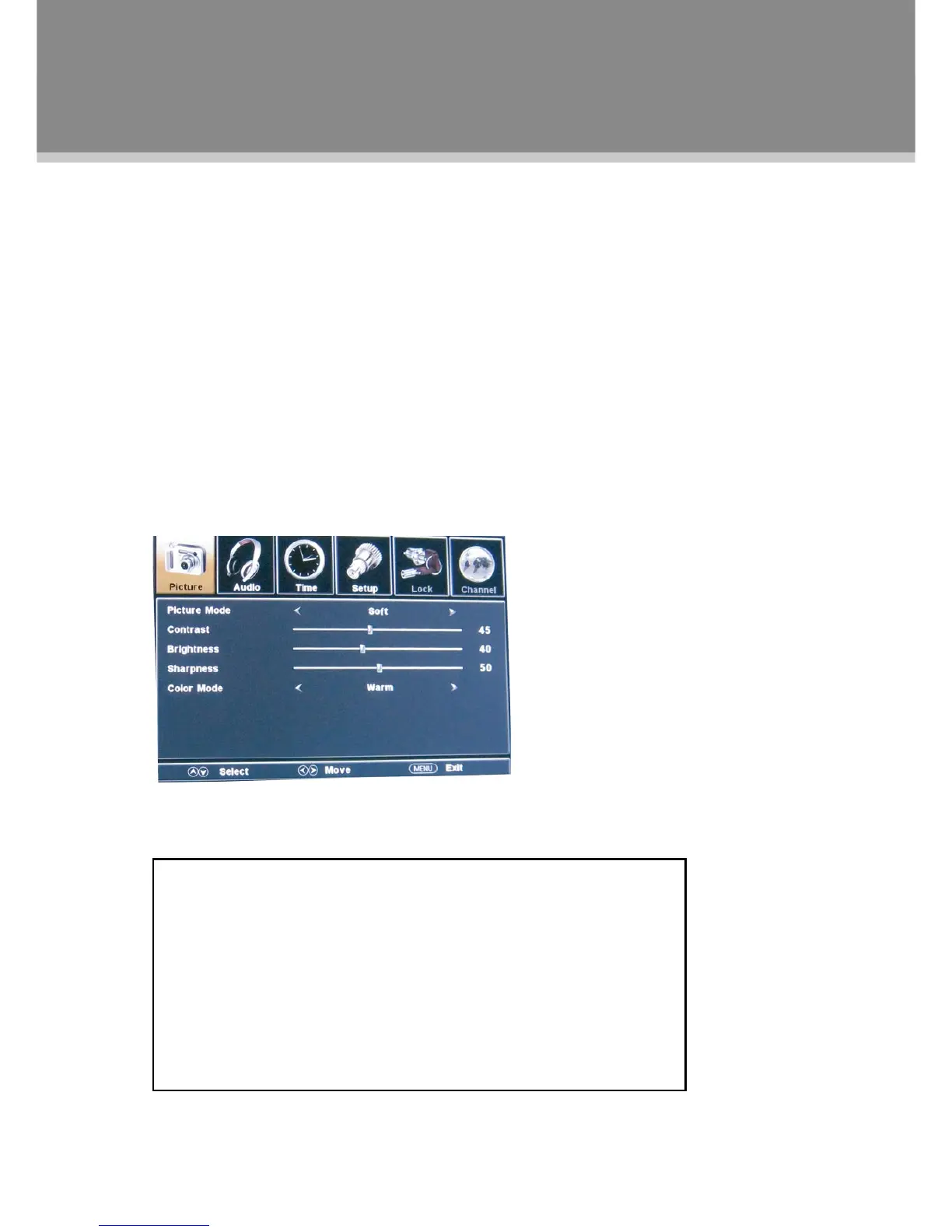
PresstheMENUbuttontodisplaythePCmenu.PCsetupmenuconsistsofPICTURE,AUDIO,TIMEas•
wellasSETUP.
Presstheleft/rightdirectionbuttontoselectthedesiredsub-menu,pressOKtoenter.•
While working with the menu
Presstheup/downdirectionbuttonstoselectthedesireditem.1.
Presstheleft/rightdirectionbuttontoadjust.2.
PressMENUtoexit/backupthemenu.3.
NOTE: PleaseseetheTVsectionformenudescriptions
PC Function
Adjust the PC Screen
UponswitchingtothePCmode,themoniterwillbeautomaticallyregulatedfora
properfunctioning.Iftheresultisnotuptoyourexpectation,pleaseperformthe
followingstepstoadjustthescreenmanually.
Enter the “Advanced”sub-menufromtheSETUPmenu,select“Auto” and1.
presstheleft/rightdirectionbuttontoadjustthemonitorautomatically.
Orifyoustillhaveproblemwiththemonitor after,adjust“H-Pos”,“V-Pos”,2.
”Clock“aswellas“Phase”accordinglyundertheSETUPmenu.


 To Next Page